
Appearance
User Manual for Newline Signage Pro
1. Account Registration
INFO
Create an organizational administrator account in the Newline Signage Pro web console to get started!
1.1. Create an account with your email
Step1. Navigate to the Newline Signage Pro portal. Click “No Account? Create Account” at the bottom of the page.
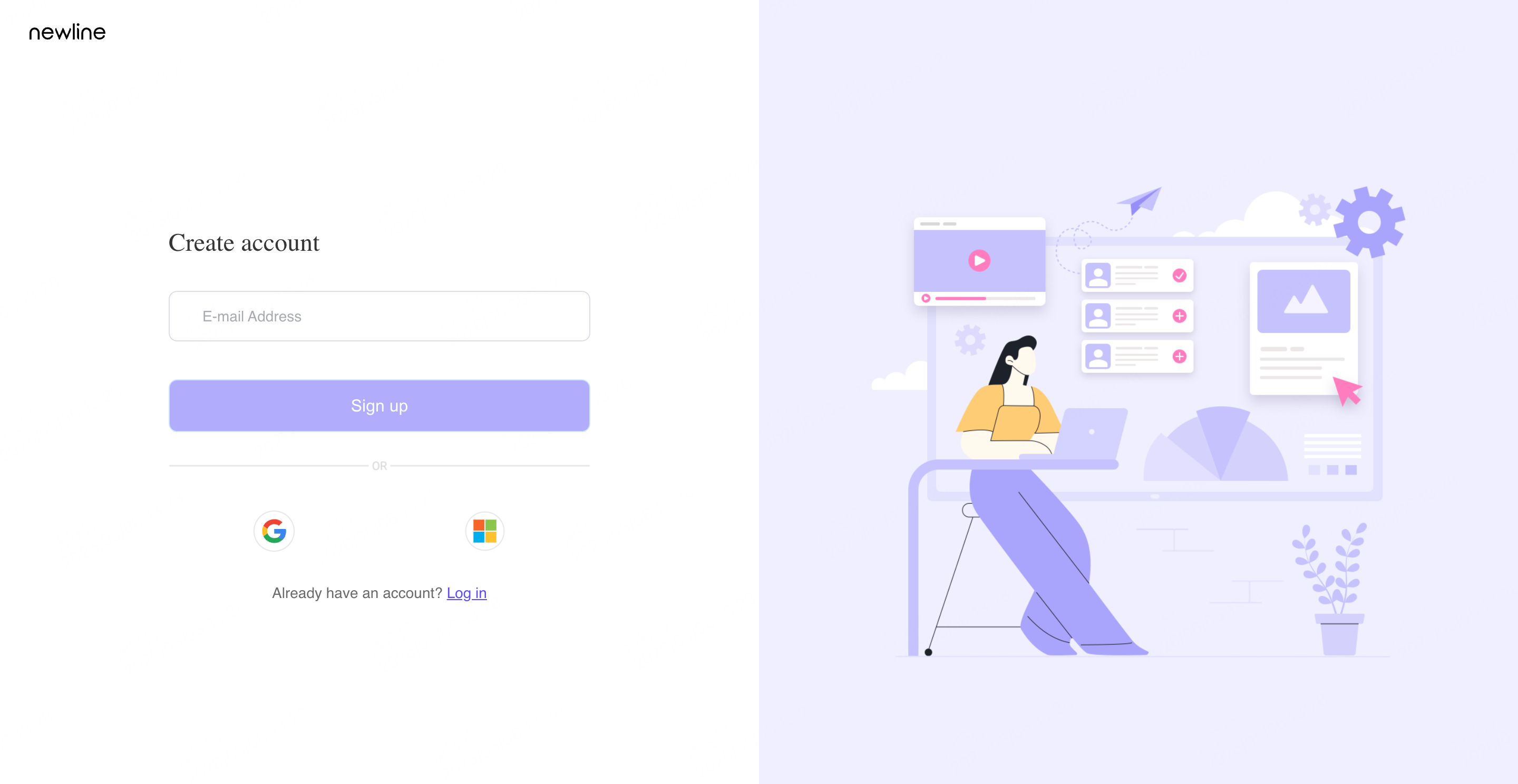
Step2. Enter the email address you’d like to use for the account (must be from your company or organization domain). Do not use personal email accounts such as Gmail, Yahoo, or Outlook. Then, click “Sign up.”
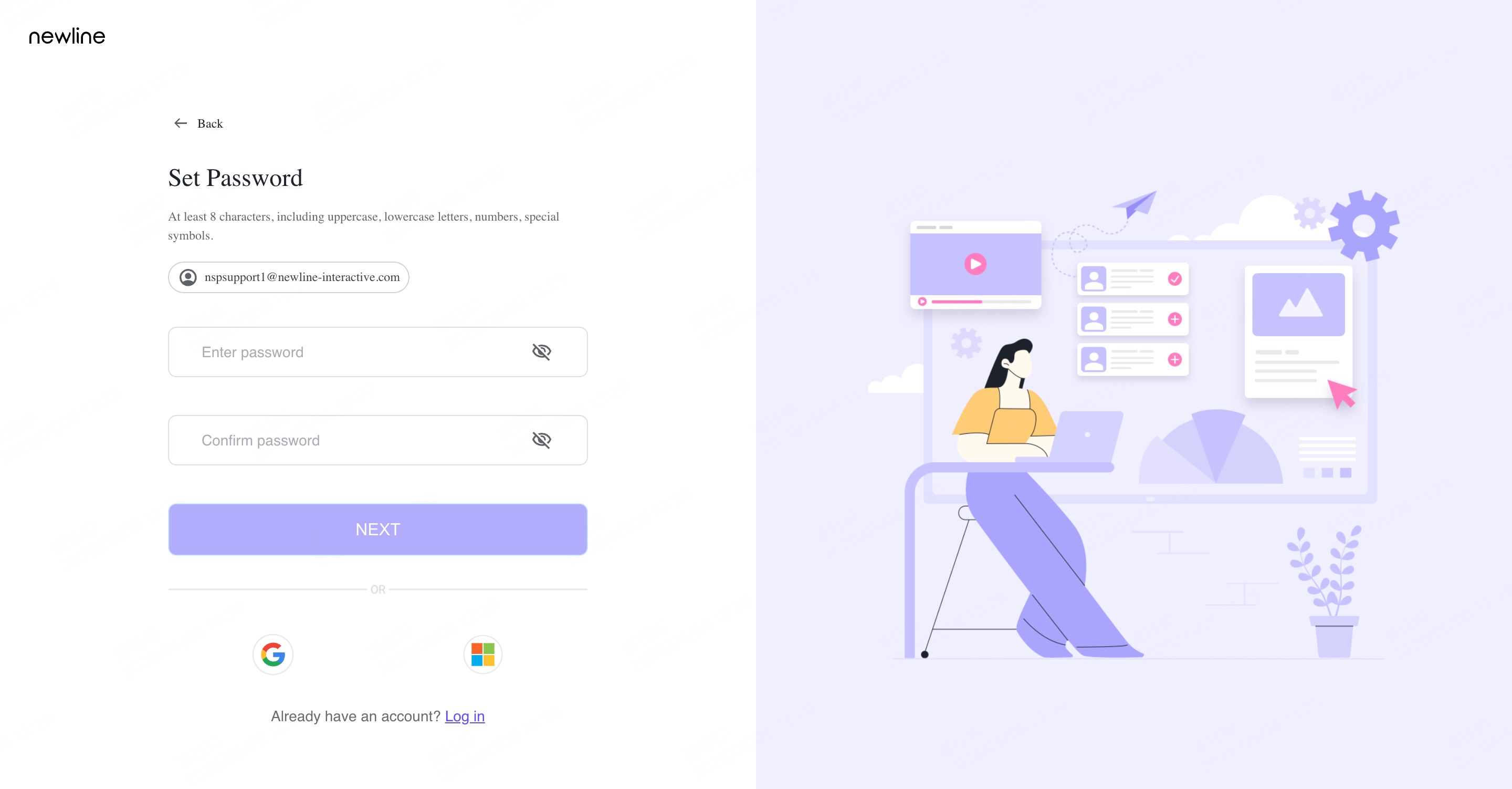
Step3. Set your account password. Then click "Next."
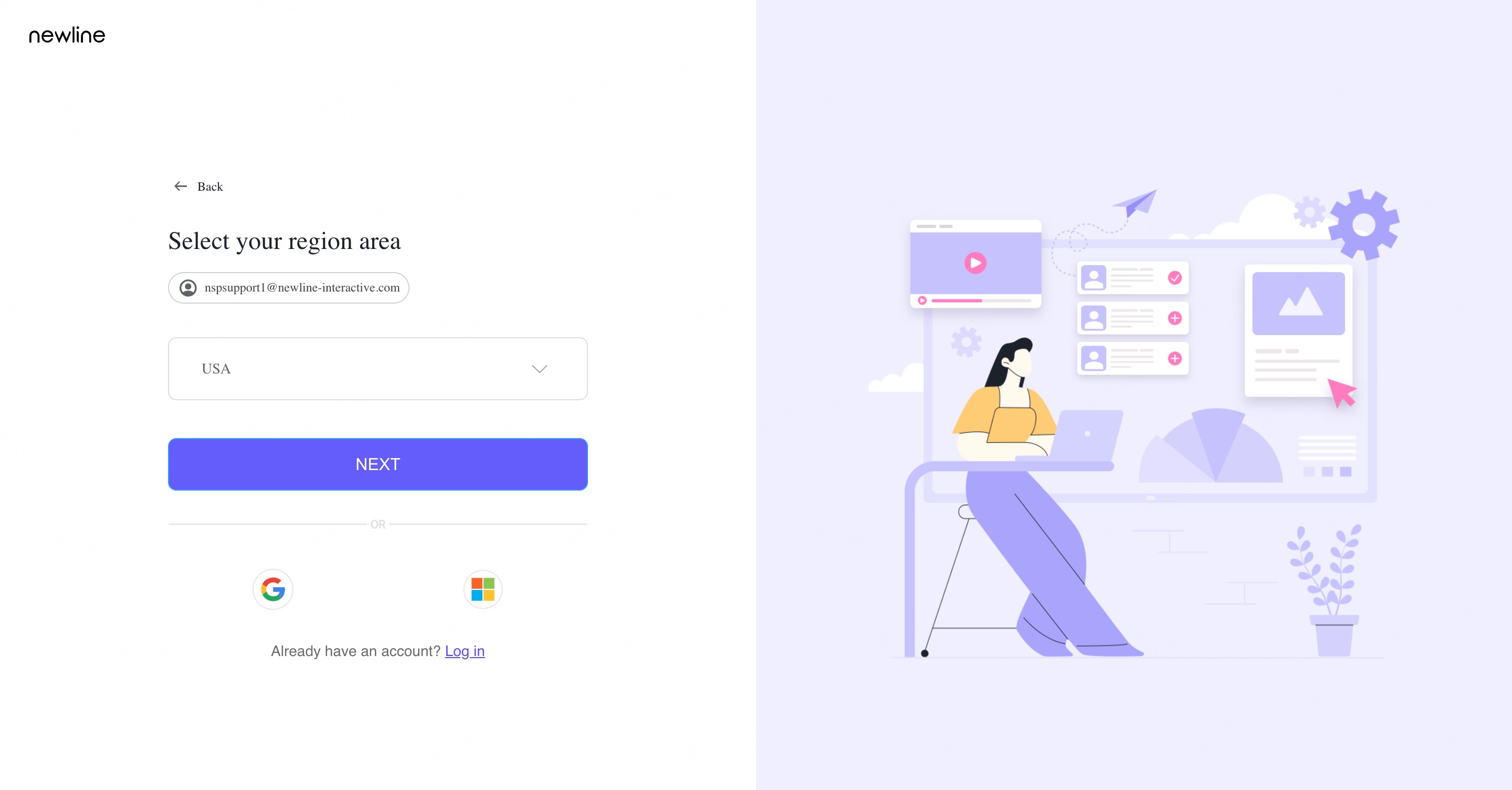
Step4. Select your region. Then click "Next."
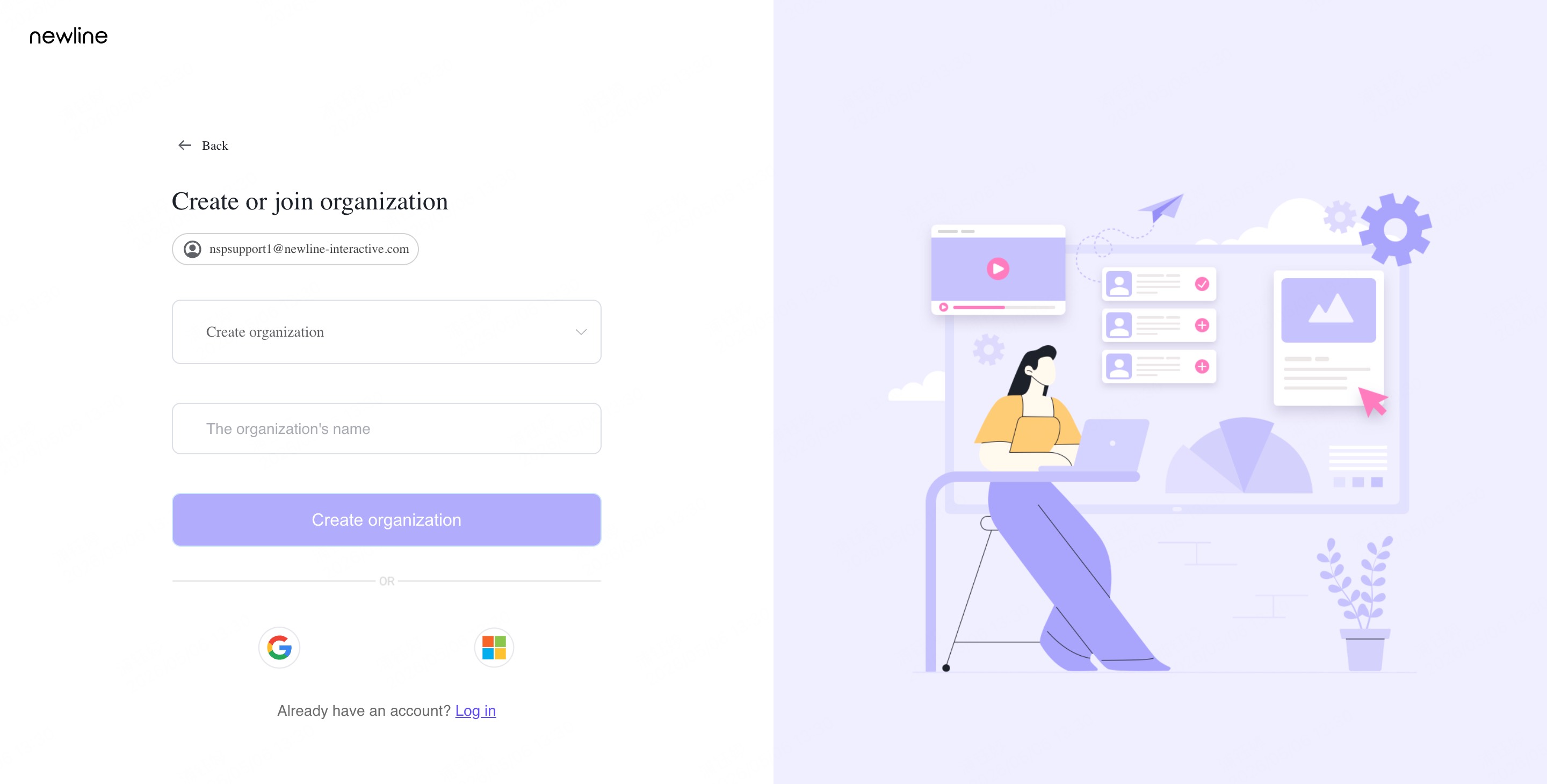
Step5. Choose whether to create a new organization or join an existing organization using the drop-down menu.
If you are creating a new organization, enter the desired name, then click “Create Organization.”
If you are joining an existing organization, you will need to enter the organization’s unique Organization ID number.
💡 Tip: This can be found in the account of anyone who is already a part of the organization. To find the organization number in an existing member’s account:
- Visit this website.
- Once signed in, select “Newline Account,” then “Account Center” on the left side of the screen.
- Select “Organization Settings.”
- Copy the “Organization ID.”
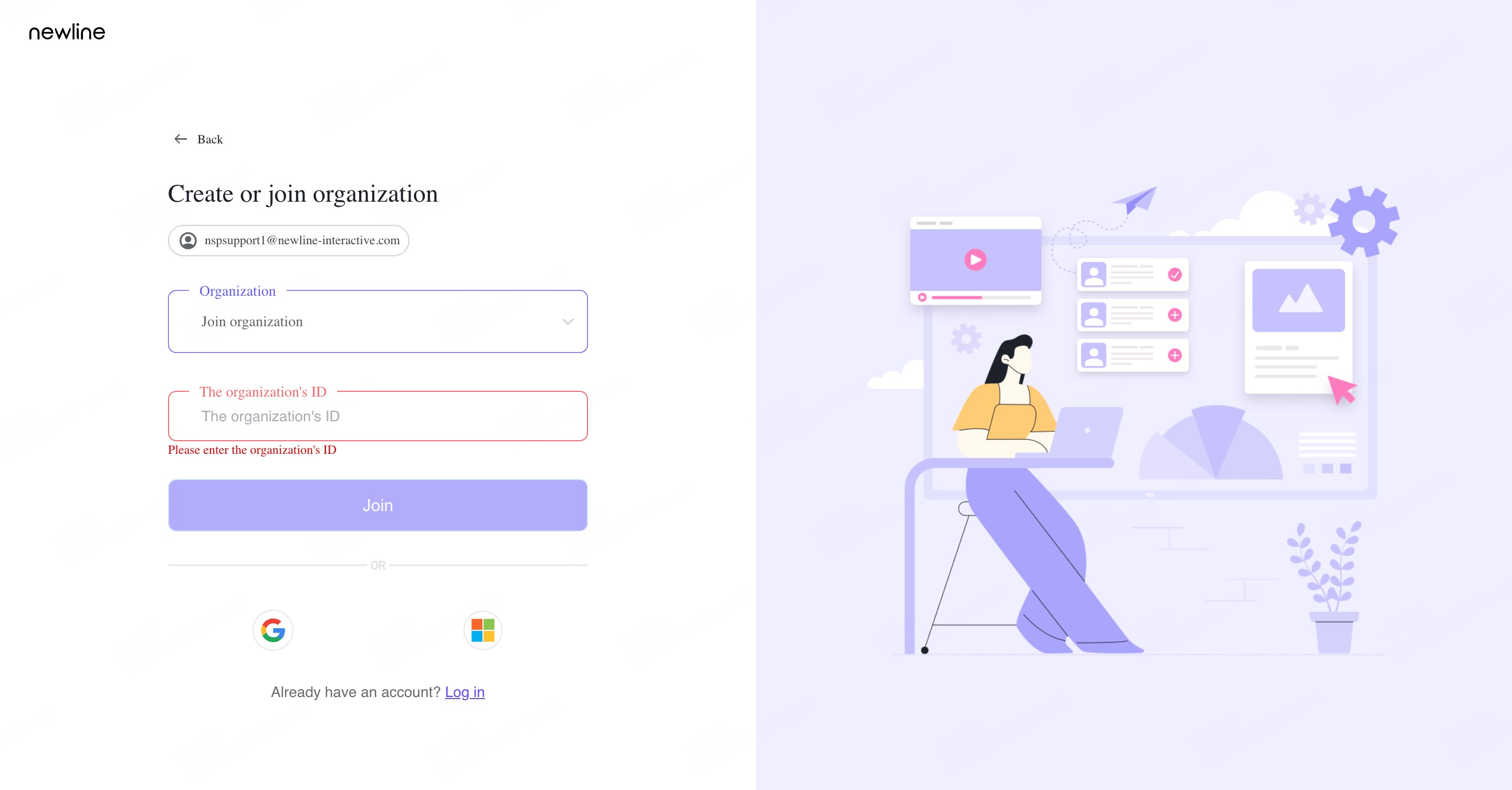
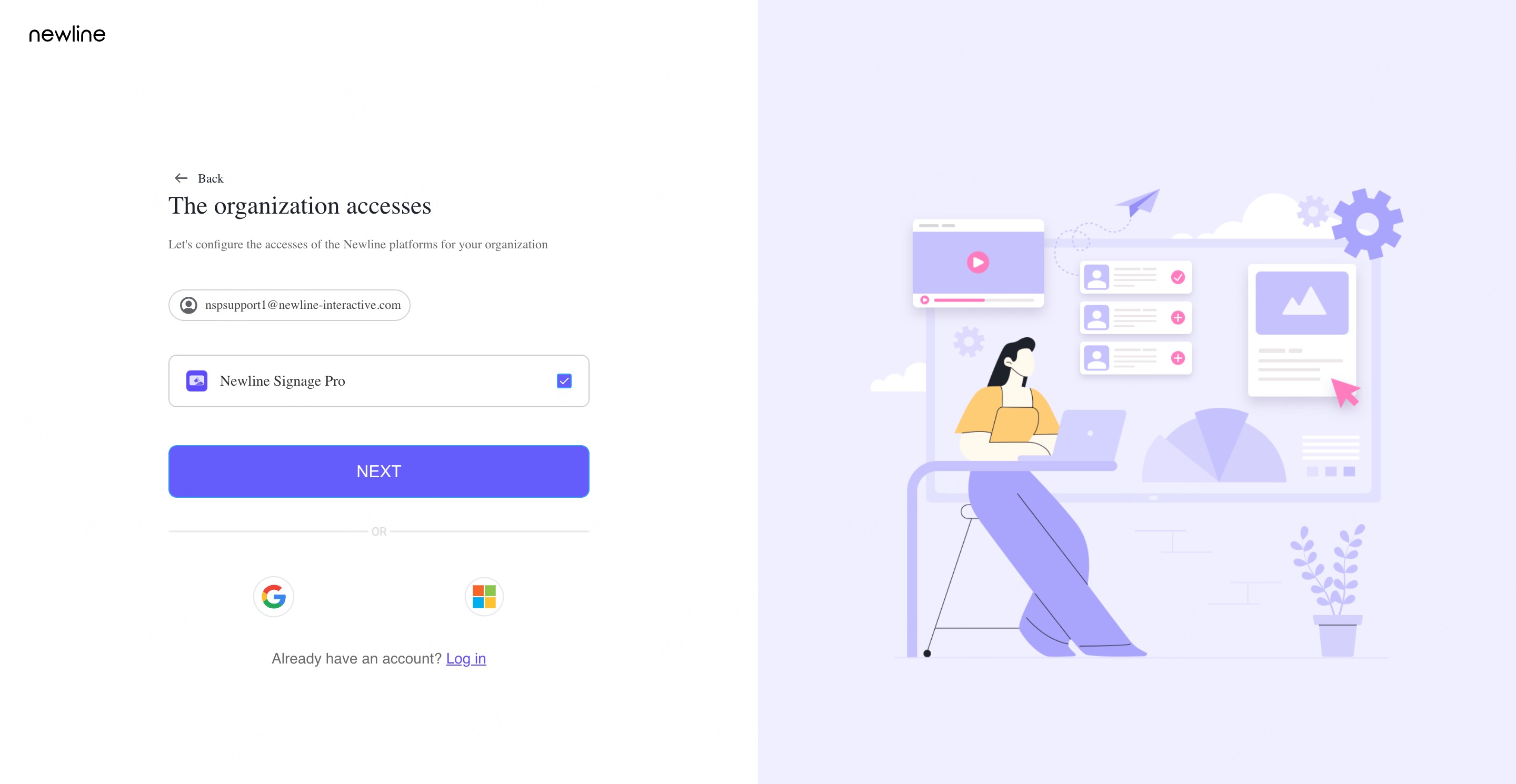
Step6. After creating a new organization or joining an existing one, authorize Newline Signage Pro to access your account. Then, click “Next.”
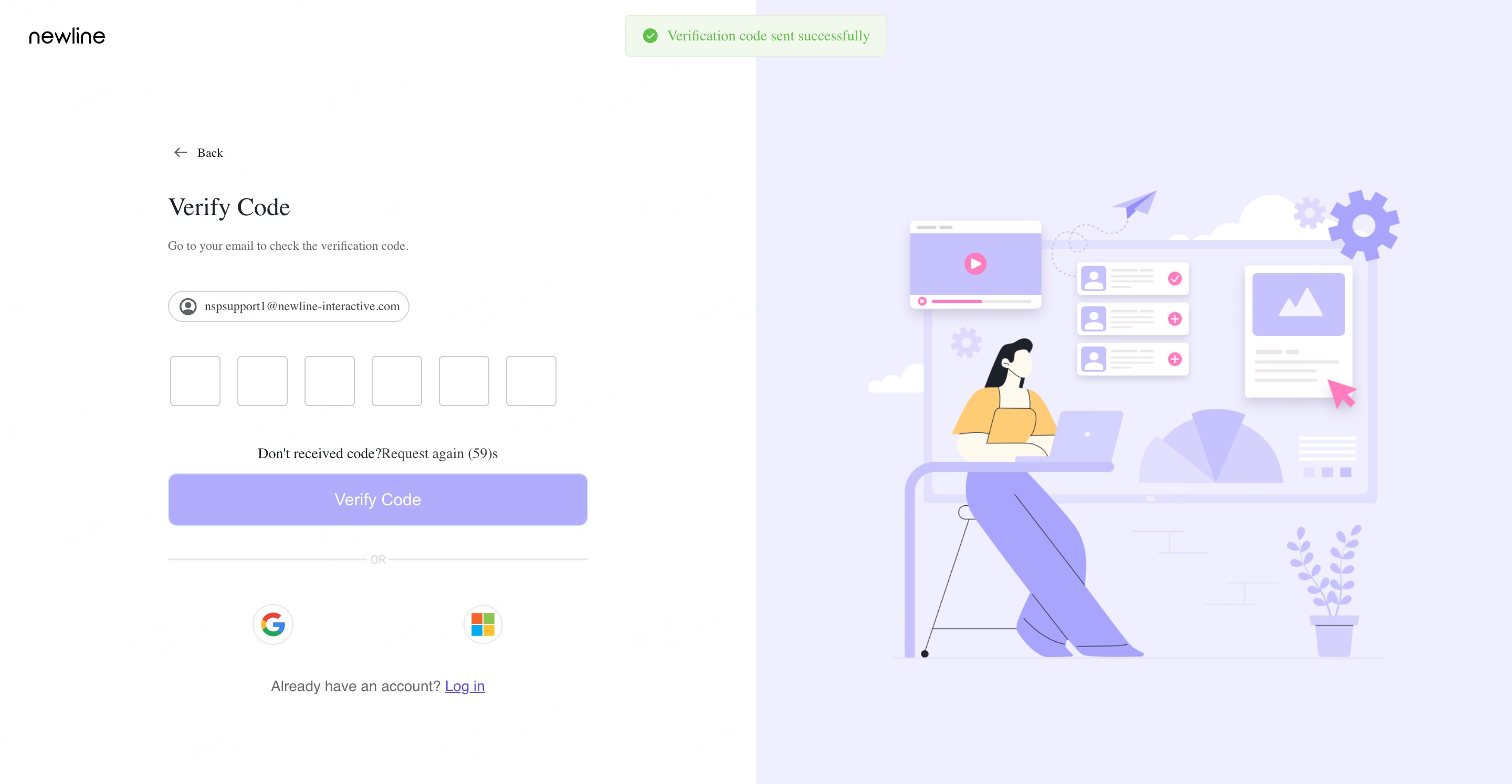
Step7. Check your email for the verification code. Enter the verification code and click “Verify Code.”
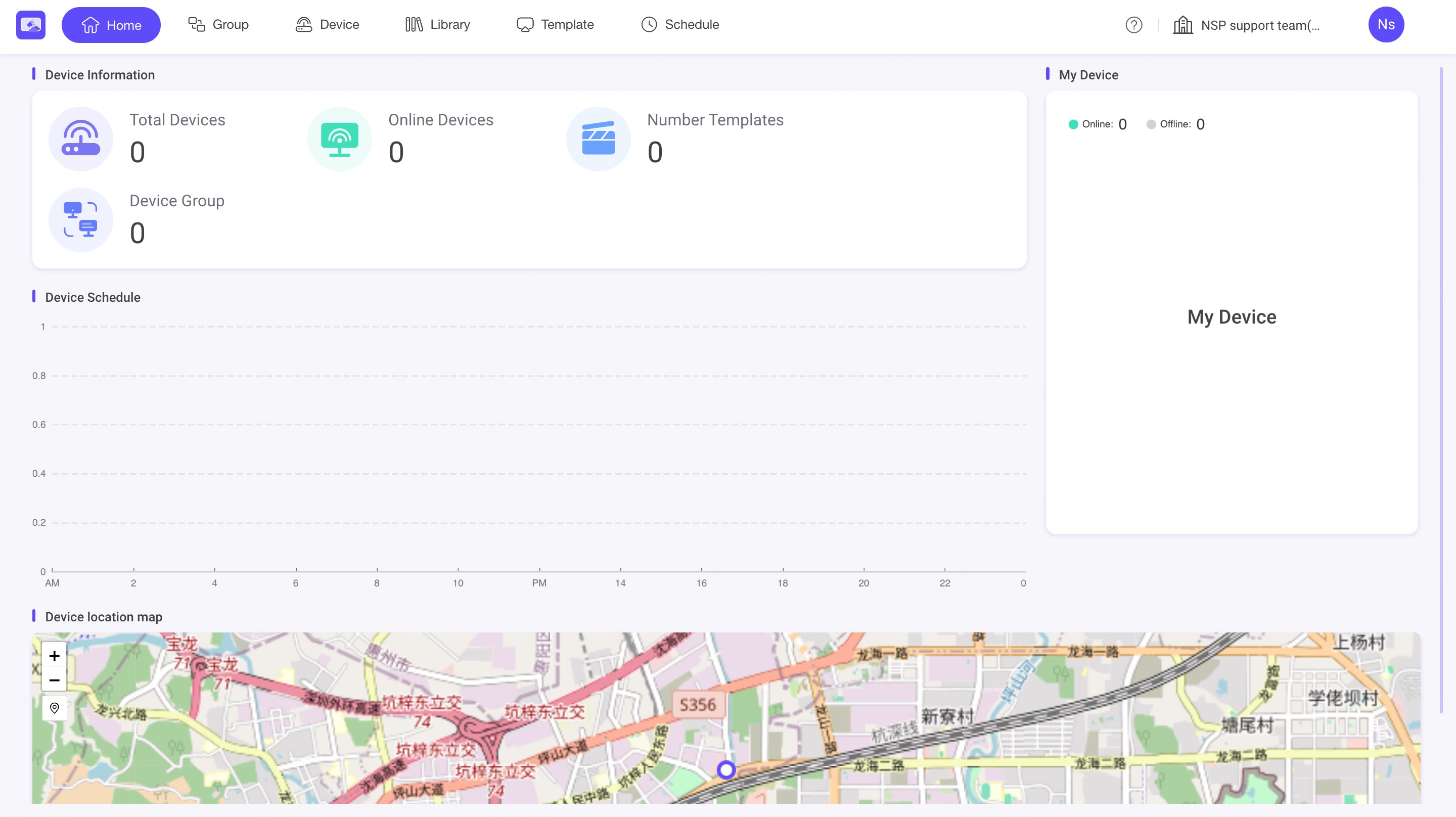
Step8. After the code is verified, enter your login credentials and click “Log In.” You can then begin creating and publishing content to your displays.
1.2. Account Registration via SSO
Step1. Navigate to the Newline Signage Pro portal. Click “No Account? Create Account” at the bottom of the page.
Step2. Choose Google or Microsoft to sign up. Only work accounts under Google Workspace or Microsoft 365 are supported. Personal Gmail or Outlook accounts are not allowed.
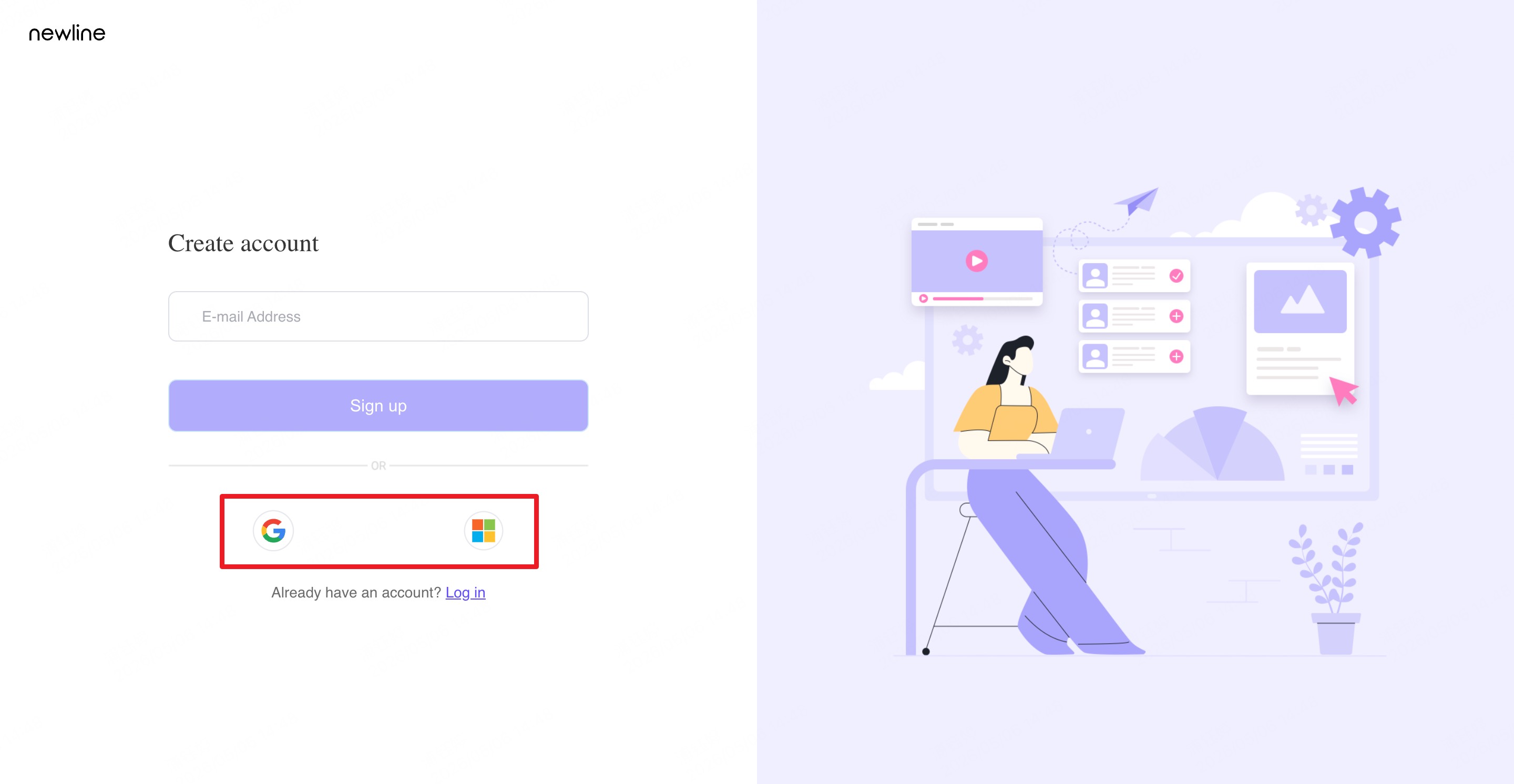
Step3. You will receive a verification email. Complete the activation within one hour.
Step4. Enter your organization name and region when you log in for the first time.
1.3. Associate/Link an SSO Identity
Once an NSP account is established, users may need to update their profile or link their SSO identity with the NSP.
Step1. Navigate and sign in to your Newline Signage Pro portal. In the top left corner, select your “Account” icon. From the dropdown menu, select “My Profile.”
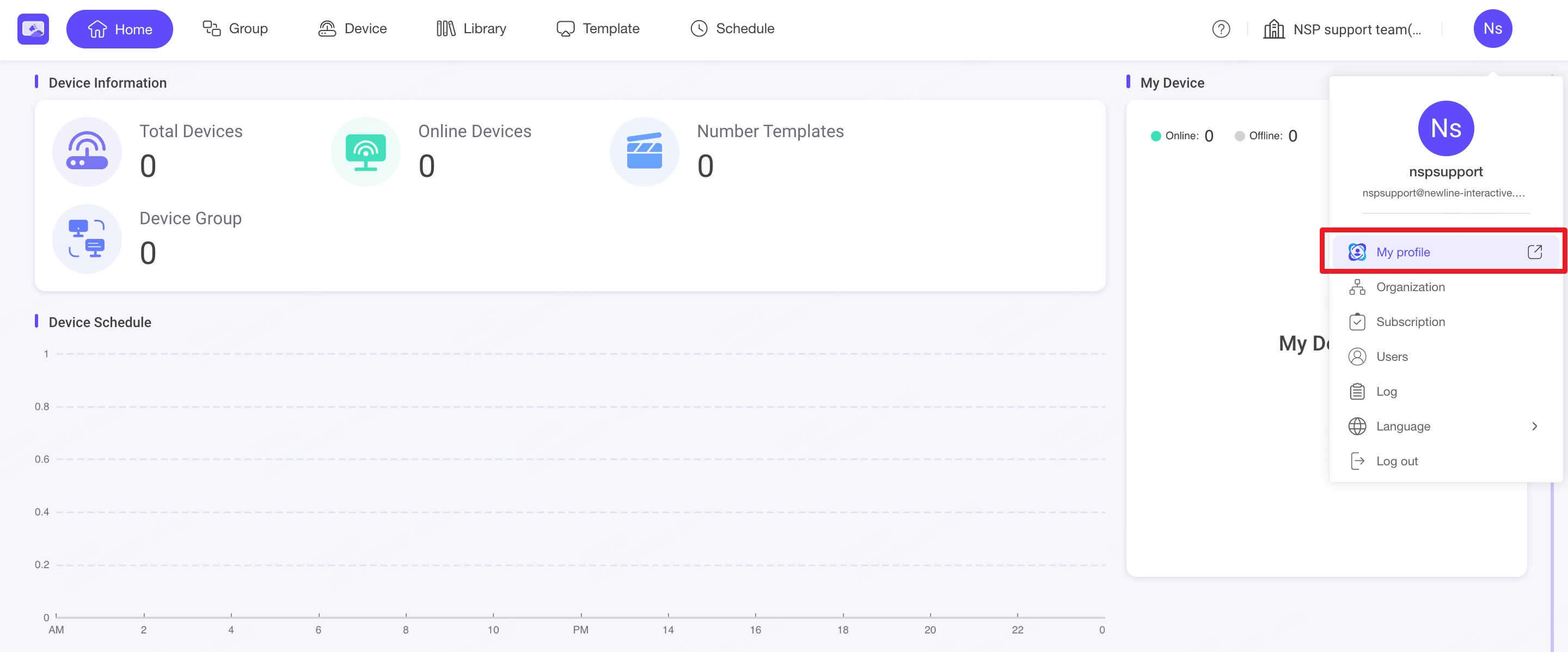
Step2. Select “Newline Account” > “Account Center” on the left side menu.
Step3. Once in the “Account Center,” select “Private Settings” from the menu.
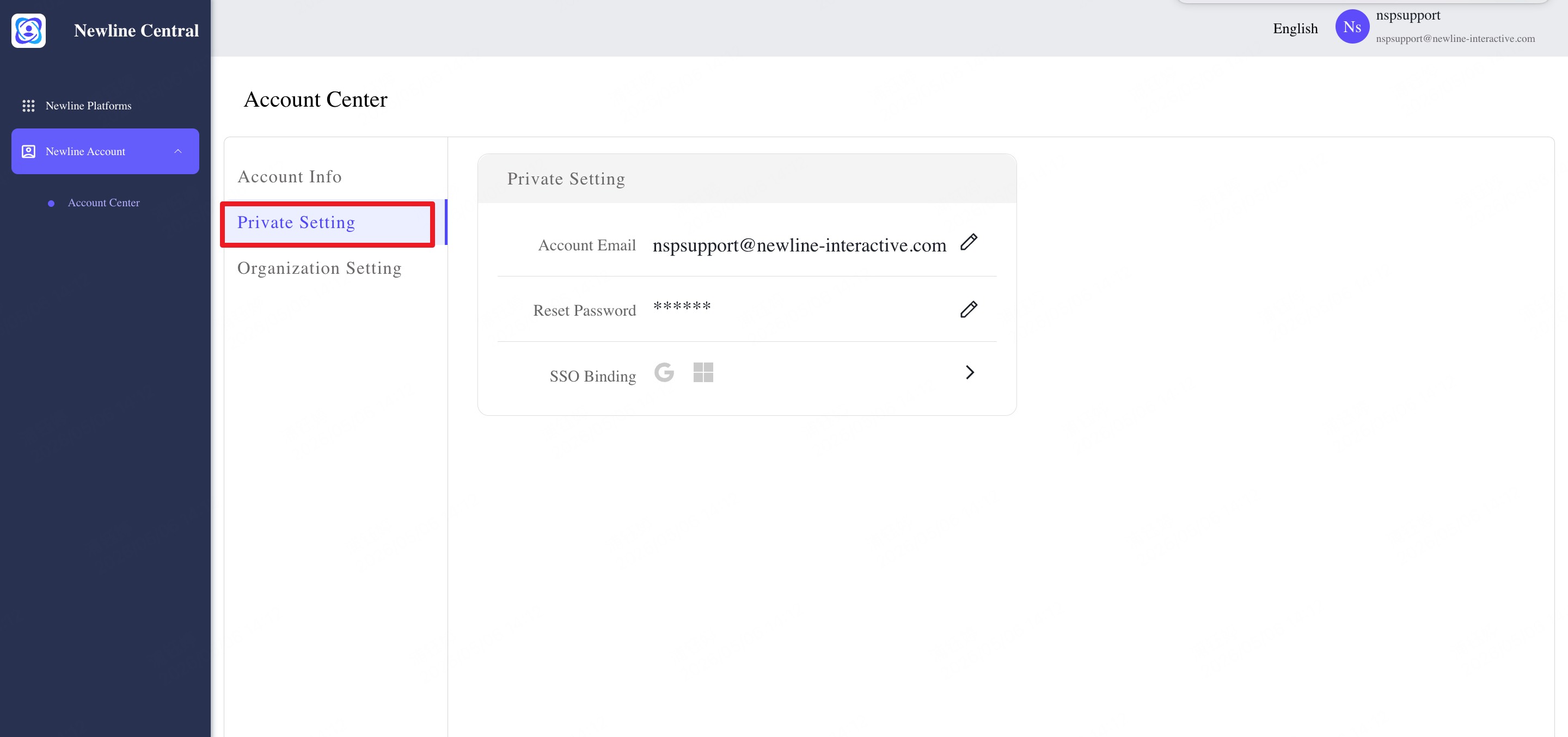
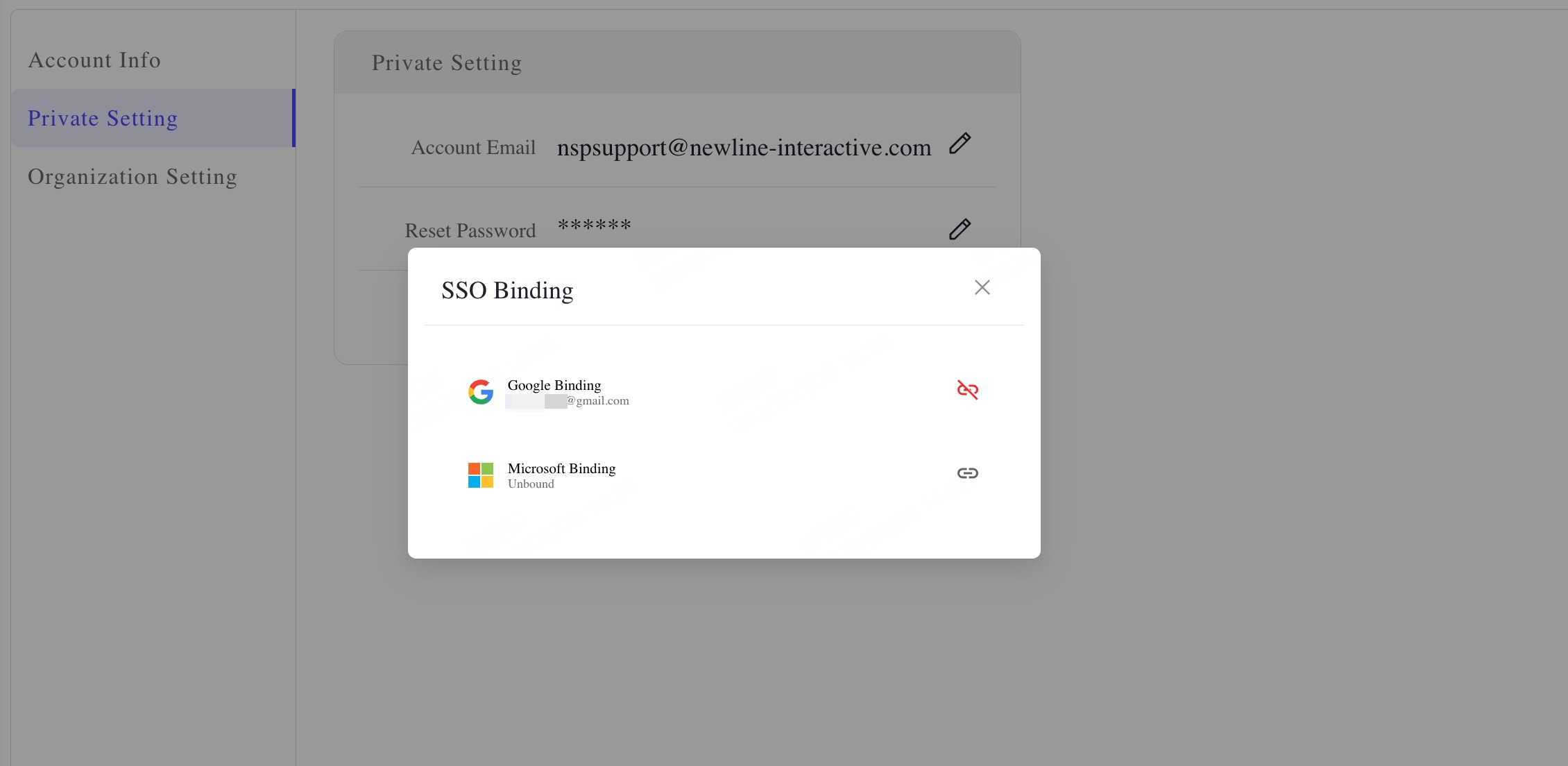
Step4. To set up Single Sign-On (SSO) binding, click the “>” icon. Click the “link” icon next to the type of account you have - Google or Microsoft. Then, enter your credentials to bind your account.
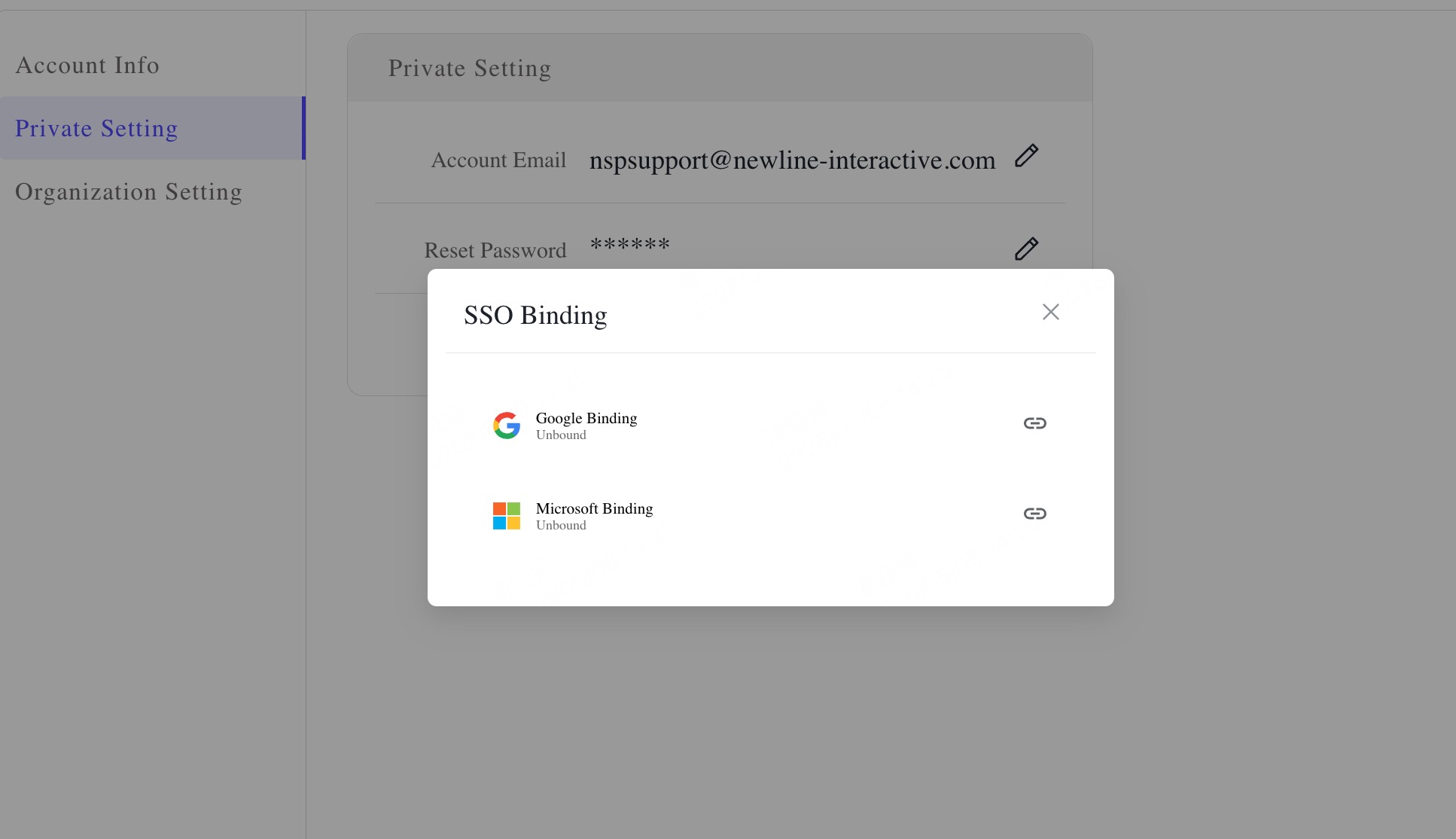
Step5. After binding your account, you will see the screen below. You will now be able to use single sign-on to access your NSP account!
1.4. Reset Password
Step1. Navigate and sign in to your Newline Signage Pro portal. In the top left corner, select your “Account” icon. From the dropdown menu, select “My Profile.”
Step2. Select “Newline Account” > “Account Center” on the left side menu.
Step3. Once in the “Account Center,” select “Private Settings” from the menu.
Step4. To change your password, click the pencil icon next to the “Reset Password” line. Then, enter your original password and new password.

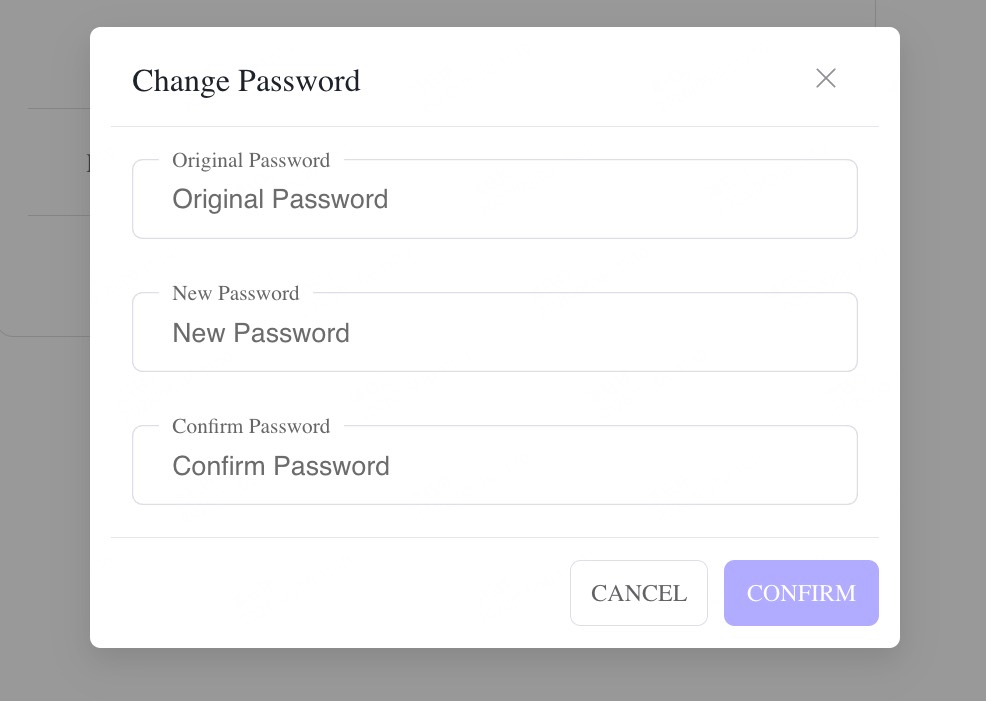
💡 Tip: If you have forgotten your password, use the “Forgot Password” link on the NSP sign in page.
2. Home
INFO
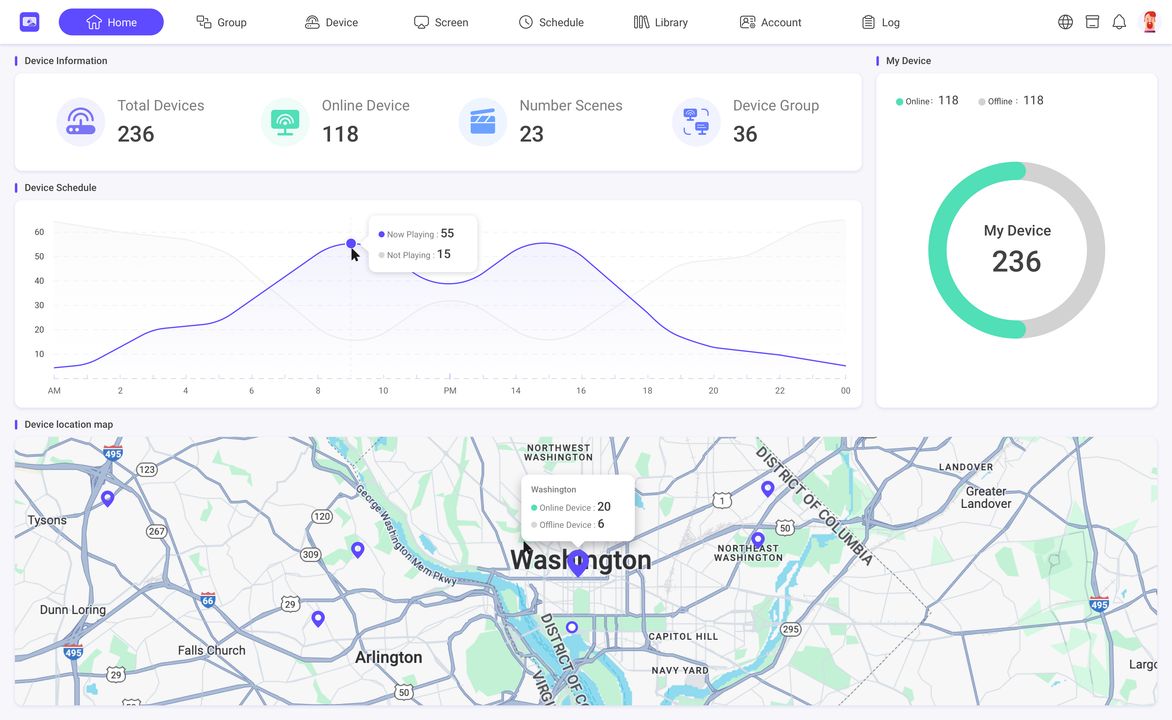
The Home page shows your organization's device information, including device online/offline status, schedule charts and geographic location.
Note: You can see your devices on the map only if you authorize us to get their location information.
3. Group Management
INFO
The Group module consists of three parts: Device group, Priority broadcast and Alert.
3.1. Device Group
Device Groups allow you to manage devices in bulk. You can add a template and a schedule to each device group. After both are configured, all devices in the group will play the template content according to the schedule.
3.1.1. Create a device group
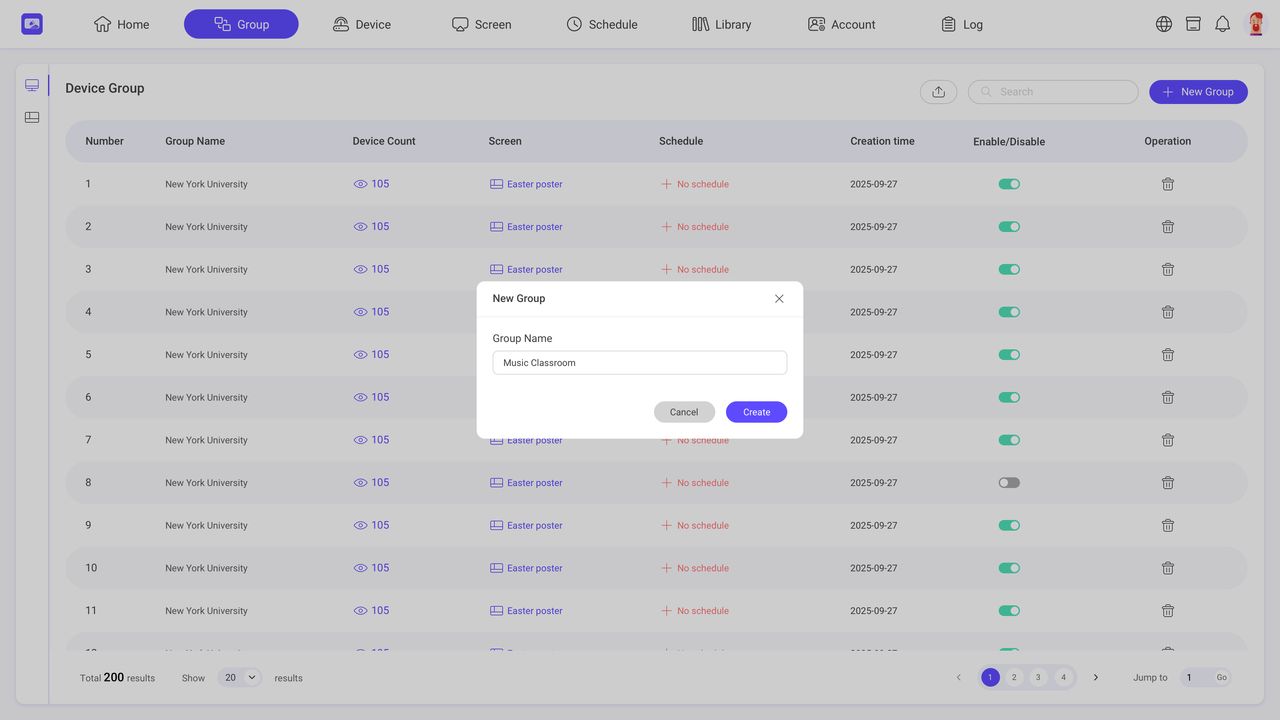
Step1. Click the ‘New Group’ button.
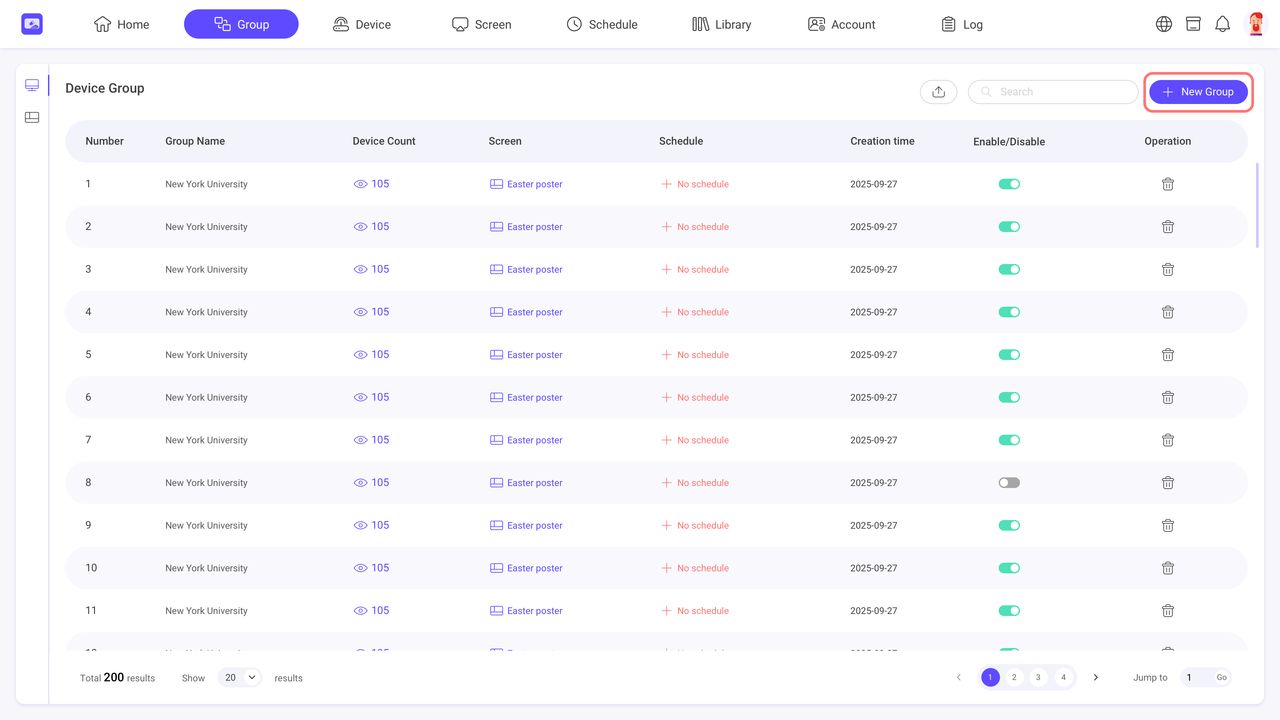
Step2. Enter the device group name and confirm.
3.1.2. Add a template to device group
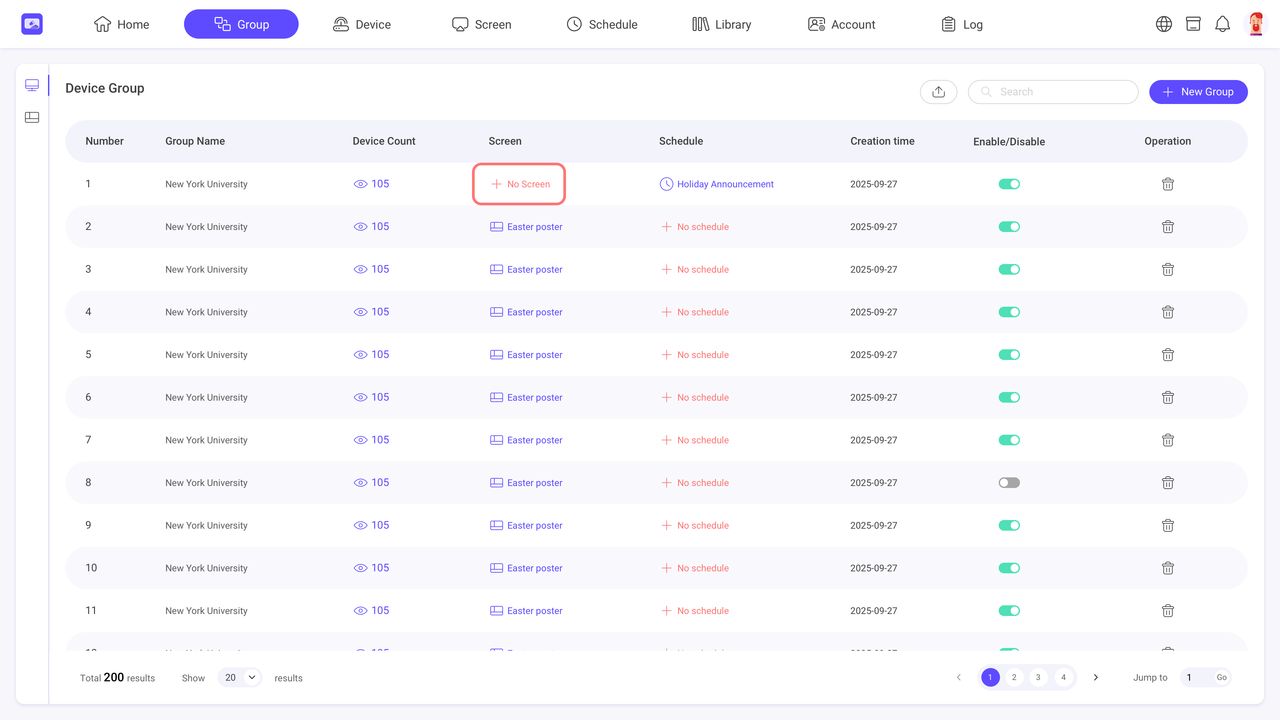
Step1. Click the ‘Template’ column in the device group list. The button is red when no template has been added. If a template has already been added, its name is displayed and you can click it to replace the template.
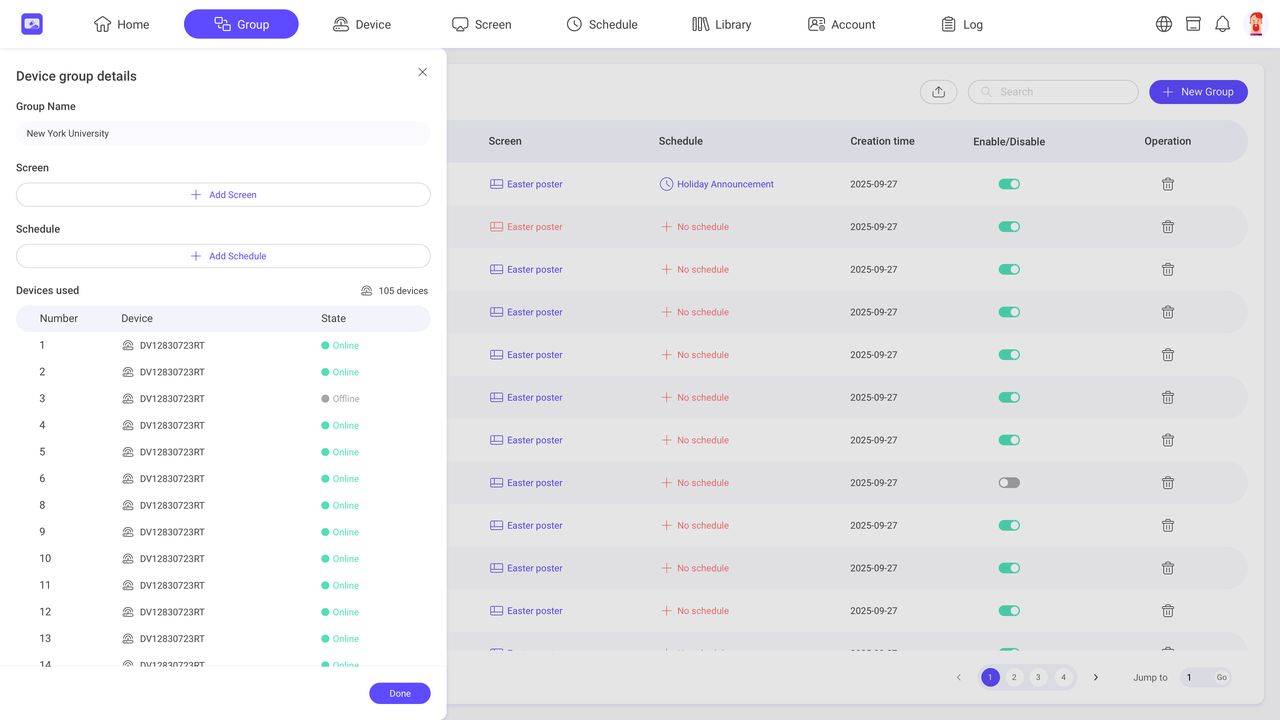
Step2. Click ‘Add Template’ in the popup to select the created template.
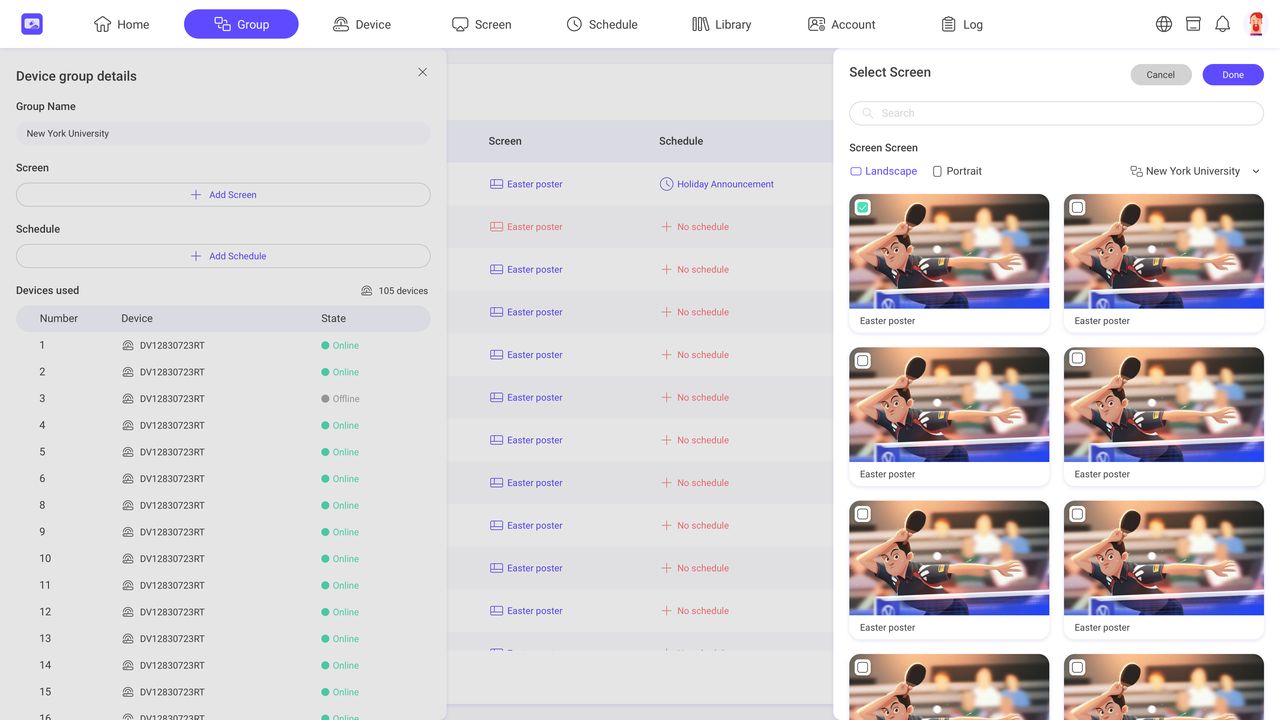
Step3. Click ‘Done’ to save the changes.
3.1.3. Add a schedule to device group
Step1. Click the ‘Schedule’ column in the device group list. The button is red when no schedule has been added. If a schedule has already been added, its name is displayed and you can click it to replace the schedule.
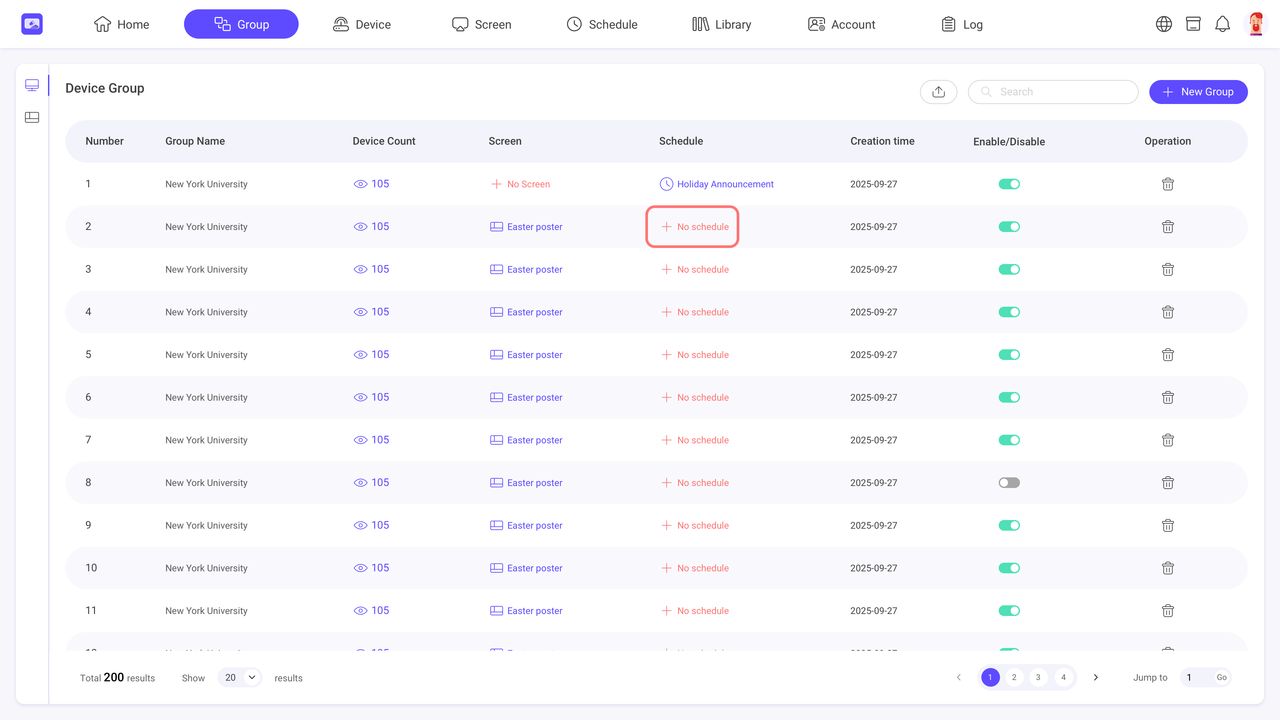
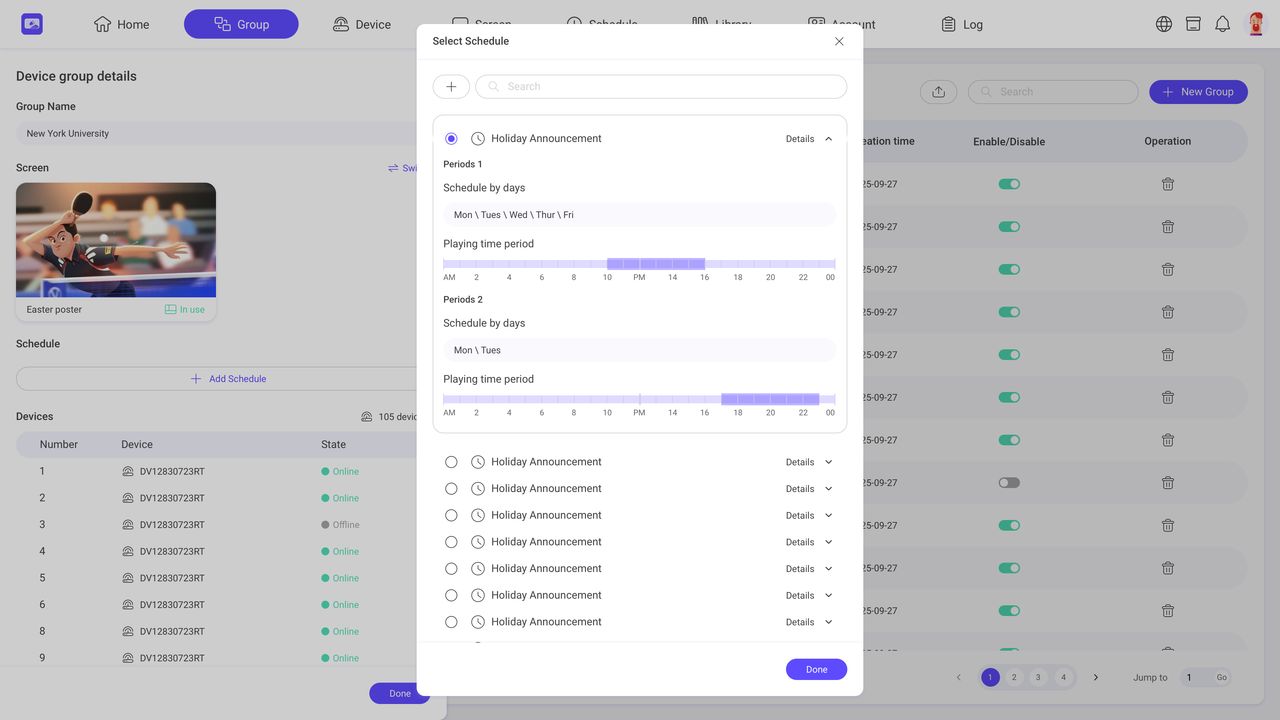
Step2. Click ‘Add Schedule’ in the pop-up window to select an existing schedule.
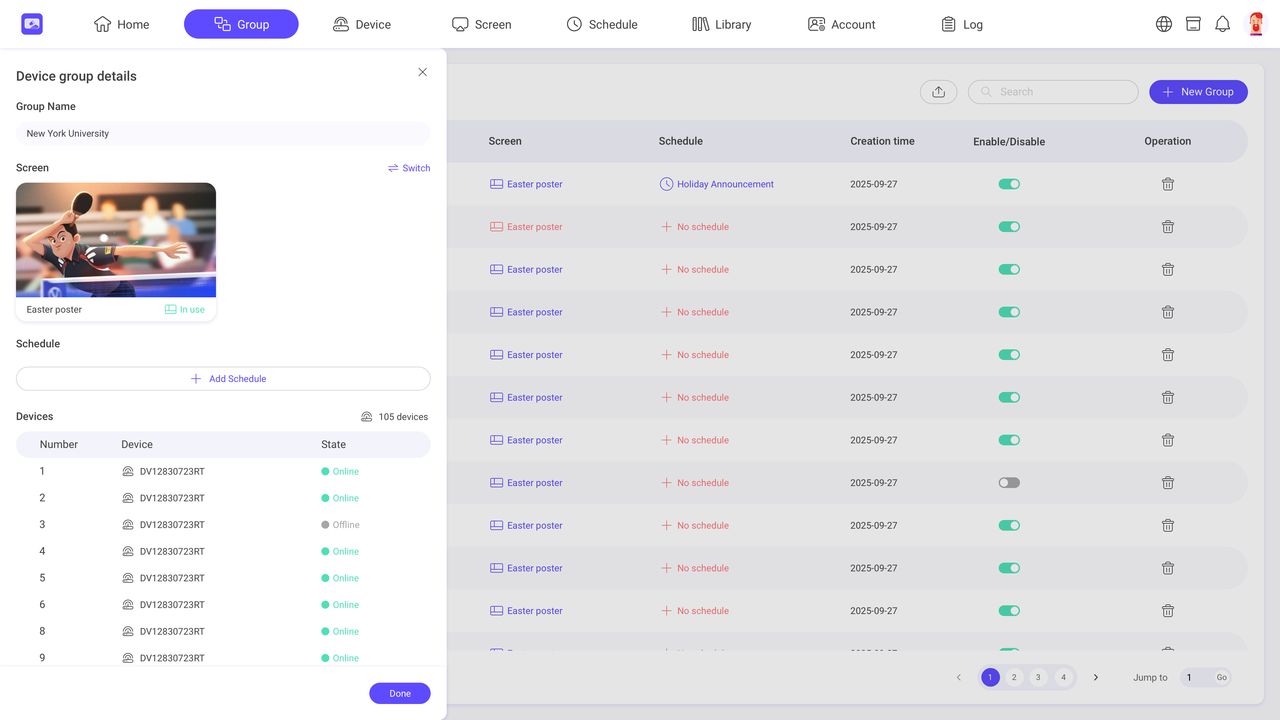
Step3. Click ‘Done’ to save the changes.
3.2 Priority Broadcast
INFO
It allows you to create and schedule playback plans using templates across the entire organization’s devices. Priority Broadcasts run at the highest priority level. When activated, the scheduled playback will override content from other Groups.
3.3 Alert
INFO
The Alert feature supports binding CAP alerts to devices, enabling emergency notifications. It integrates with multiple third-party alert platforms and allows organizations to deliver critical messages in real time.
We recommend using trusted platforms such as Singlewire, Centegix, Raptor, Kokomo, Audio Enhancement, Crisisgo, Alertus for best compatibility and performance. More platforms are continuously being integrated.
3.3.1 Create a CAP Alert group
Step1. Click ‘CAP Alert’ button to create.
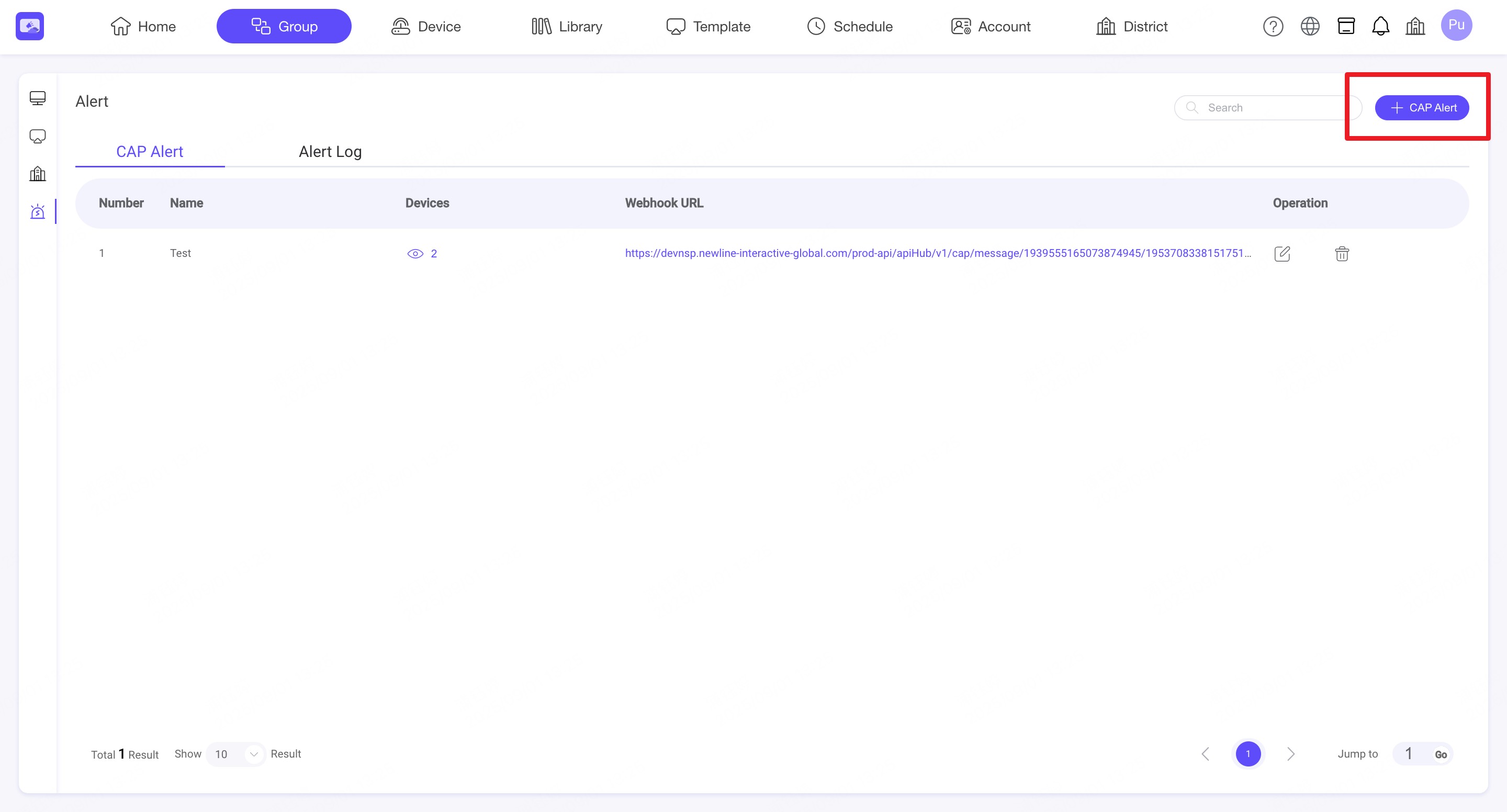
Step2. Enter a CAP Alert name and select the devices to bind to the Alert Group.
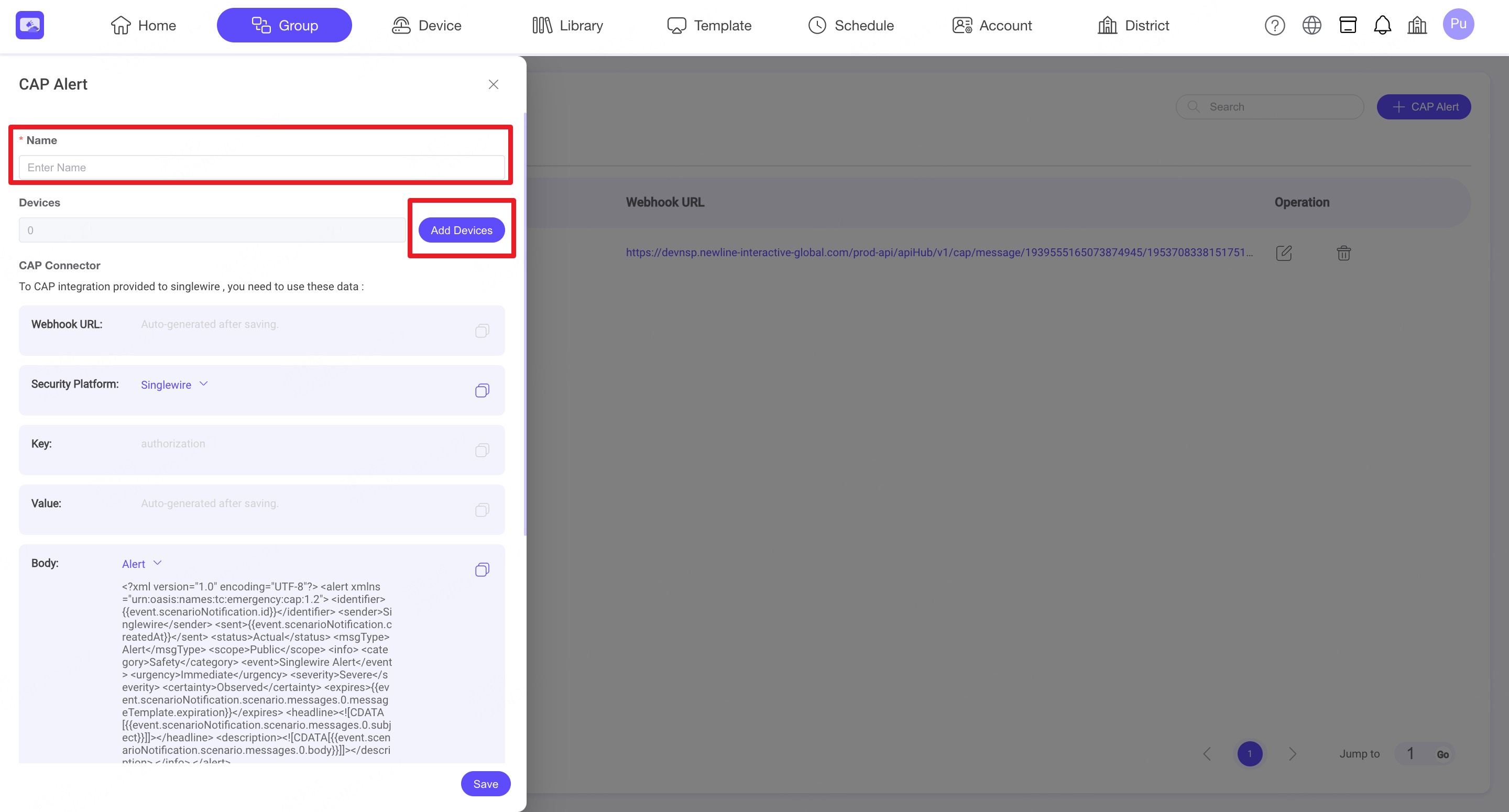
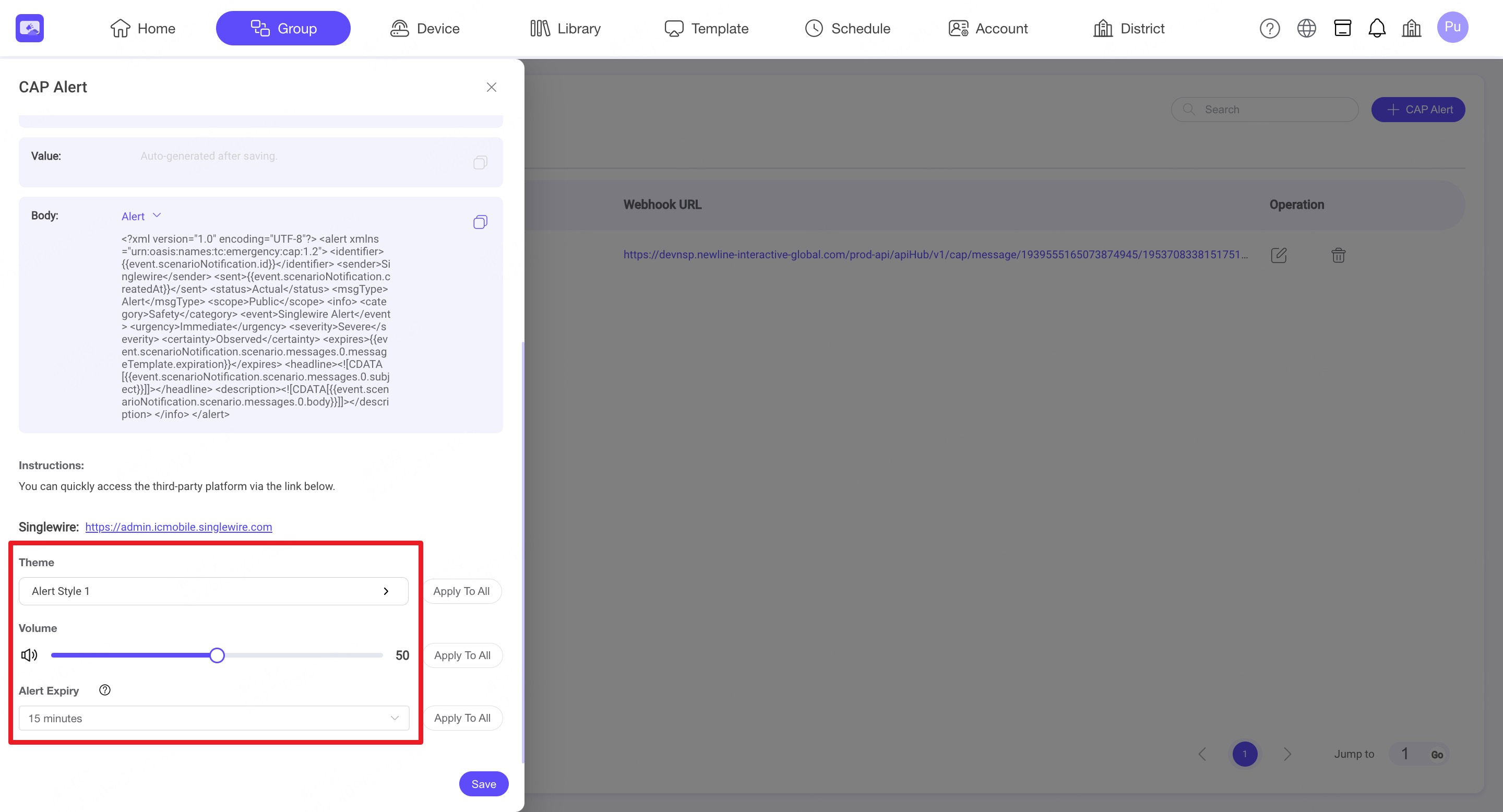
Step3. Customize the CAP Alert settings by changing the background image in Theme, adjusting the audio level in Volume, and setting the expiry time in Alert Expiry.
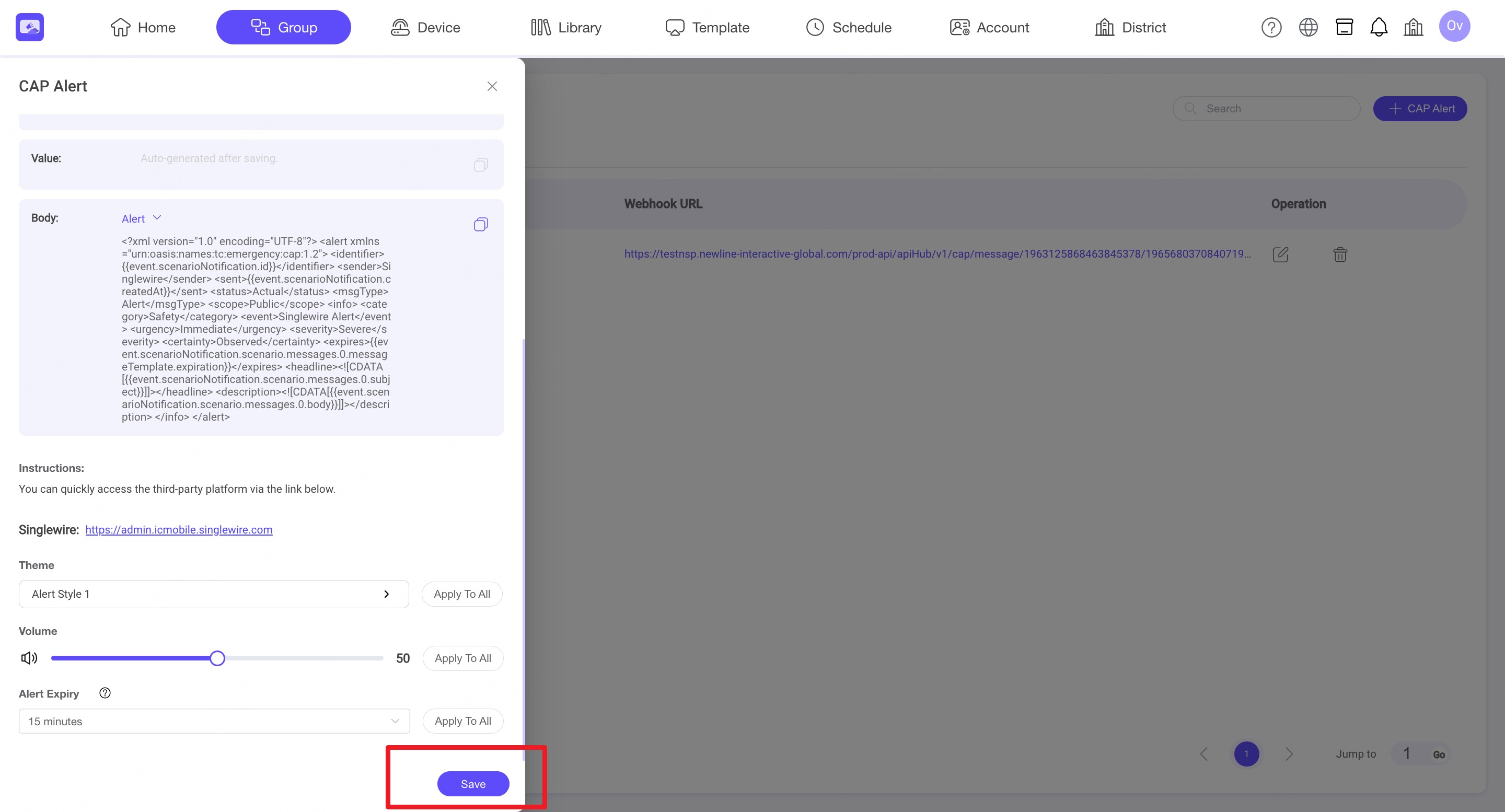
Step4. Click 'Save' to generate the Common Alerting Protocol (CAP) endpoint information for the Alert Group.
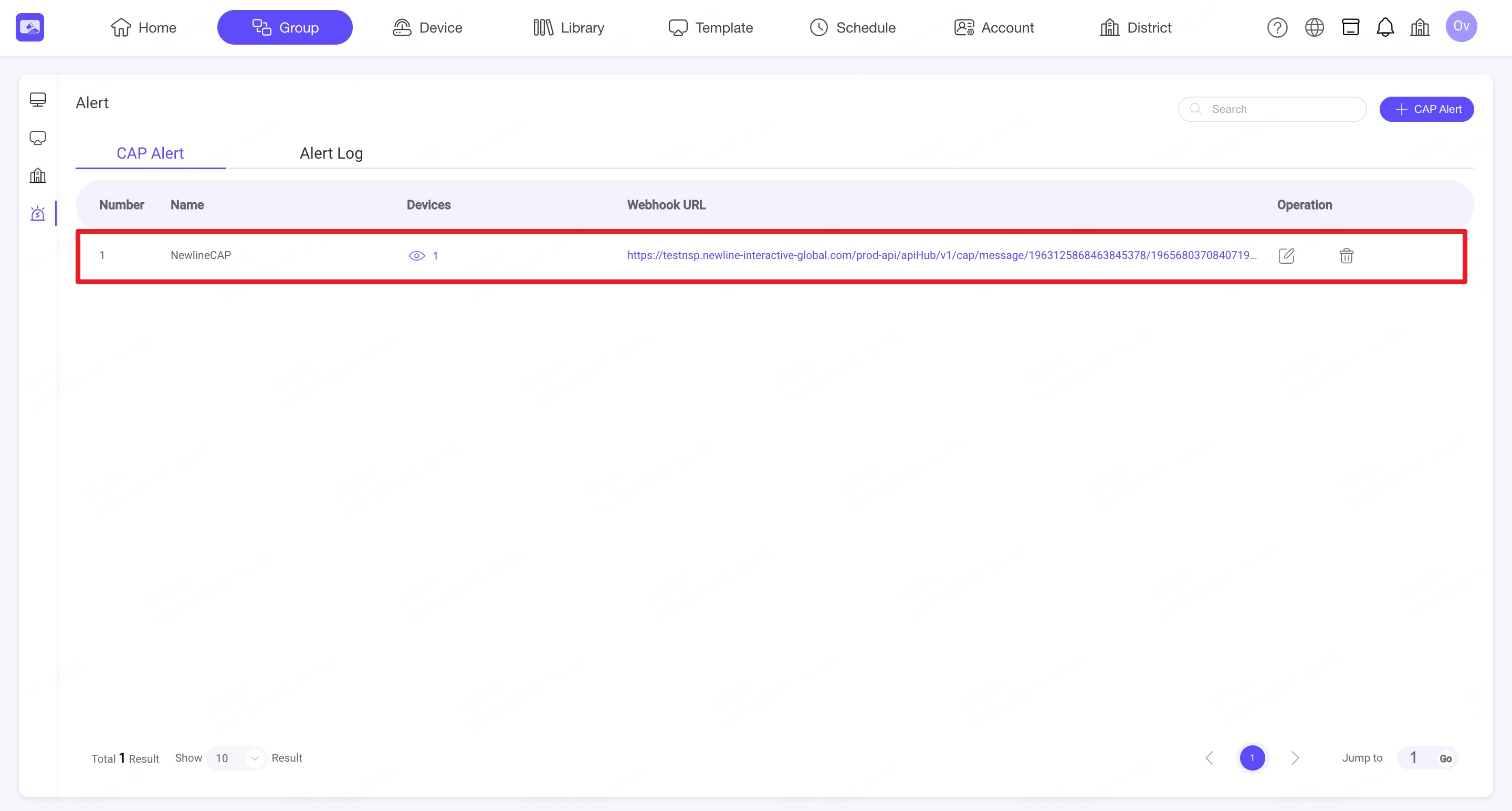
Step5. Now you should see a CAP Alert Group appear that contains the API endpoint information.
3.3.2 Connect Alert group to trusted platform
Step1. Click the 'Edit' icon to view the CAP information. You will find the following information in the CAP Alert Group:
- Webhook URL
- Key/User name
- Value/Password
- Body [Alert] & [Clear]
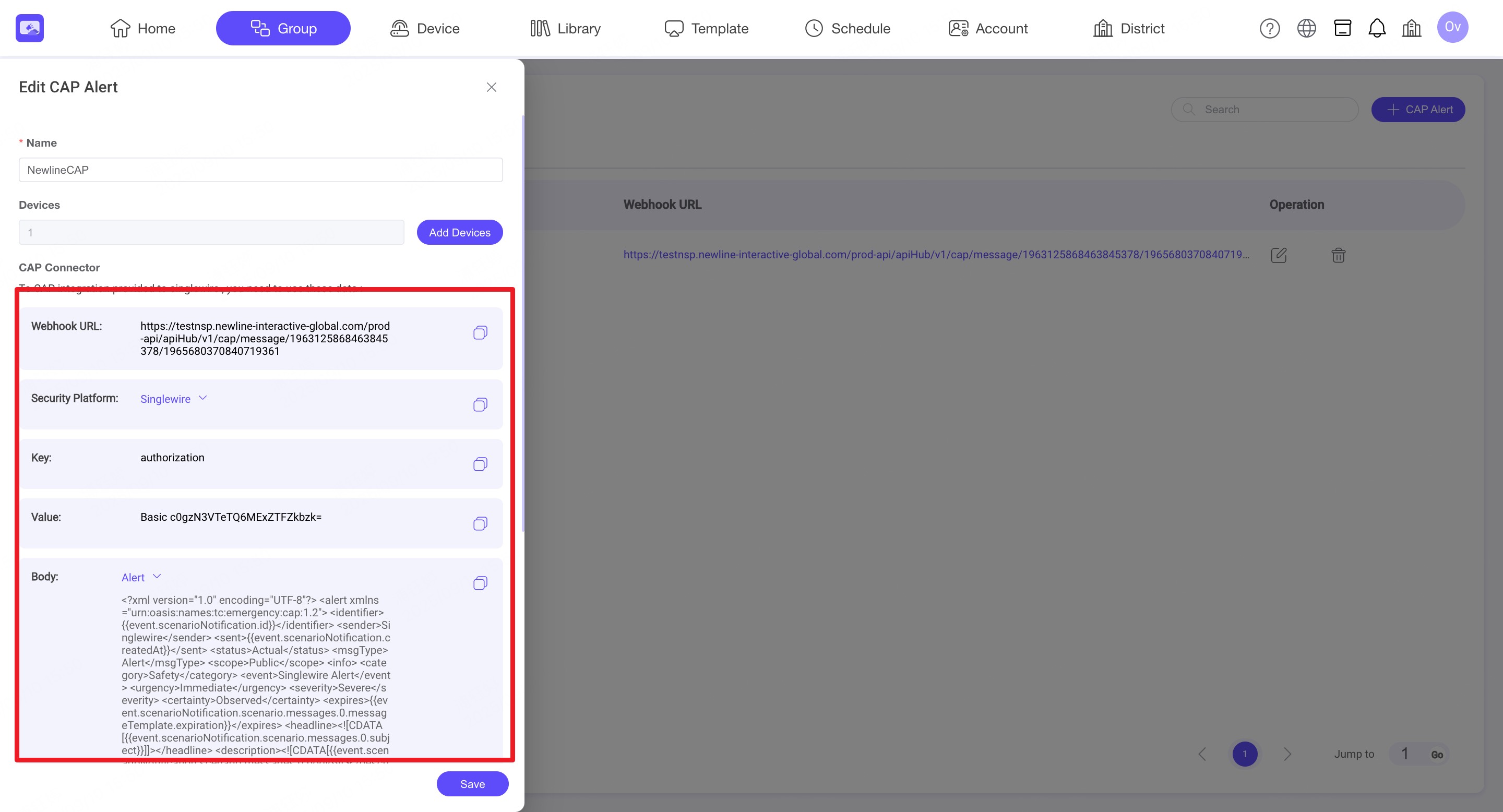
Step2. Ensure that ‘Security Platform’ is set to the corresponding platform. Copy the CAP info to the target trusted platform.
Step3. The detailed operation may vary depending on the platform. Please check the official documentation or contact the platform’s Support Team for assistance.
💡 Official Platforms:
- Singlewire: https://admin.icmobile.singlewire.com
- Centegix: https://web.centegix.com
- Raptor: https://apps.raptortech.com
- Kokomo: https://www.safetyclouds.org
- Audio Enhancement: https://audioenhancement.com
- Crisisgo: https://crisisgo.com
- Alertus: https://www.alertus.com
4. Device
INFO
Device module is available for registering and managing your devices and viewing related device information.
4.1. Register Device
4.1.1. Register single device
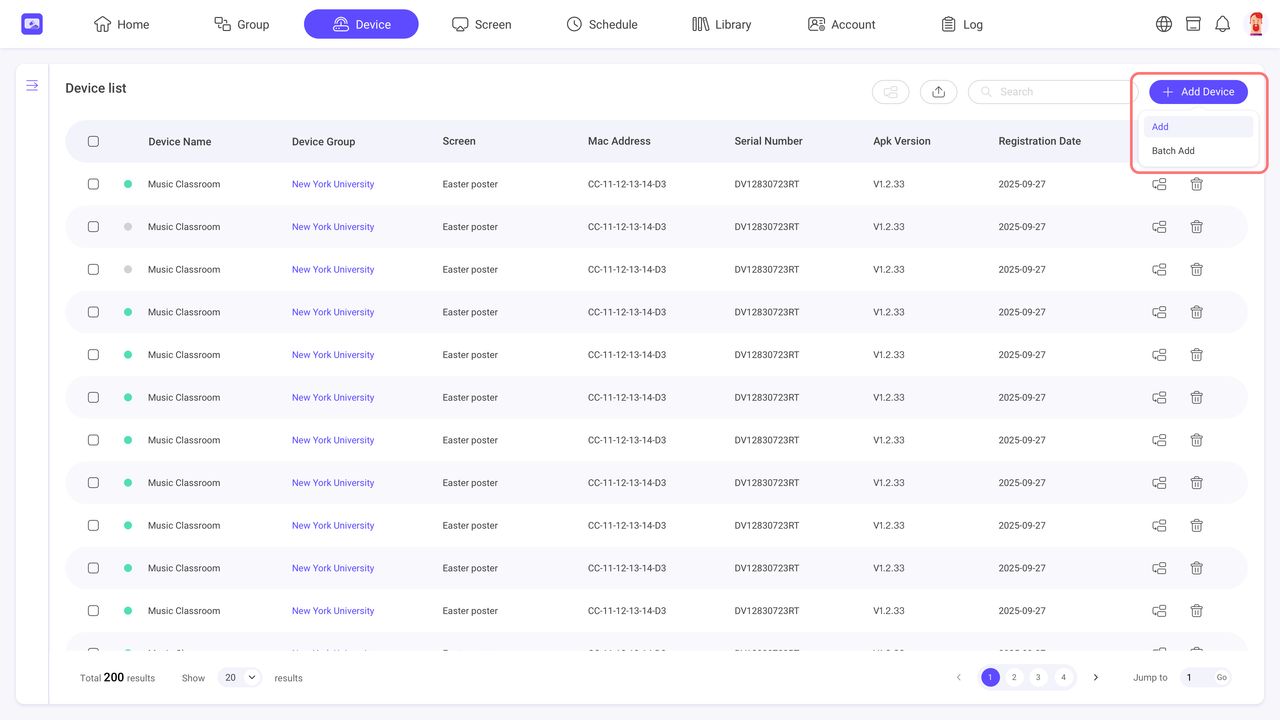
Step1. Click ‘Add Device’ button and select ‘Add’.
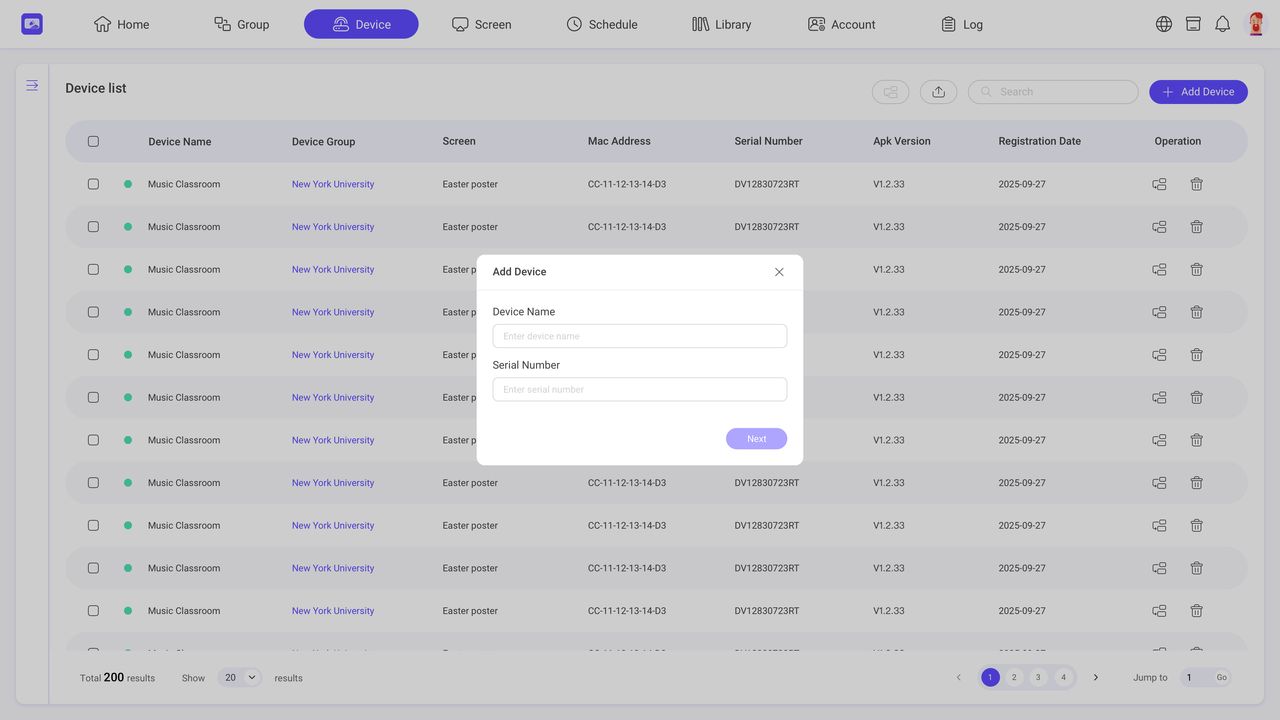
Step2. Enter the device name and serial number, and click ‘Next’.
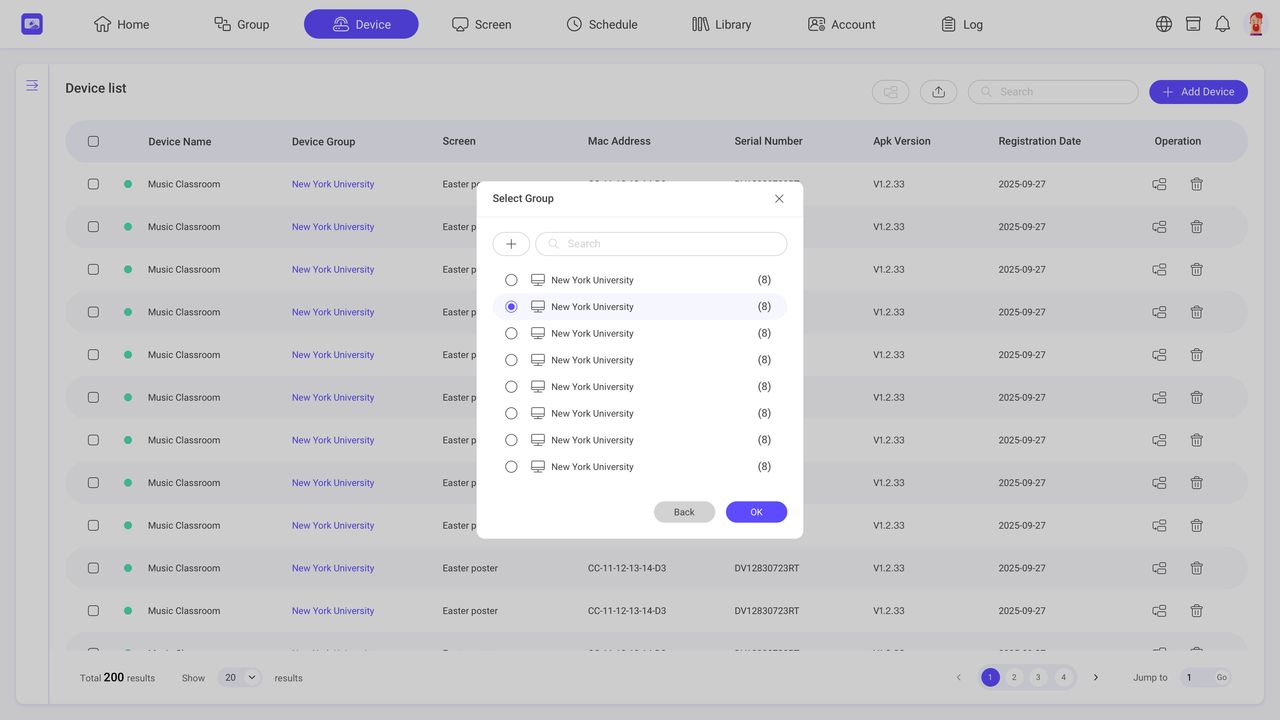
Step3. Select a device group to join. You can also create a new one on this page if you don't have a device group.
4.1.2. Bulk register
Step1. Click ‘Add Device’ button and select ‘Bulk Add’.
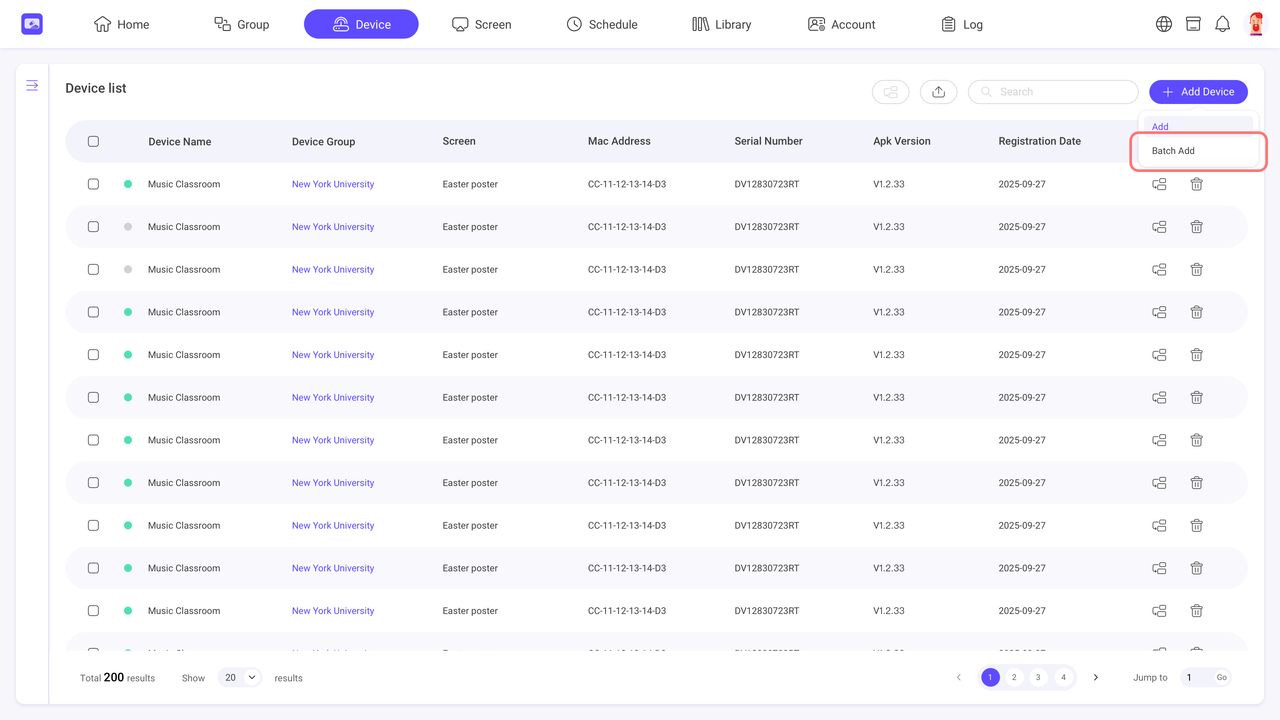
Step2. Download the import template file and fill in at least the ‘Device Name’ and ‘Serial Number.’
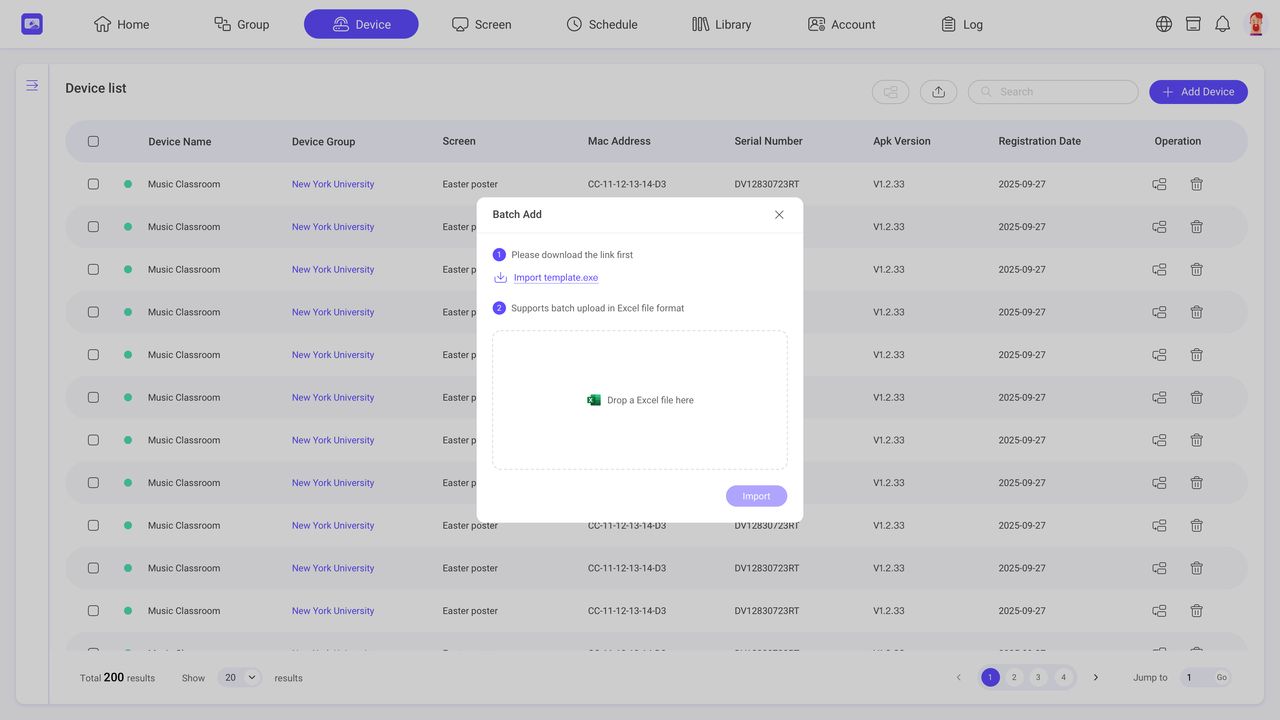
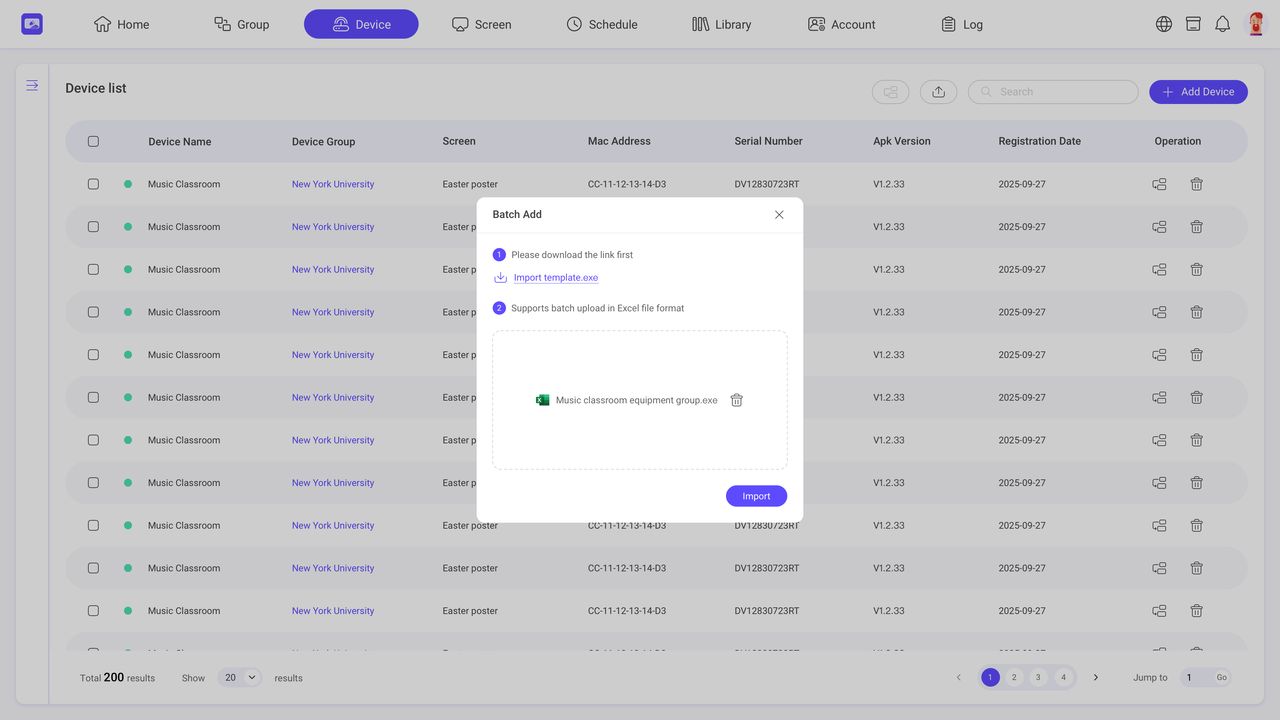
Step3. Upload the completed file and confirm the import.
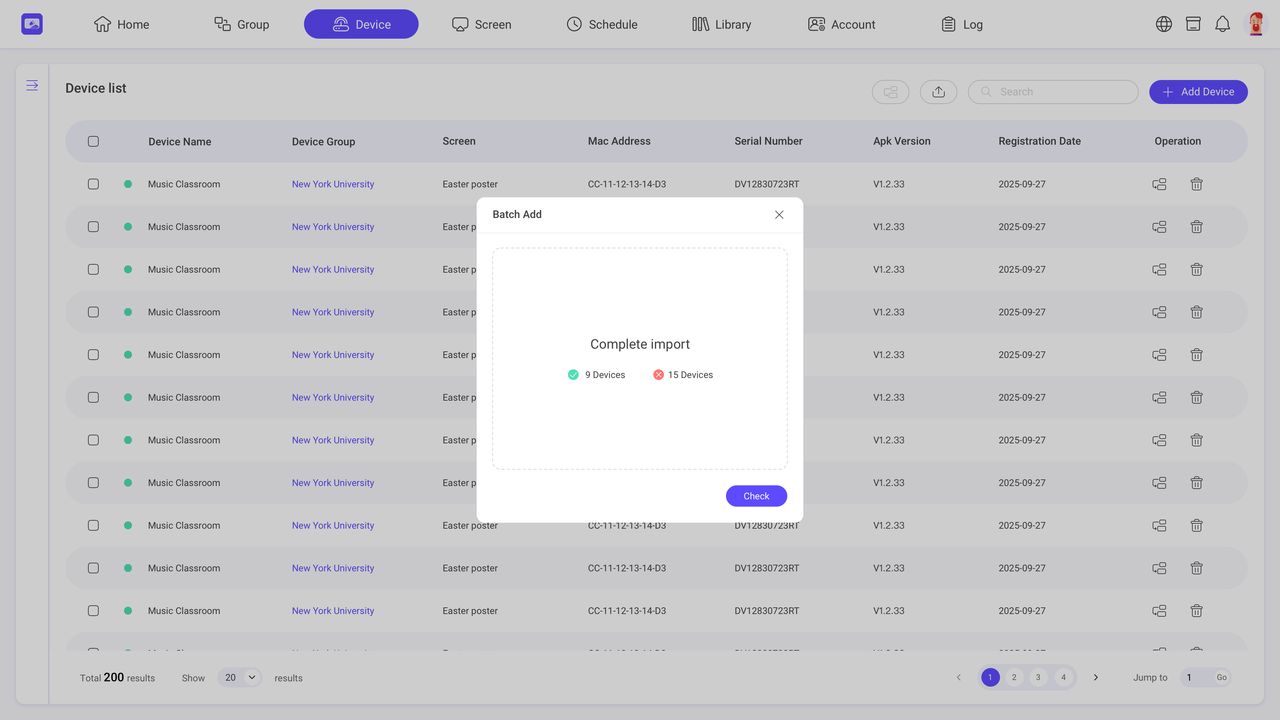
Step4. You can view the import result.
4.2. Device Group
Previously created device groups are shown in the left navigation bar, you can filter different groups to view and edit them.
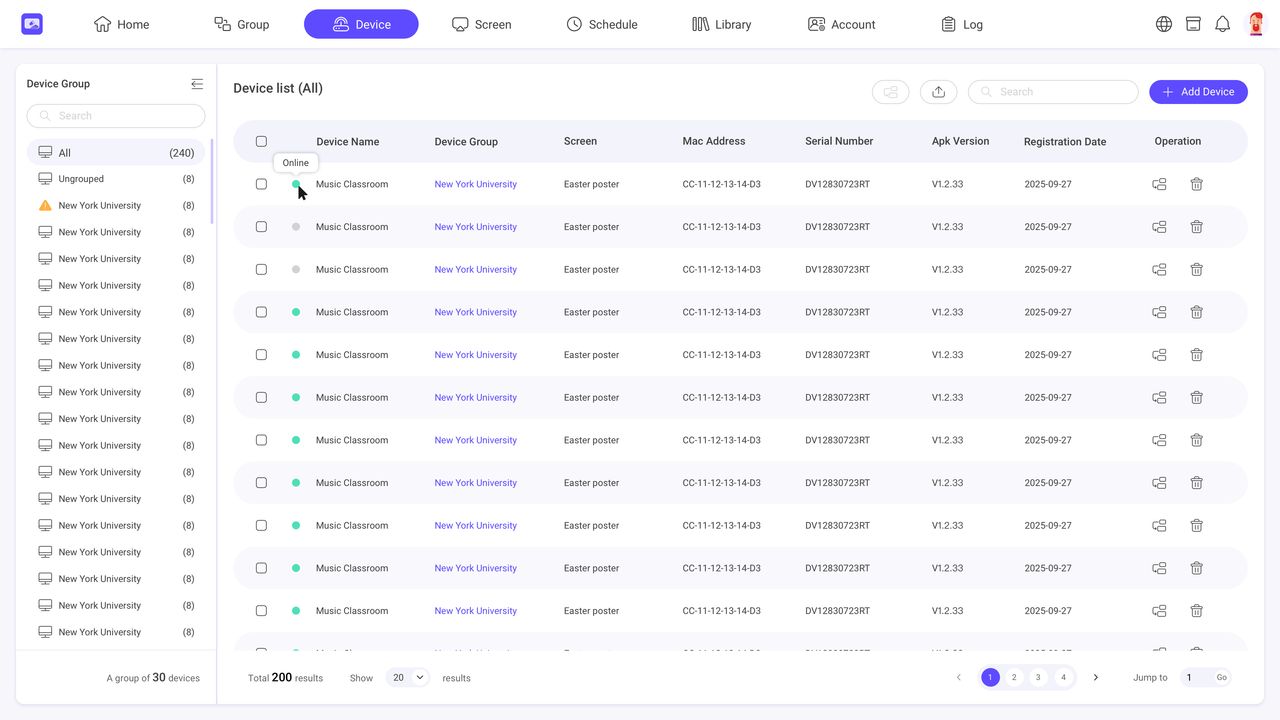
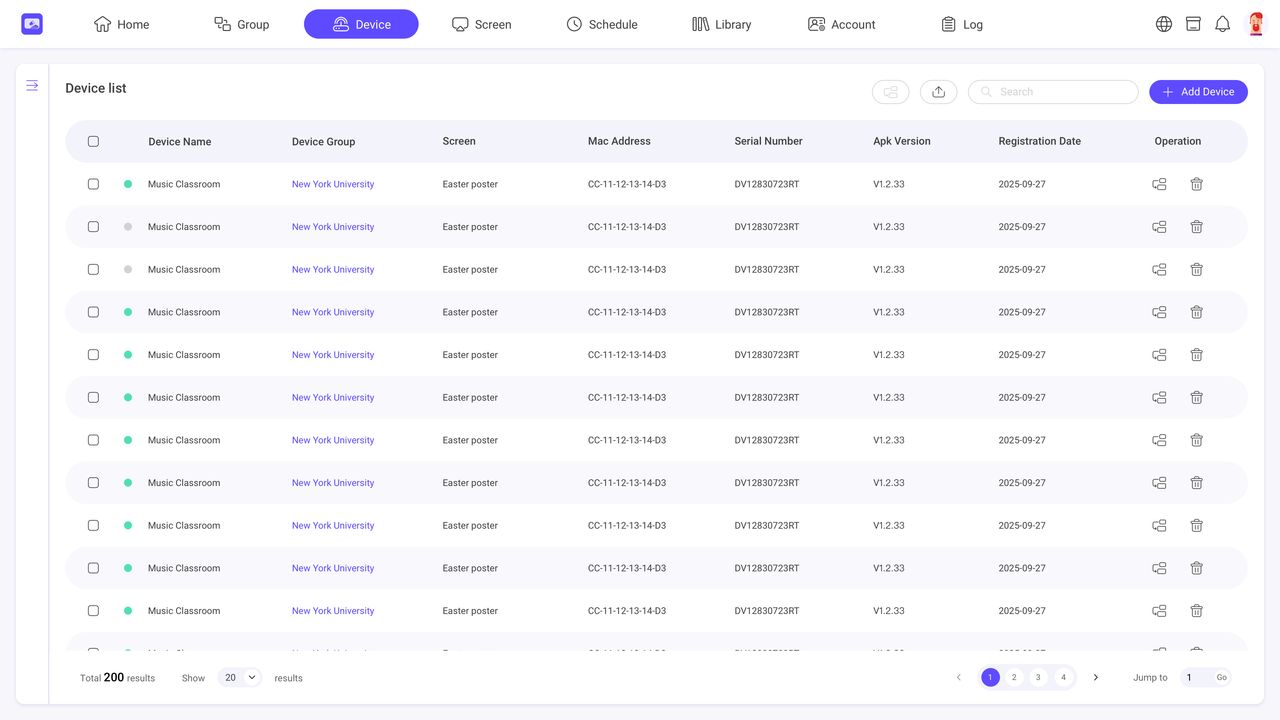
4.3. Device list
All the devices you have registered are shown here and you can view and edit them.
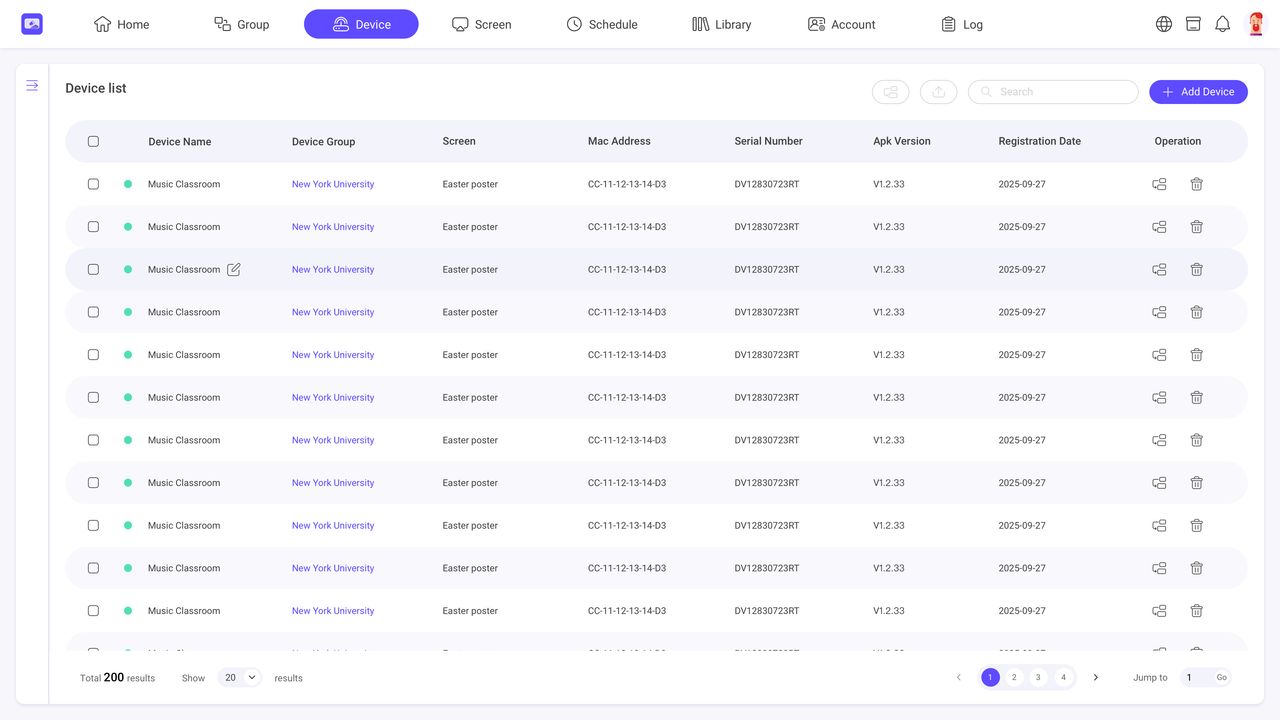
4.3.1. Modify Device Name
You can activate the modify button by hovering your mouse over the device name.
4.3.2. Moving Device Group
Step1. Click the button in the operation area of a device.
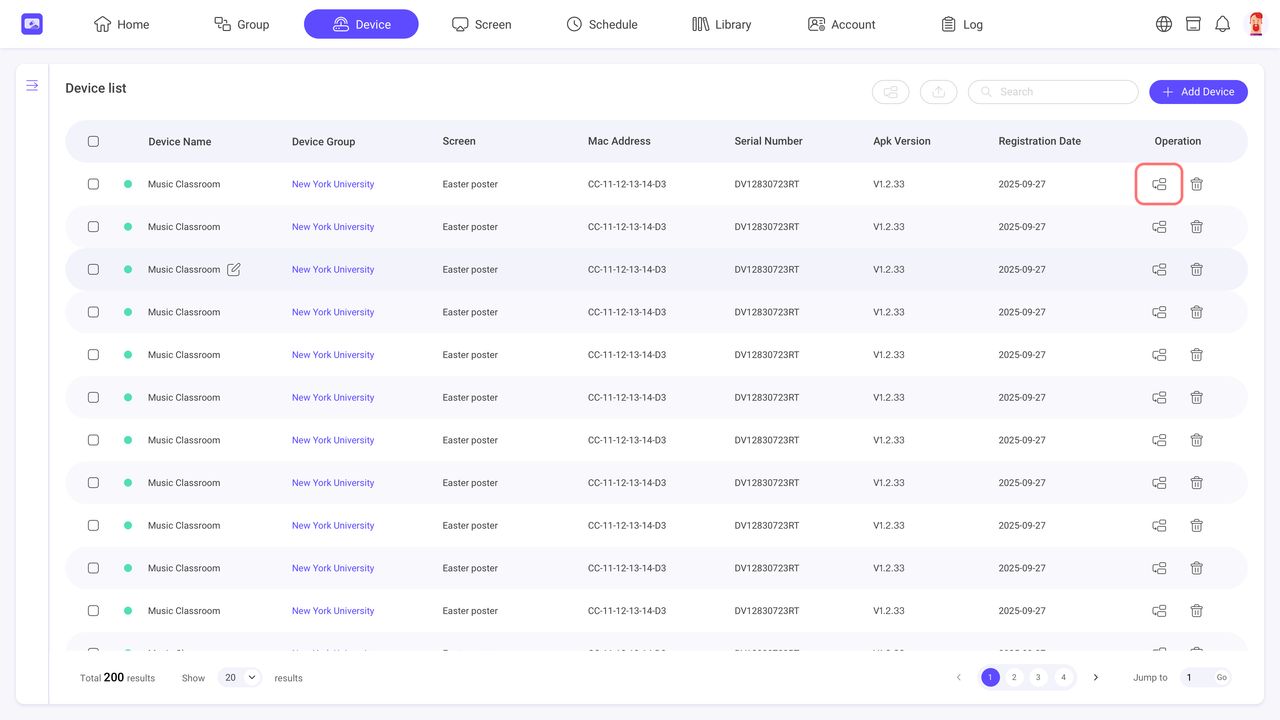
Step2. Select a new device group.
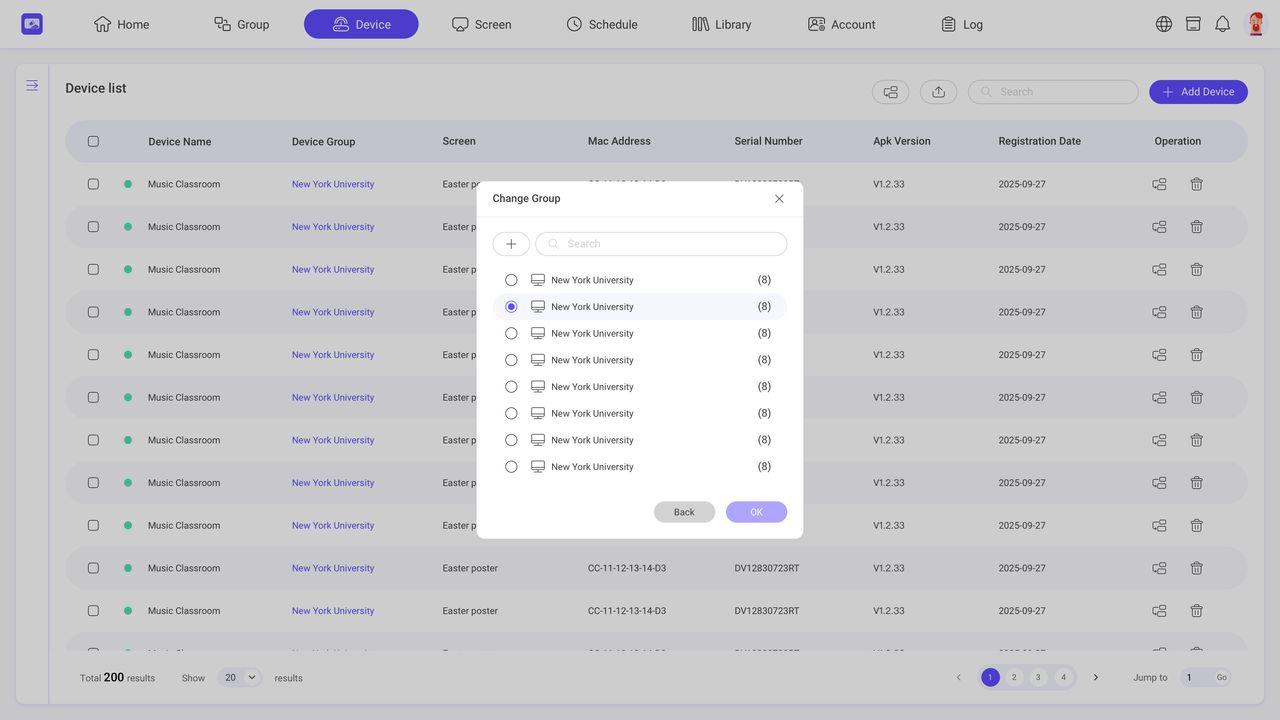
4.3.3. Move multiple devices to another group
Step1. Select multiple devices.
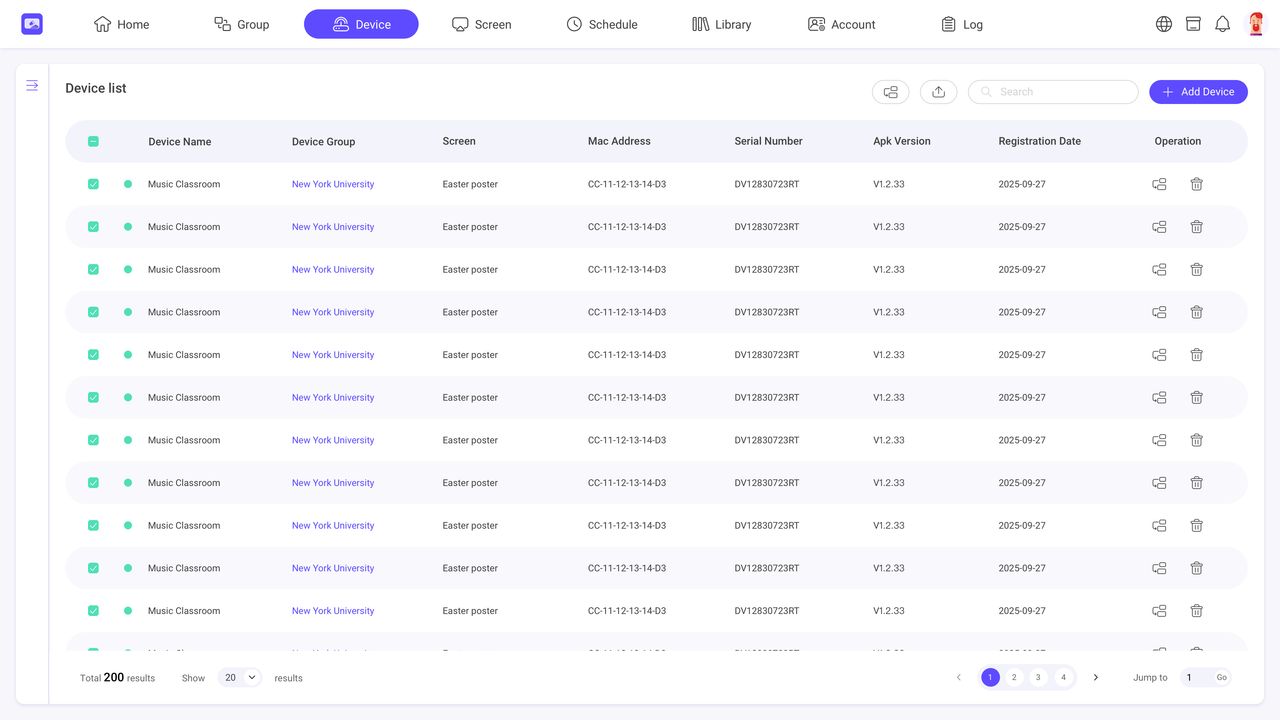
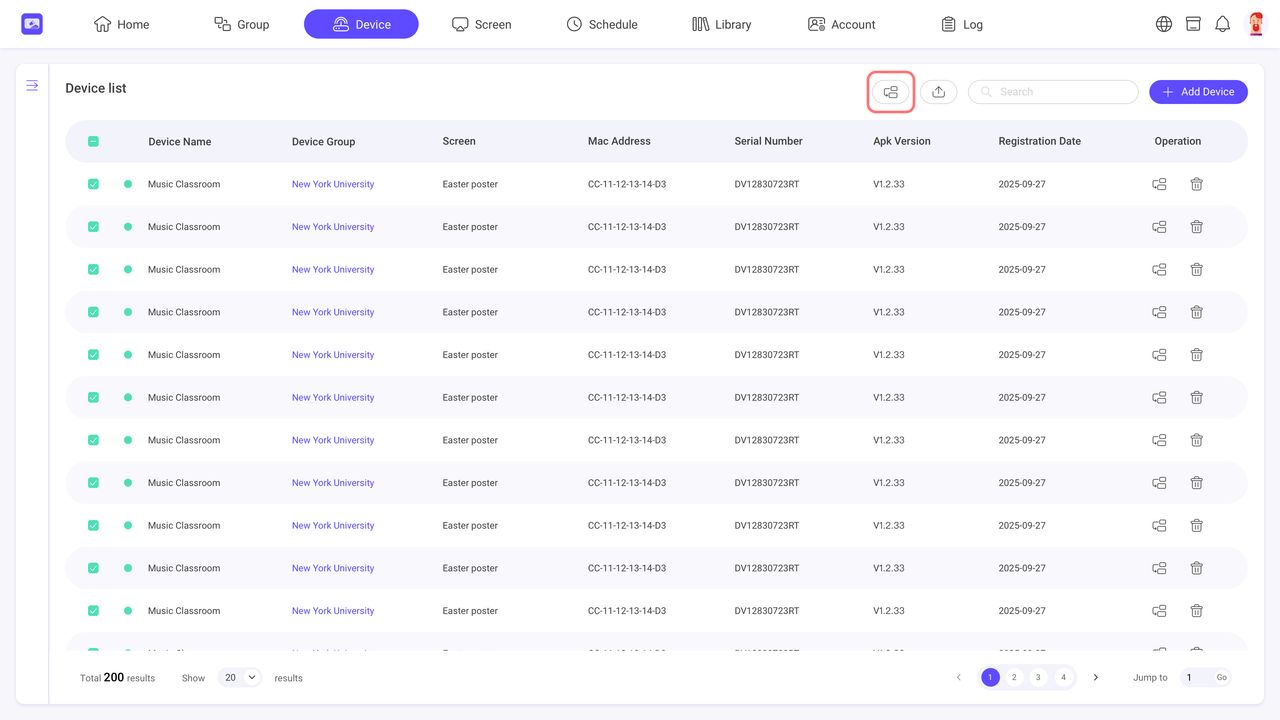
Step2. Click the ‘Change Group’ button on top of the device list.
Step3. Select a new device group.
5. Library
INFO
The Library module allows you to upload and manage content. Library content can be added to templates.
When adding or editing assets in the Library, you can configure specific properties to ensure your content is well-organized and displays precisely when intended.
Name: Provide a unique and descriptive name for the asset.
Tag: Tags enable powerful filtering and searching, making it easier to manage large-scale content libraries.
Availability: Use the Availability setting for time-sensitive events, such as "Final Exam Week" notices or "Holiday Greetings". This feature automates the content lifecycle by controlling when an asset is eligible for playback.
- Start Date/Time: The exact moment the asset becomes active in the playback.
- End Date/Time: The moment the asset becomes unavailable for playback.
5.1 Upload files
Step1. Click 'Upload Files' button.
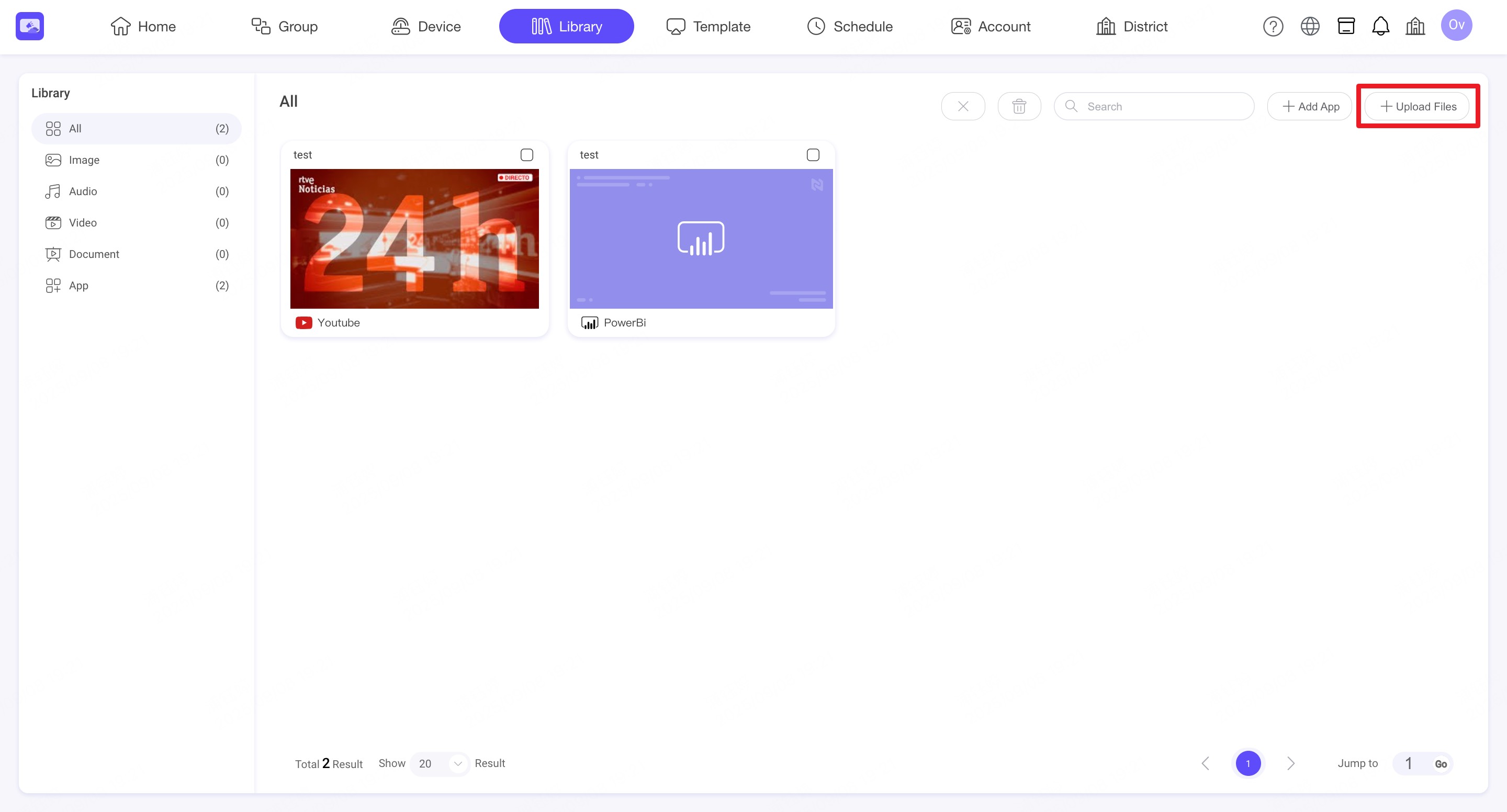
Step2. Choose one of the following methods:
- Drag and Drop: Drag your files directly into the upload area.
- Browse: Click inside the upload area to open your file browser and select files manually.
Supported file formats include:
- Images: JPG, PNG, GIF
- Videos: MP4, MOV, AVI, MPEG
- Audio: MP3, WAV
- Documents: PDF, PPT, PPTX, and more
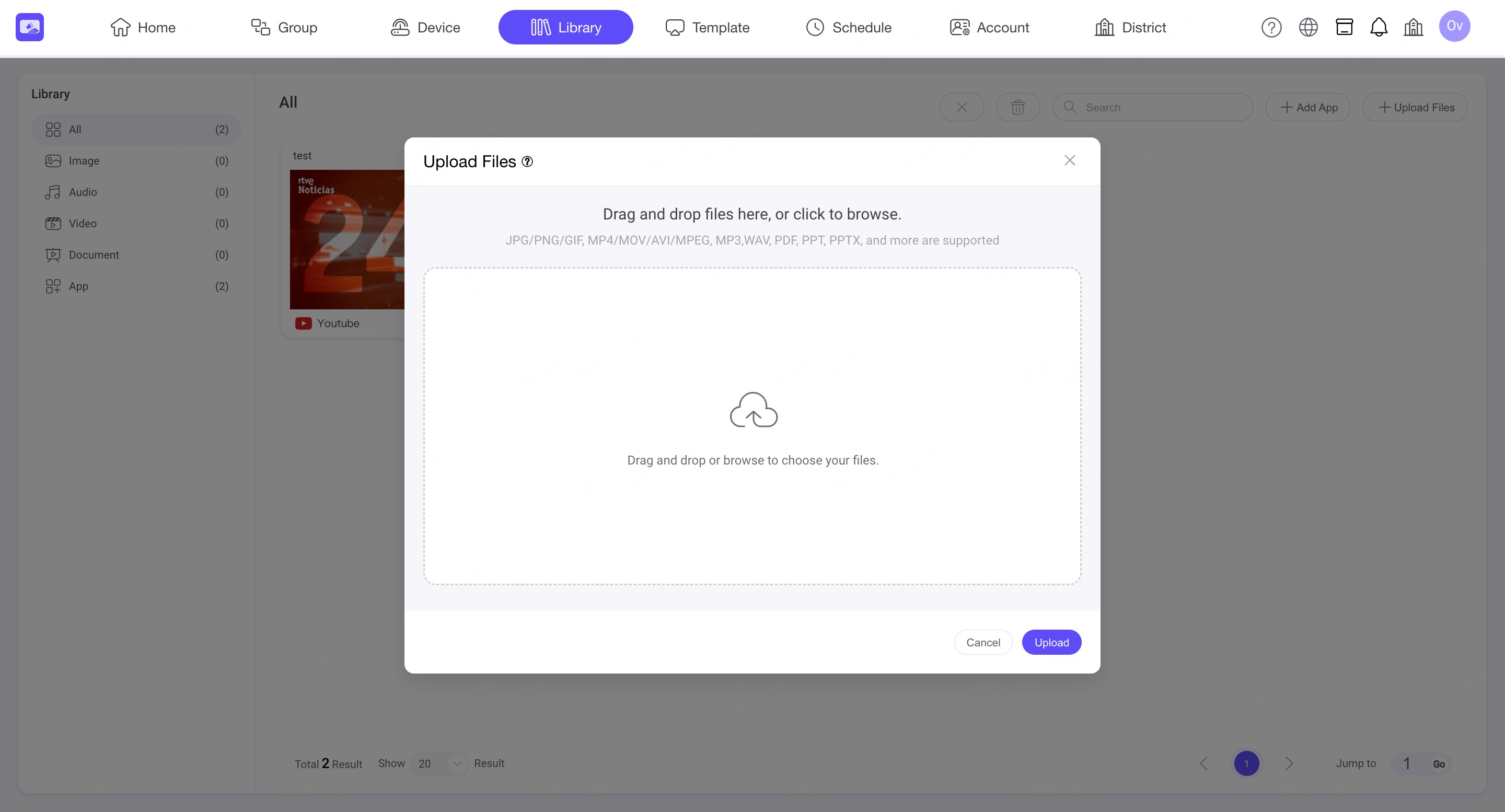
Step3. Once your files are selected, they will appear in the upload list.
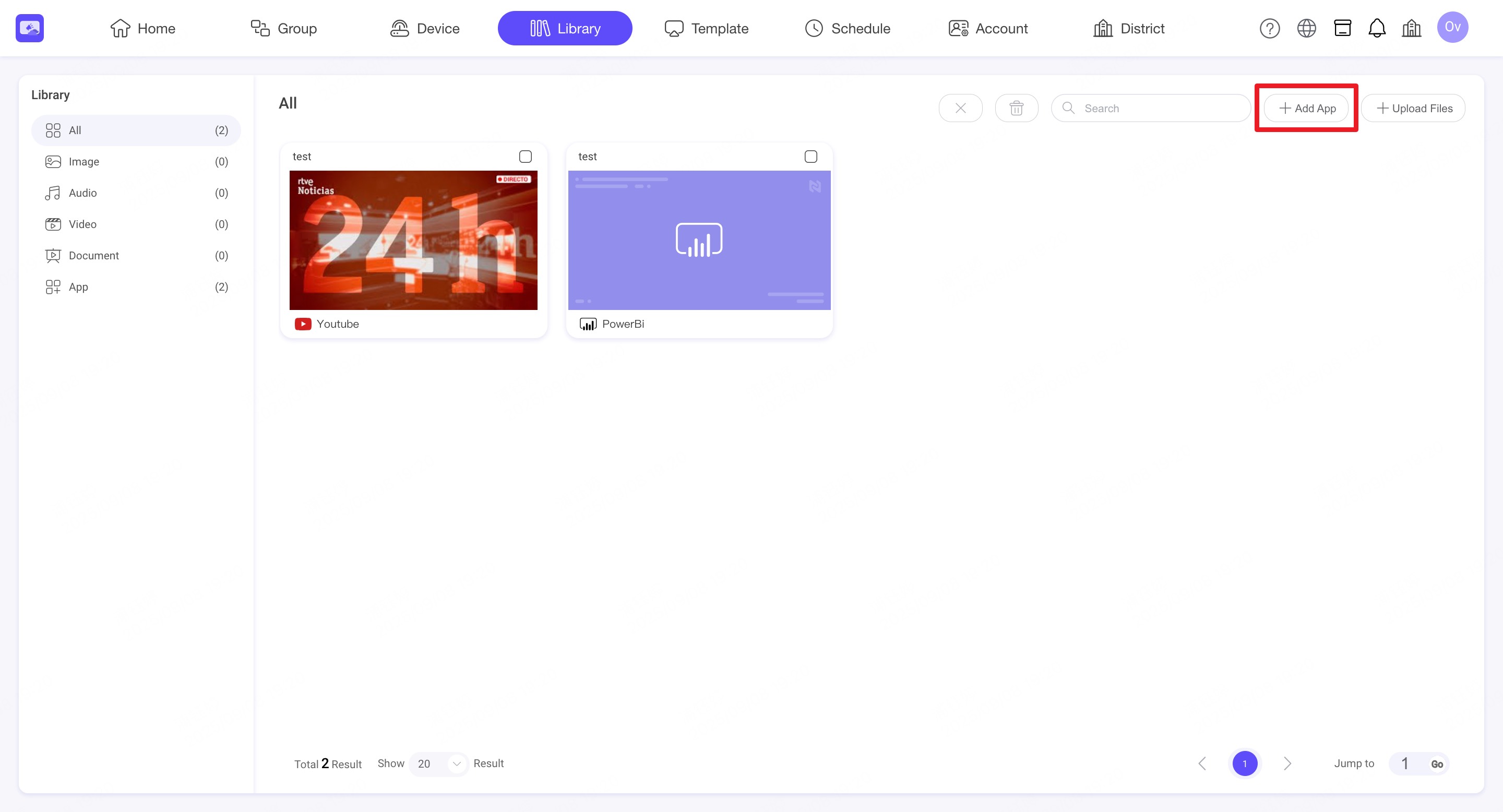
5.2 Add App
Step1. Click the 'Add App' button. NSP supports various apps for synchronizing and displaying content. A pop-up window will appear showing the available apps.
Step2. Browse or search for the app you want to add:
- Feature Apps: Popular apps such as Canva, YouTube, Power BI, Google Slides.
- All Apps: Utilities such as Clock, Time & Date, Weather, QR Code, RSS, Google Calendar, Microsoft PowerPoint, and more.
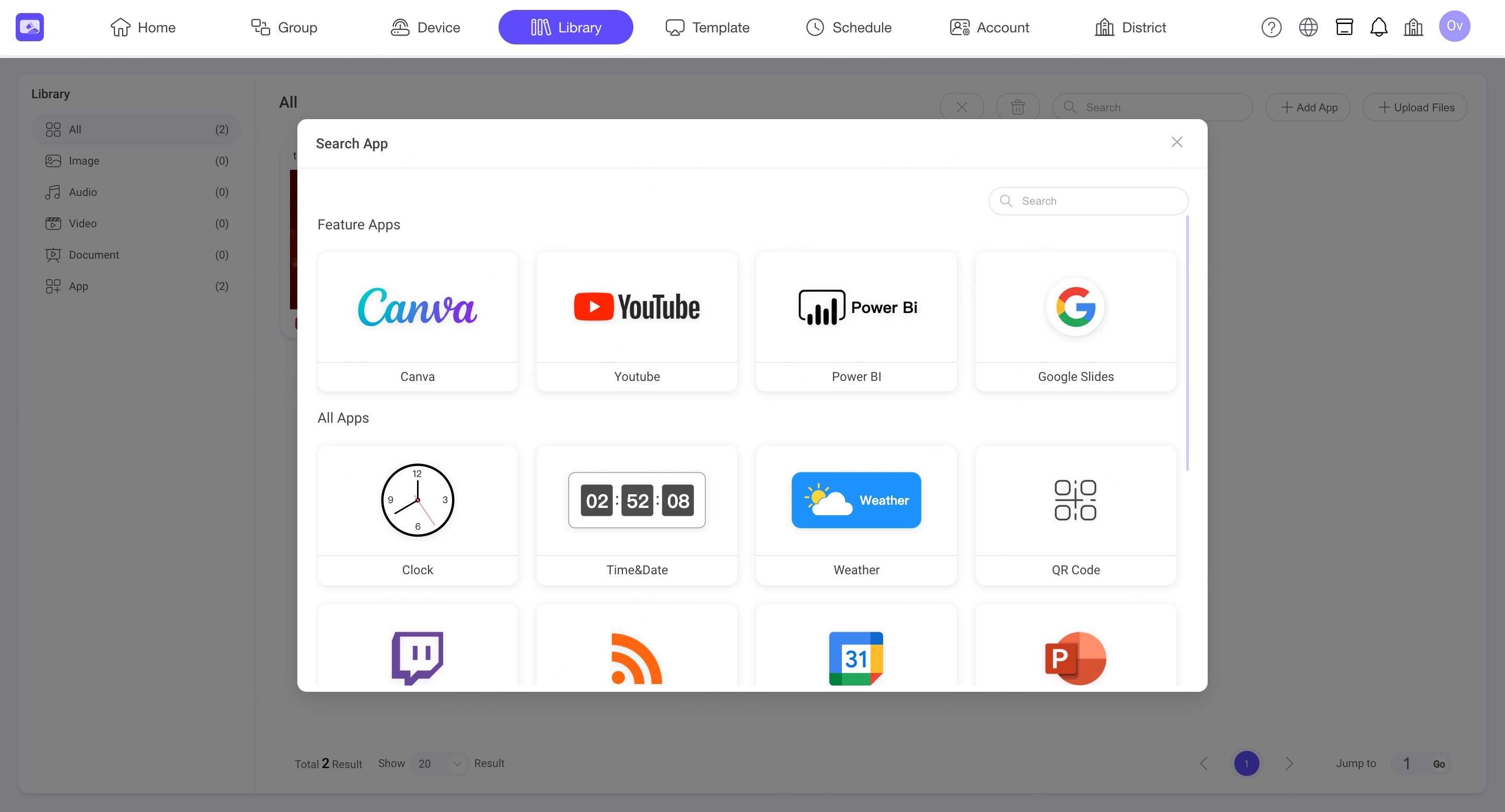
Step3. Select the desired app by clicking its icon.
5.3 Canva
NSP provides two methods for adding Canva designs:
- Canva Live (Recommended): Supports animations and automatically reflects changes made to the Canva design.
- Canva Image Sync: Saves the Canva design to the NSP Library as an image.
5.3.1 Canva Live
INFO
Canva Live displays a Canva design using its Smart embed link. It supports animated effects and reflects updates made to the original Canva design.
Step1. Open the design in Canva and click Share.
Step2. Select Embed from the sharing options.
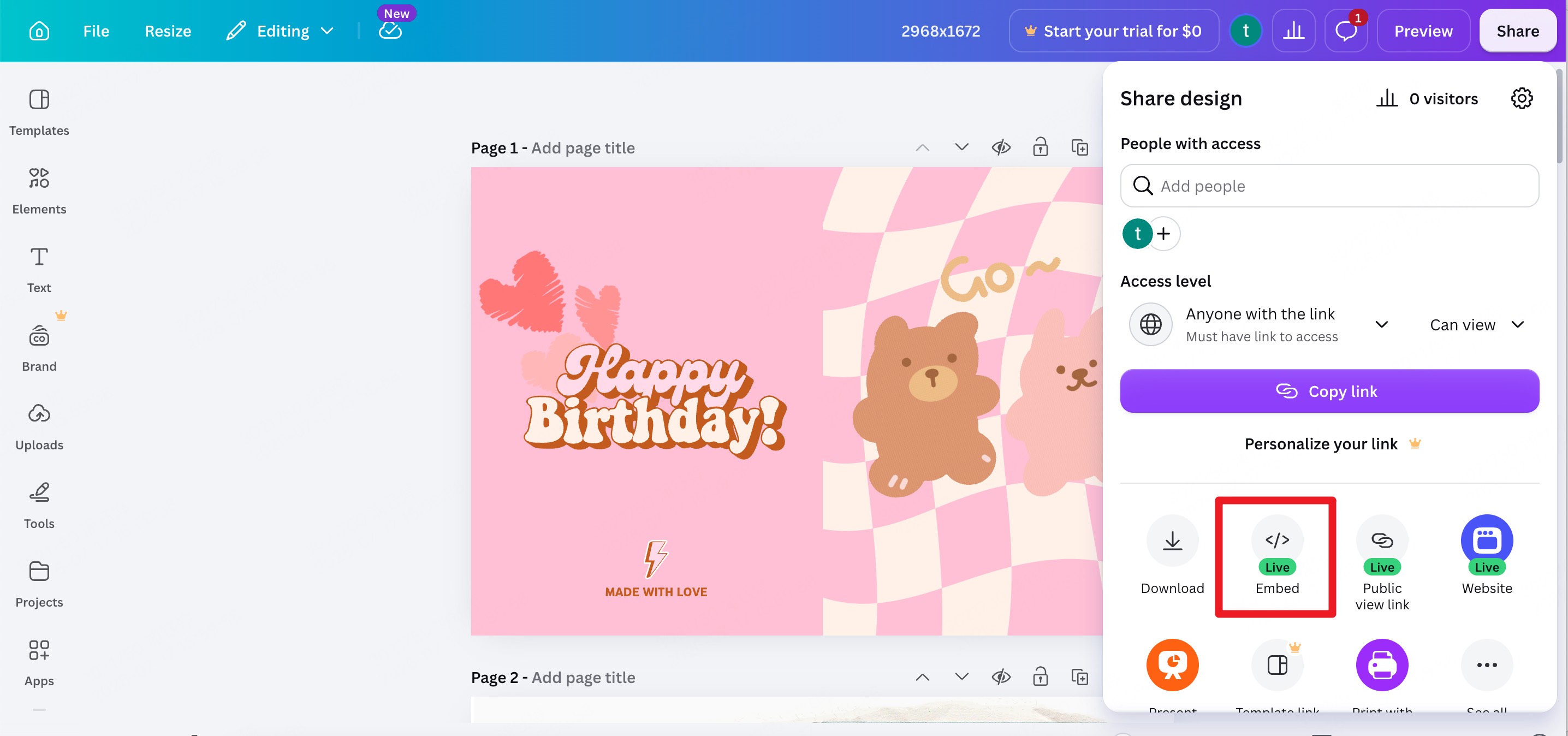
Step3. Copy the Smart embed link.
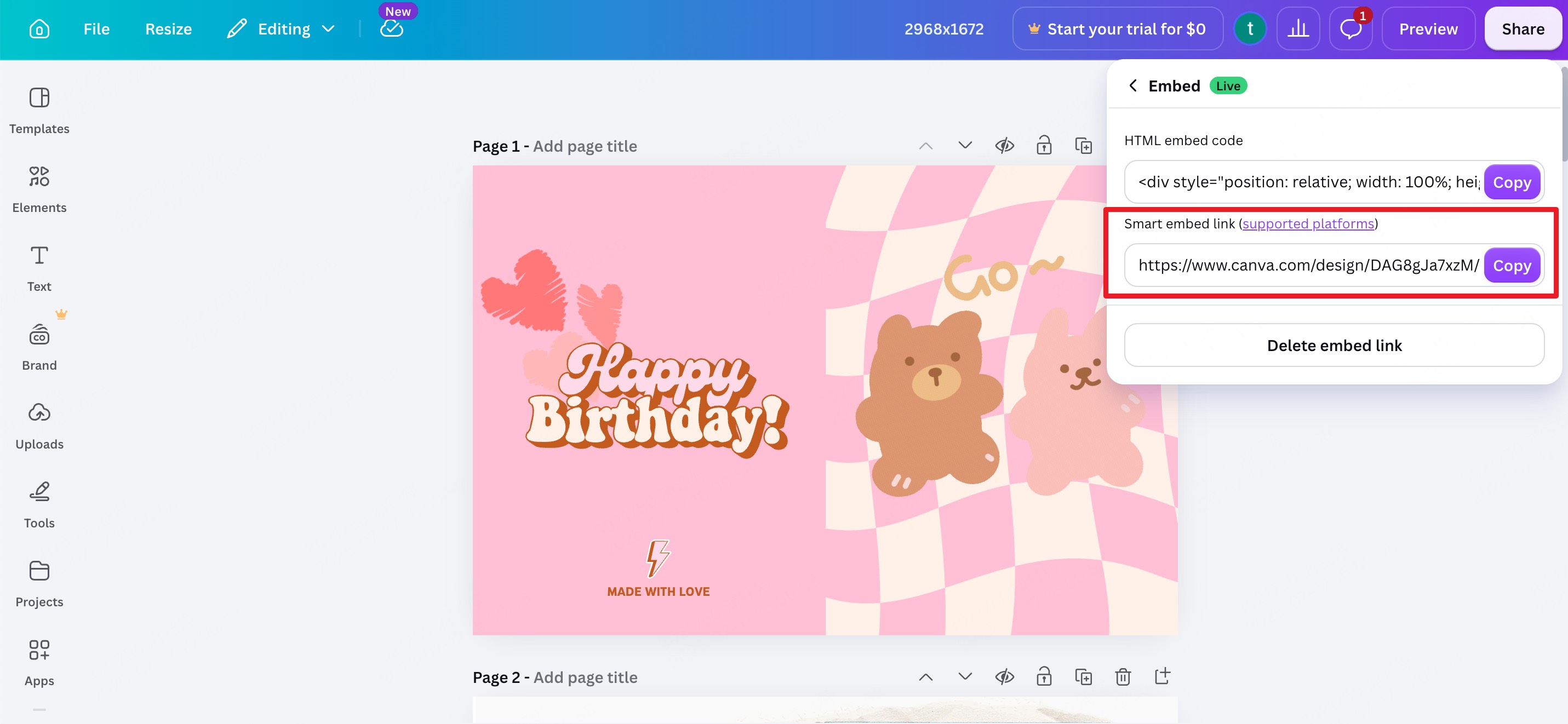
Step4. In NSP, go to Library, click Add App, and select Canva Live.
Step5. Enter a resource name and paste the Smart embed link.
Step6. Save the App.
💡 Note:
- If the latest changes are not displayed, re-save the Template or restart the NSP App on the device.
- Canva Live does not currently support videos embedded in a Canva design. To play video content, export the Canva design as a video and upload the exported file to the NSP Library.
5.3.2 Canva Image Sync
INFO
The Newline Signage Pro App in Canva allows you to save a Canva design to the NSP Library as an image.
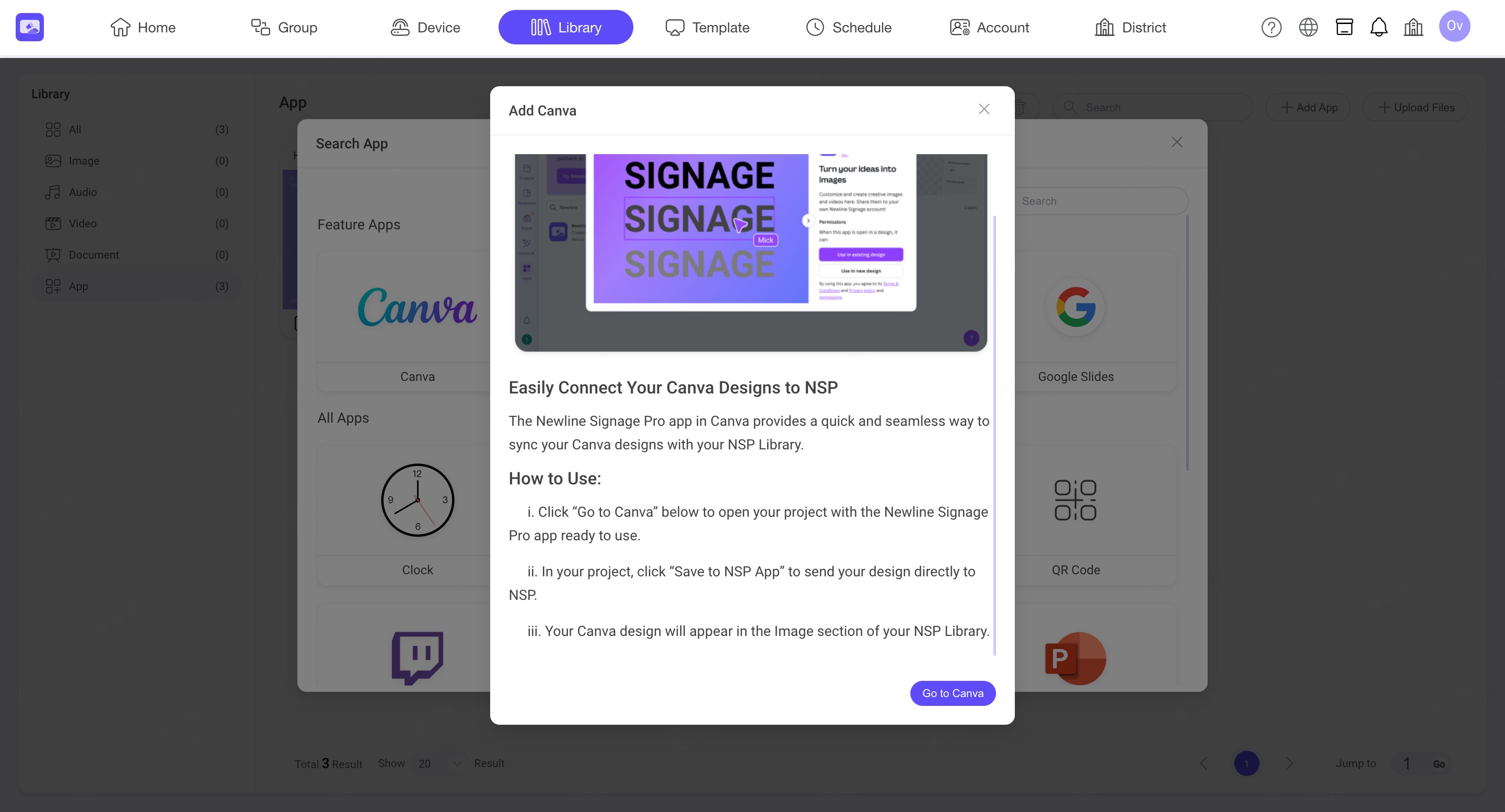
Step1. Click Go to Canva in NSP to open Canva with the Newline Signage Pro App.
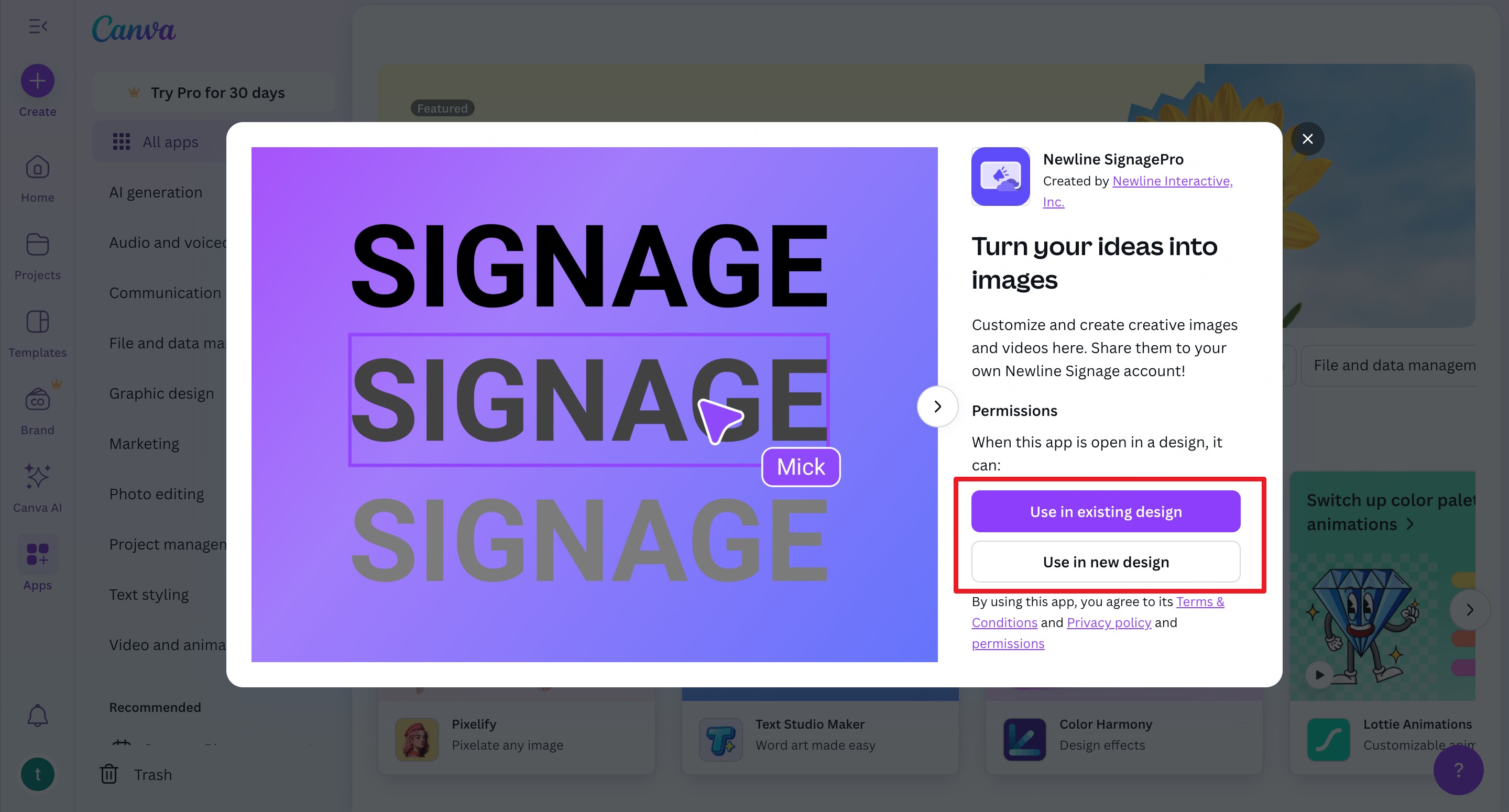
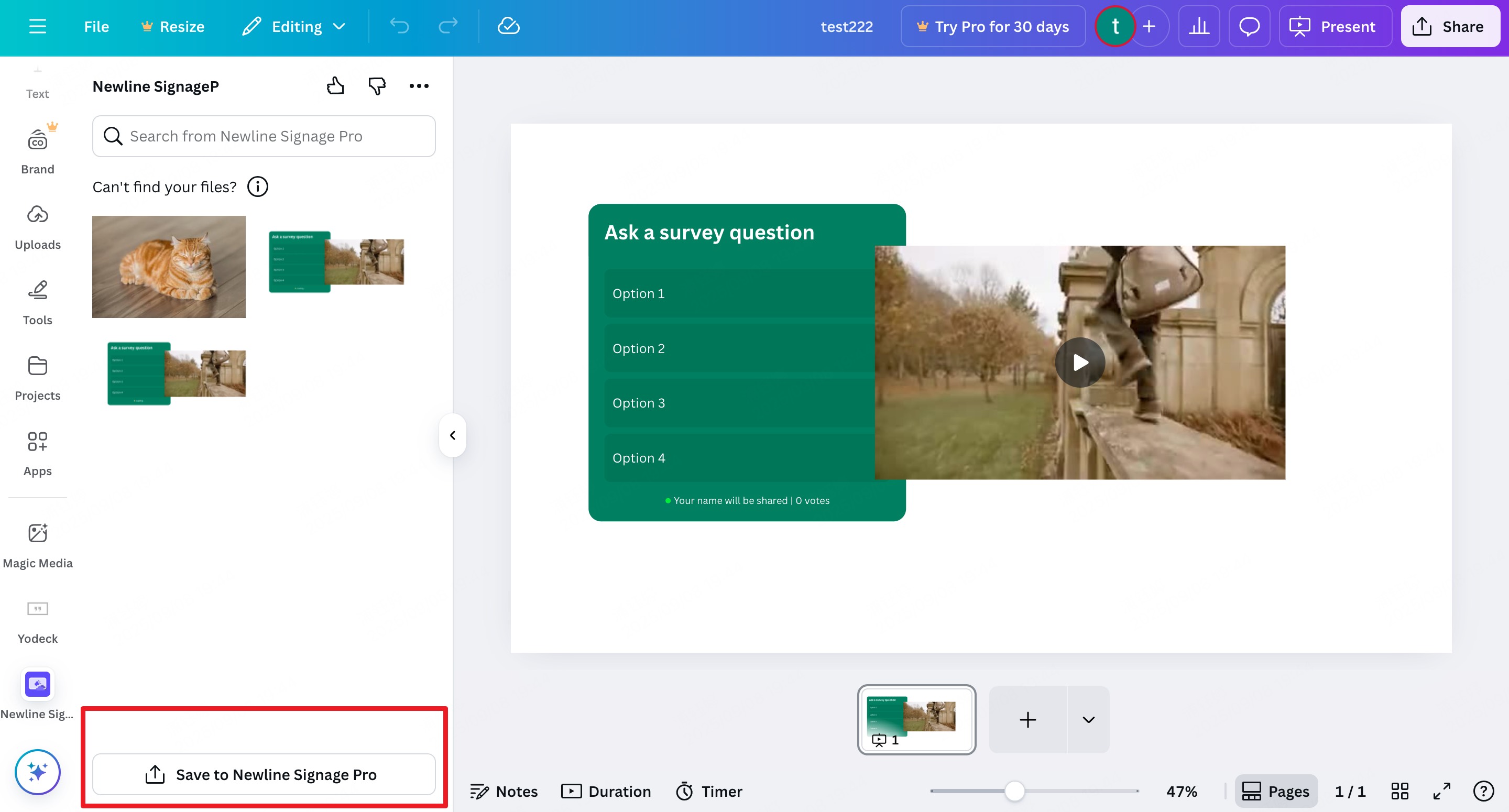
Step2. In Canva, click Save to NSP App to send the design to NSP.
Step3. The Canva design will appear in the Image section of the NSP Library.
5.4 YouTube
INFO
The YouTube App allows you to display both regular videos and live streams directly on your screens.
5.5 Twitch
INFO
The Twitch App allows you to display live Twitch streams directly on your screens.
5.6 RSS
INFO
The RSS App supports syncing news feeds based on scheduled update times, and it also supports displaying the main image included in the feed.
5.7 Power BI
INFO
The Power BI App allows you to showcase dynamic dashboards and reports by pasting the direct webpage link from Power BI.
5.8 Google Slides
INFO
The Google Slides App enables you to present your online presentations and keep them automatically updated.
5.9 PowerPoint Online
INFO
The PowerPoint Online App lets you import and display your online PowerPoint presentations with automatic updates.
5.10 Google Calendar
INFO
The Google Calendar App enables you to display your schedules and events directly on your screens.
5.11 Outlook Calendar
INFO
The Outlook Calendar App allows you to display events and schedules from your Microsoft Outlook calendar.
5.12 Local Calendar
INFO
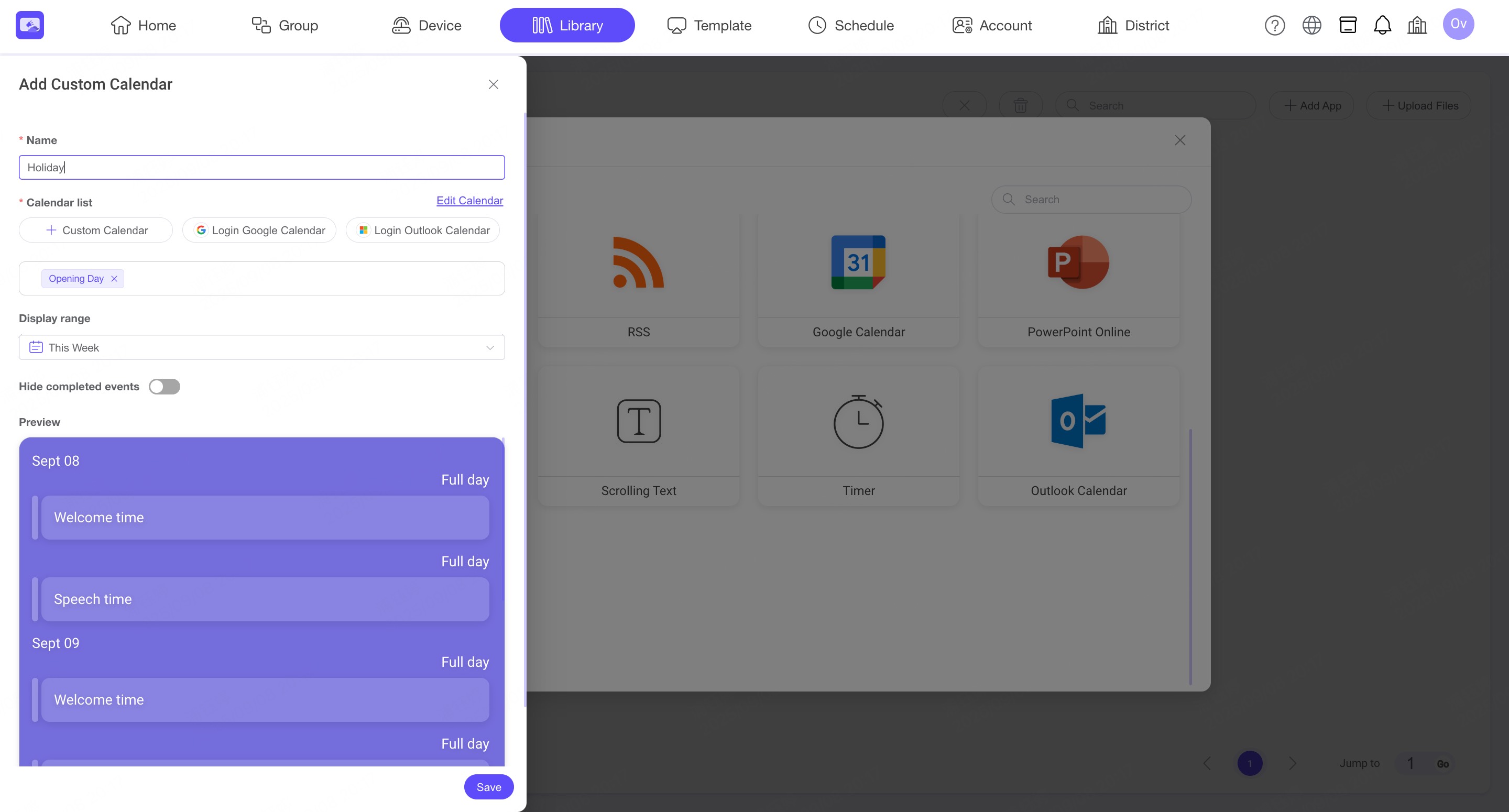
The Local Calendar App supports importing multiple Google Calendars or Outlook Calendars, and also allows you to add or edit custom events manually. Please note that imported calendars will not auto-update. For automatic updates, use the Google Calendar App or Outlook Calendar App instead.
5.13 Web Pages
INFO
The Web Page App allows you to display live websites or authenticated web pages on your signage screens.
5.13.1. Install Chrome Browser Extension
For a better preview experience, we recommend installing the Newline Signage Pro URL Assistant extension for Chrome:
Step1. Open the Chrome Web Store using the following link: Newline Signage Pro URL Assistant
Step2. Click the "Add to Chrome" button to install the extension.
5.13.2. Using the Script Tool
INFO
The Script Tool allows you to display live websites on your screens while keeping the view clean and professional. It is more than just a web browser; it automatically runs scripts to handle repetitive tasks that usually require a mouse or keyboard.
What it does
Auto-Clean Webpages: Automatically close "Cookie Consent" pop-ups and GDPR banners that block the view.
Smart Login: Handle simple login prompts automatically so your private dashboards stay active without manual input.
Hide Distractions: Remove unwanted elements like navigation bars, sidebars, or ads to focus only on the content you want to show.
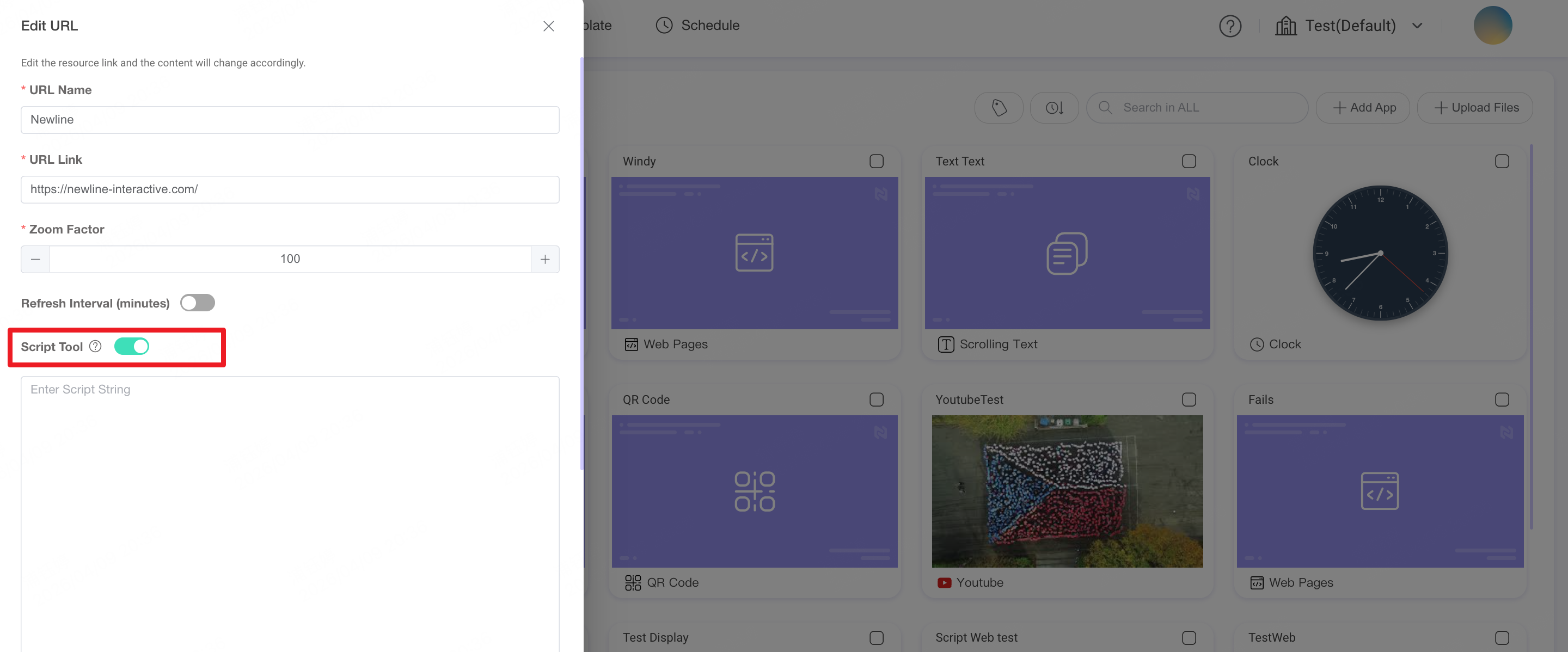
1. Available Methods
When configuring methods, separate each method with **. There are five methods available:
Element Value Setting -
setValue()- The first parameter is the element selector (implemented with querySelectorAll)
- The second parameter is the value to set for the element
- Please ensure the selector points to a unique element on the page to avoid script execution failure due to duplicate matches.
javascriptsetValue('[name="email"]', 'test@nsp.com');Element Click -
click()javascriptclick('[href="/login"]'); // Enter the element selectorDelay -
delay()in secondsjavascriptdelay(1);Page Jump -
jumpPage()javascriptjumpPage('https://nspsample.com');Custom Script -
runScript()to write your own code snippetjavascriptrunScript(` const navbarElement = document.querySelector('.navbar'); if (navbarElement) { navbarElement.remove(); console.log('✅ Successfully deleted navbar element'); } else { console.log('❌ Could not find class="navbar" element'); } `);
2. Example Usage: Auto-Clear Cookie
Sample URL: https://www.toyota.es/
javascript
delay(3)**
click('#onetrust-accept-btn-handler')
5.13.3 Enable Touch Interaction
Enable Touch Interaction when adding or editing a Web Page to allow users to interact with its content on a compatible interactive display.
💡 Note: Links that navigate to another webpage may not be supported in the current version.
5.14 Weather
INFO
The Weather App displays the current day’s weather conditions and forecast.
5.15 Clock
INFO
The Clock App allows you to display a live clock on your screens in different styles.
5.16 Time & Date
INFO
The Time & Date App displays the current time and date with customizable styles.
5.17 QR Code
INFO
The QR Code App generates scannable QR codes for quick access to links or information.
5.18 Scrolling Text
INFO
The Scrolling Text App displays custom text messages with flexible scrolling effects.
You can choose between horizontal or vertical scrolling during template editing.
5.19 Timer
INFO
The Timer App allows you to set countdowns or timers for events and activities.
5.20 Local Stream
INFO
The Local Stream feature allows you to play video files directly from a shared folder (SMB) on your local area network (LAN). This is ideal for playing high-bitrate or large video files without consuming cloud storage or external internet bandwidth.
- Set SMB Path: Enter the network path to your video file.
- Format Example:
smb://100.100.1.100/SharedFolder/video.mp4
- Format Example:
5.21 Stream Playlist
INFO
The Stream Playlist feature allows you to broadcast live video content directly on your displays. It is the ideal tool for integrating IPTV channels, live news, or internal campus broadcasts into your signage rotation.
Input Source: Enter the URL of your M3U or M3U8 stream in the configuration panel.
Security & Stability: For the best performance, always verify that your stream link starts with
https://. Non-secure links (http://) may be restricted by network security policies or firewall settings, which could prevent the live feed from displaying correctly.
5.22 Resi Live Stream
INFO
The Resi Live Stream App allows you to display a Resi live stream in NSP using an HLS URL.
Before adding the stream to NSP, obtain the HLS URL from your Resi account.
5.22.1 Get the HLS URL from Resi
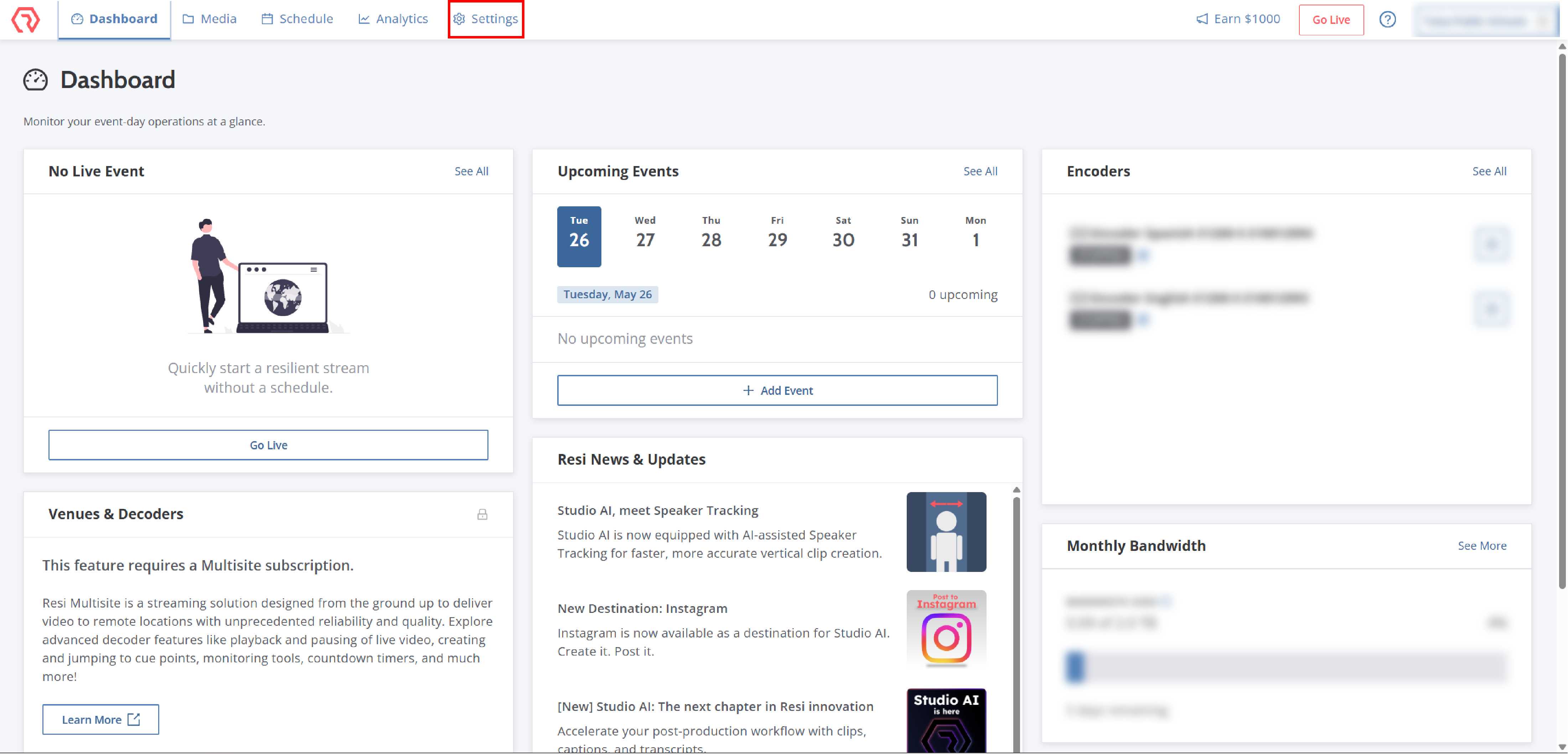
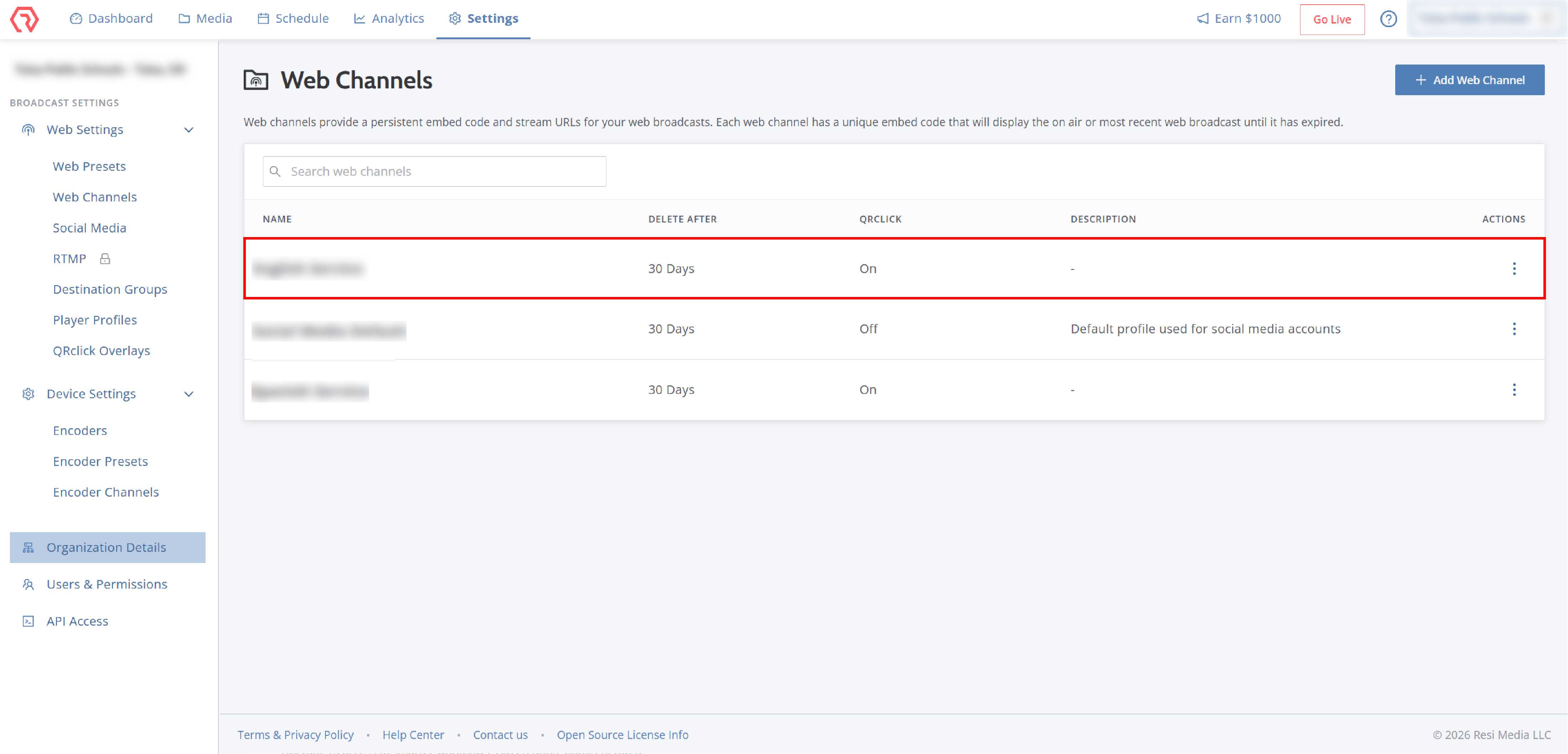
Step1. Sign in to your Resi account and select Settings.
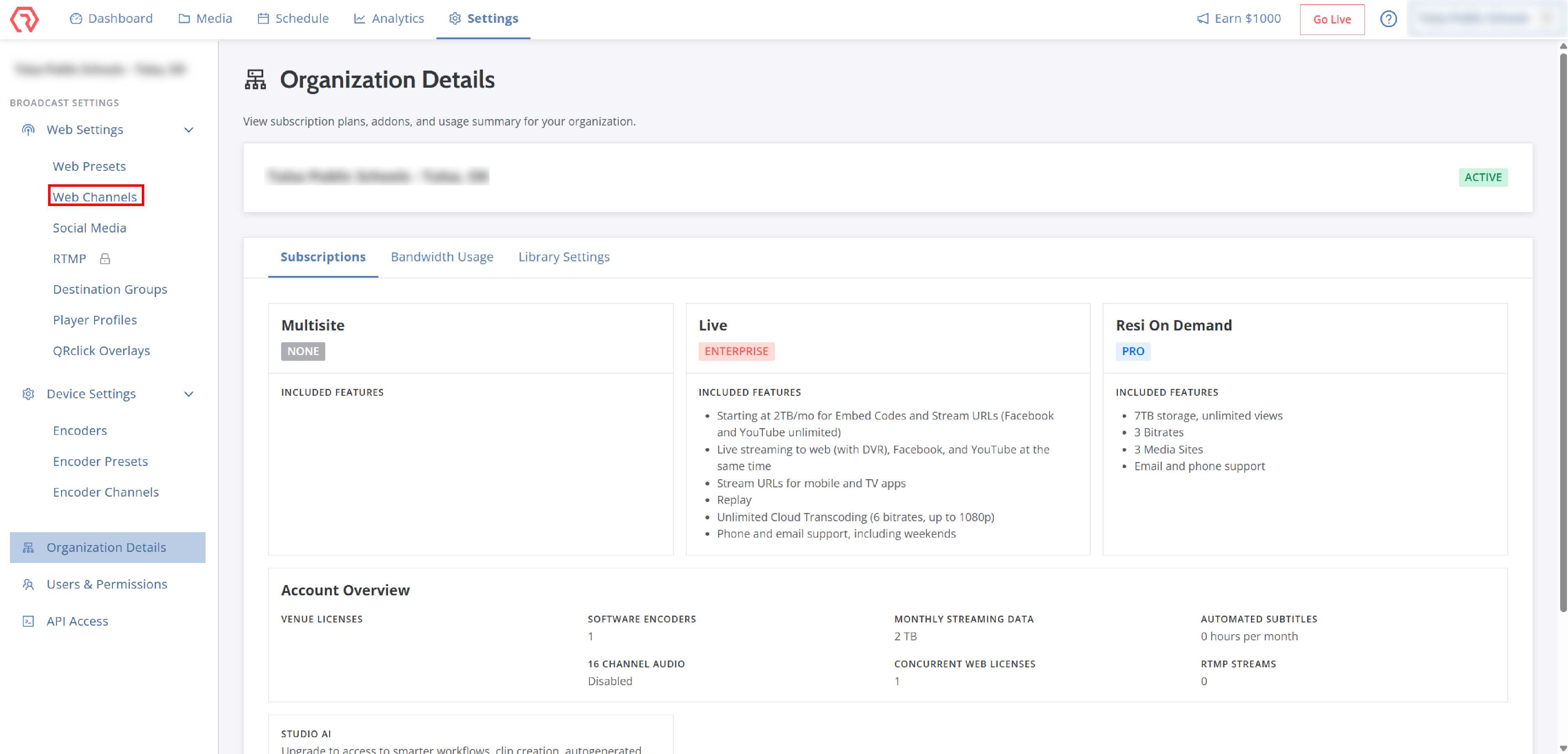
Step2. Under Web Settings, select Web Channels.
Step3. Select the Web Channel you want to display in NSP.
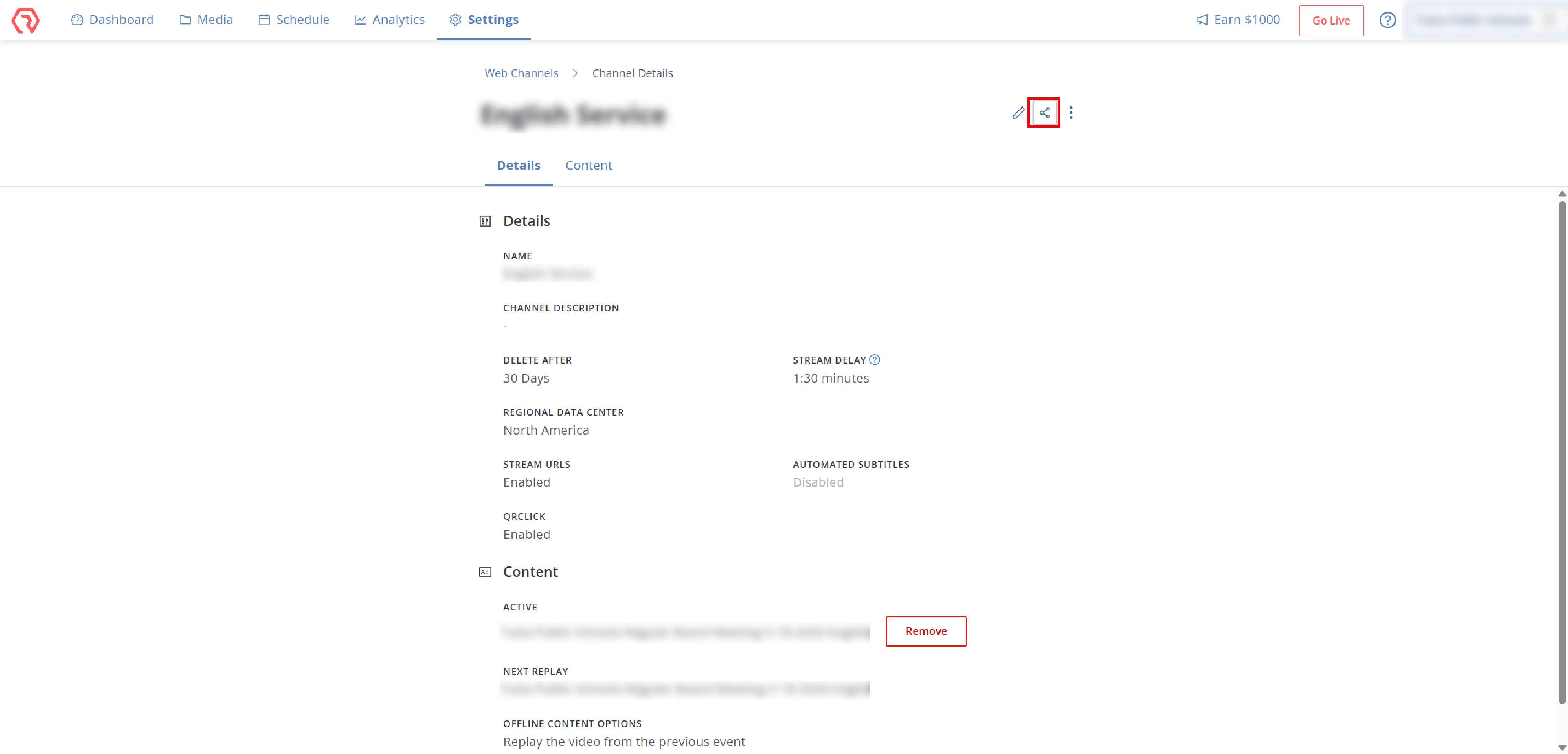
Step4. On the Channel Details page, click the Share icon.
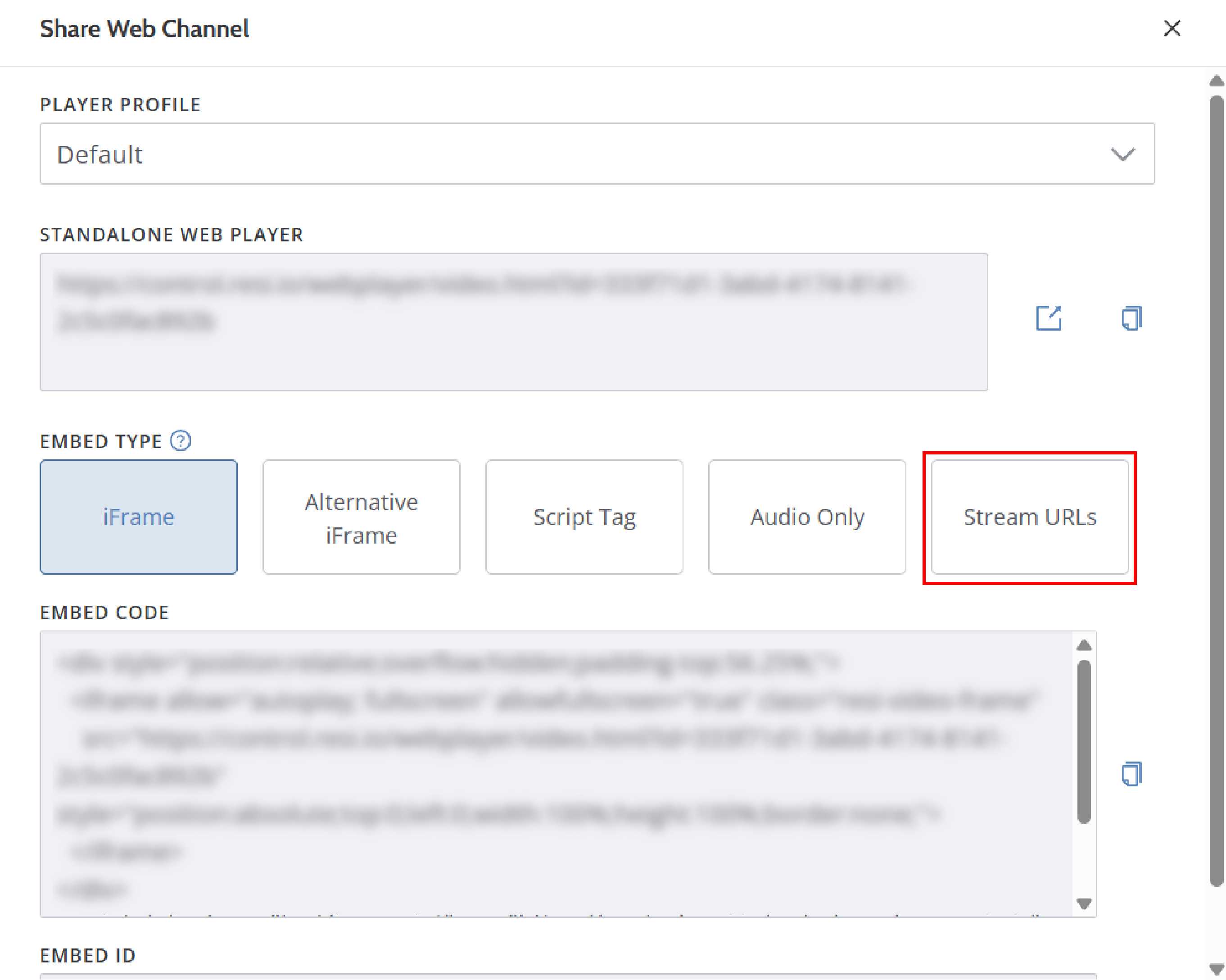
Step5. Select Stream URLs as the Embed Type.
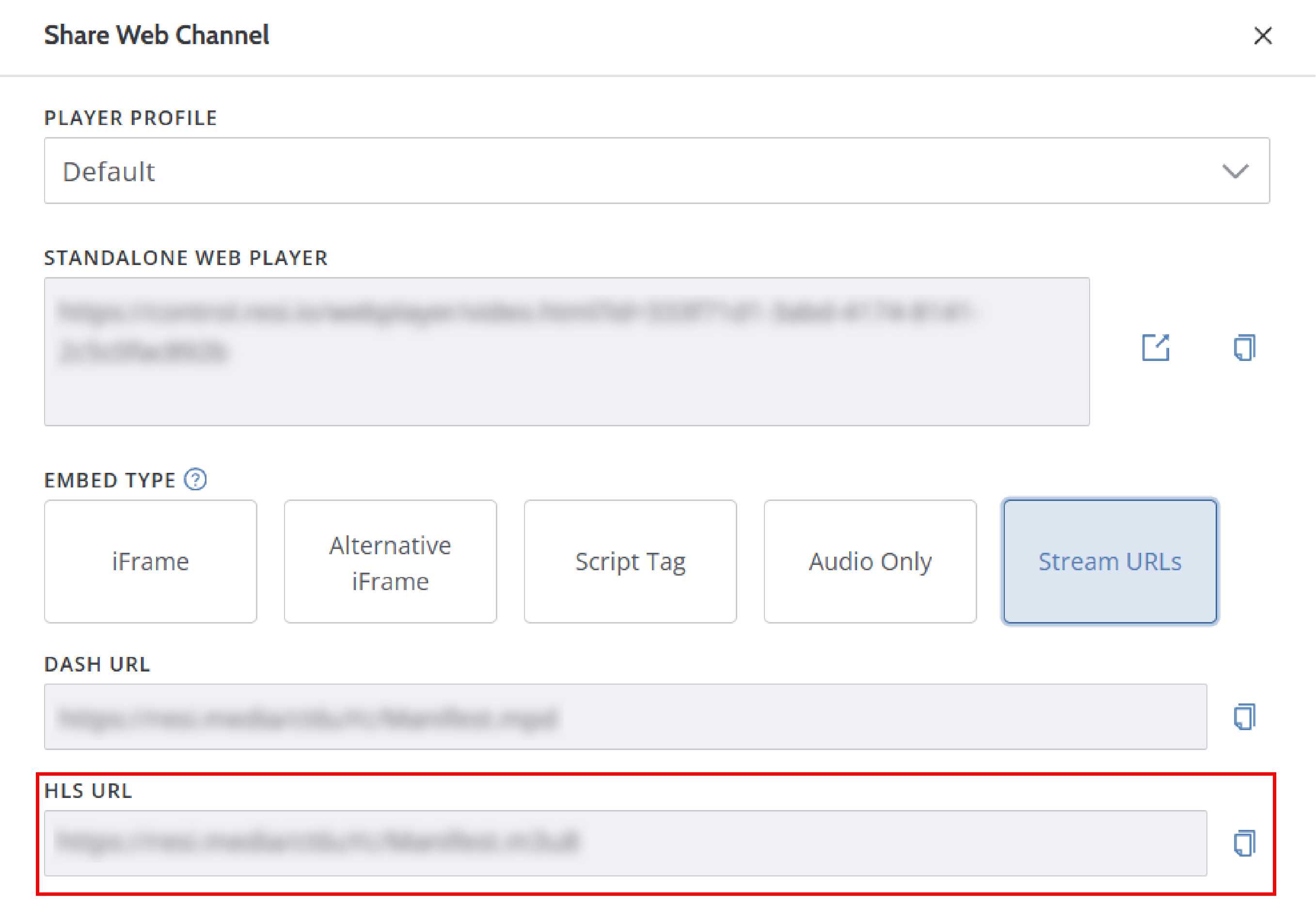
Step6. Copy the HLS URL.
5.22.2 Add the Resi stream to NSP
Step1. In NSP, go to Library and click Add App.
Step2. Select Resi Live Stream.
Step3. Enter a resource name and paste the HLS URL copied from Resi.
Step4. Save the App.
💡 Note: The display device must be able to access the HLS URL through its network connection.
5.23 RTSP
INFO
The RTSP App allows you to display a live video stream from an RTSP source, such as a network camera or local streaming server.
Step1. In NSP, go to Library and click Add App.
Step2. Select RTSP.
Step3. Enter a resource name and the complete RTSP URL.
Step4. Save the App.
💡 Note: Ensure that the display device can access the RTSP source and that the required network ports are not blocked.
5.24 Facebook
INFO
The Facebook App allows you to synchronize posts from a public Facebook Page and display them in NSP.
Only public Facebook Pages are supported. Personal profiles and Facebook Groups cannot be synchronized.
Facebook currently supports Page posts containing text and images. Video posts are not supported.
5.24.1 Prepare your Facebook Page
Before connecting Facebook to NSP:
- Make sure the Page is public and available to visitors.
- Sign in with a Facebook account that has permission to manage the Page.
- Make sure the posts you want to display have been published on the Page.
5.24.2 Connect Facebook to NSP
Step1. In NSP, go to Library and click Add App.
Step2. Select Facebook and click Connect Facebook.
Step3. Sign in to the Facebook account that manages the Page.
Step4. Review the requested permissions and authorize NSP to access the Page content.
Step5. Select the public Facebook Page you want to synchronize.
Step6. Confirm the selection and save the App.
💡 Note: If the selected Page does not appear, confirm that the signed-in Facebook account has access to manage that Page.
5.25 Instagram
INFO
The Instagram App allows you to synchronize posts from an Instagram Business Account and display them in NSP.
Personal and Creator accounts are not supported. Image posts are currently supported, while video posts are not supported.
5.25.1 Prepare an Instagram Business Account
If your Instagram account is already a Business Account, you can proceed to the next section.
To switch an account to a Business Account:
Step1. Open Instagram and go to your profile.
Step2. Open the menu and select Settings and privacy.
Step3. Under For professionals, select Account type and tools.
Step4. Select Switch to professional account and follow the instructions.
Step5. When prompted to select an account type, choose Business.
5.25.2 Connect Instagram to NSP
Step1. In NSP, go to Library and click Add App.
Step2. Select Instagram and click Connect Instagram.
Step3. Sign in through Meta using the account associated with the Instagram Business Account.
Step4. Review the requested permissions and authorize NSP to access the account content.
Step5. Select the Instagram Business Account you want to synchronize.
Step6. Confirm the selection and save the App.
💡 Note: If the Instagram account does not appear, confirm that it has been switched to a Business Account and that you signed in with the correct Meta account.
5.26 HTML
INFO
The HTML App allows you to create custom content using standard HTML and CSS.
Step1. In NSP, go to Library and click Add App.
Step2. Select HTML.
Step3. Enter a resource name and add your HTML and CSS code.
Step4. Enable Touch Interaction if users need to interact with the content on a compatible interactive display.
Step5. Save the App.
💡 Note:
- Touch Interaction allows users to interact with supported elements in the HTML content using the display's touchscreen.
- Links that navigate to another webpage may not be supported in the current version.
5.27 Share a Library Folder with Workspaces
INFO
The Share feature allows you to share a Library folder with other workspaces in the same organization. This feature is available only with the Enterprise (District) Plan.
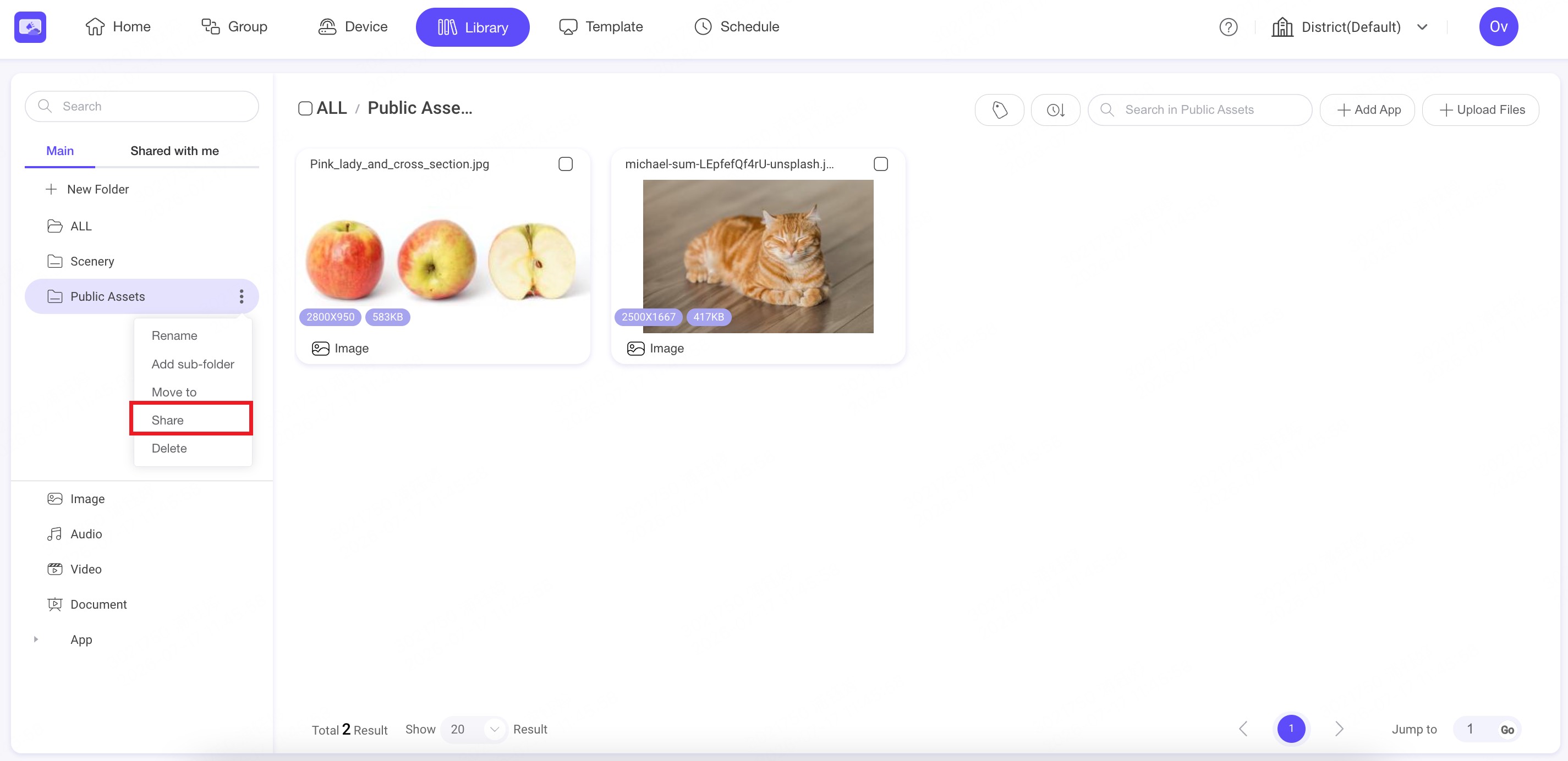
Step1. Under Main, click the menu icon next to the folder you want to share and select Share.
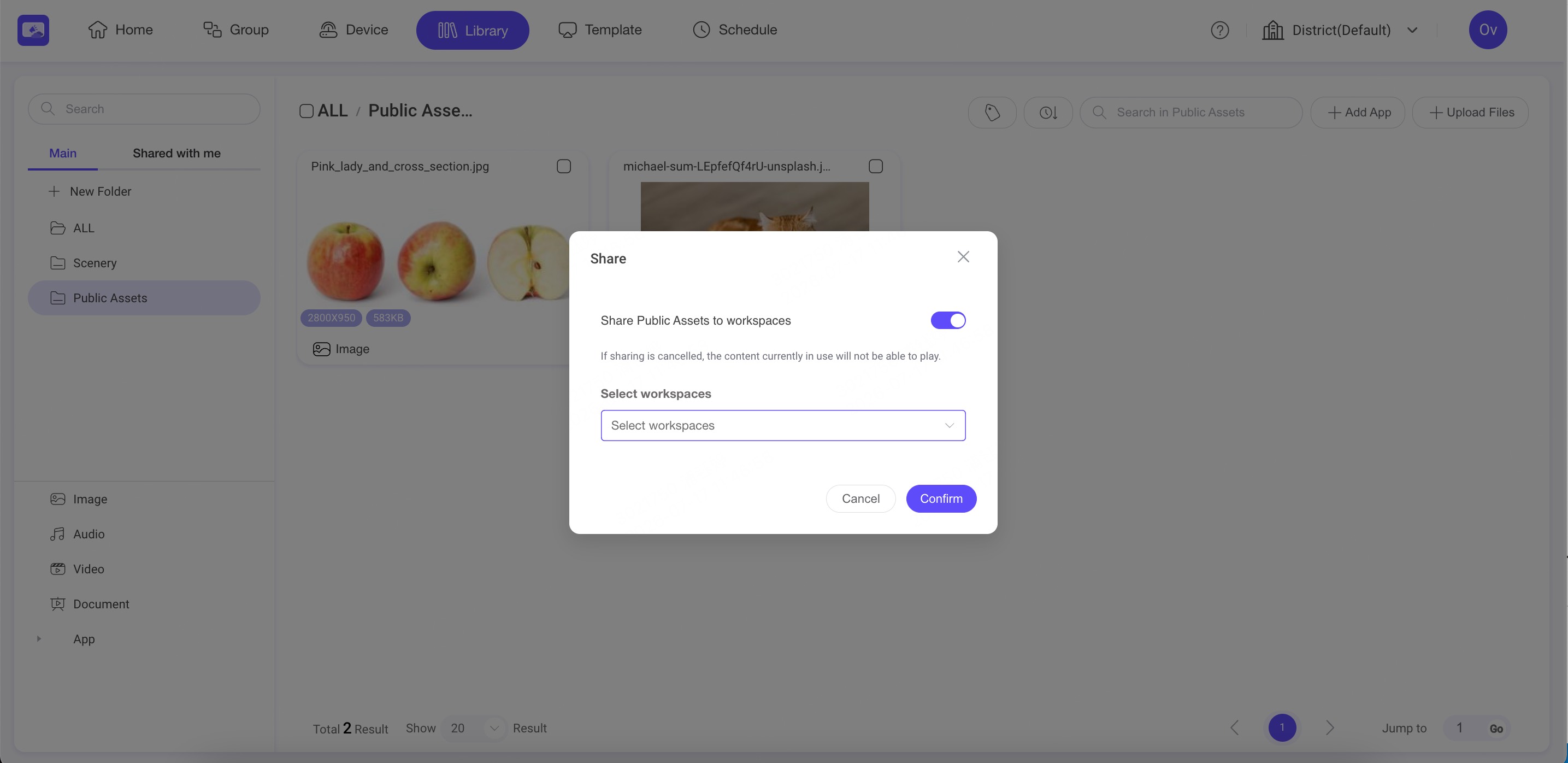
Step2. Enable folder sharing and select one or more target workspaces.
Step3. Click Confirm to share the folder.
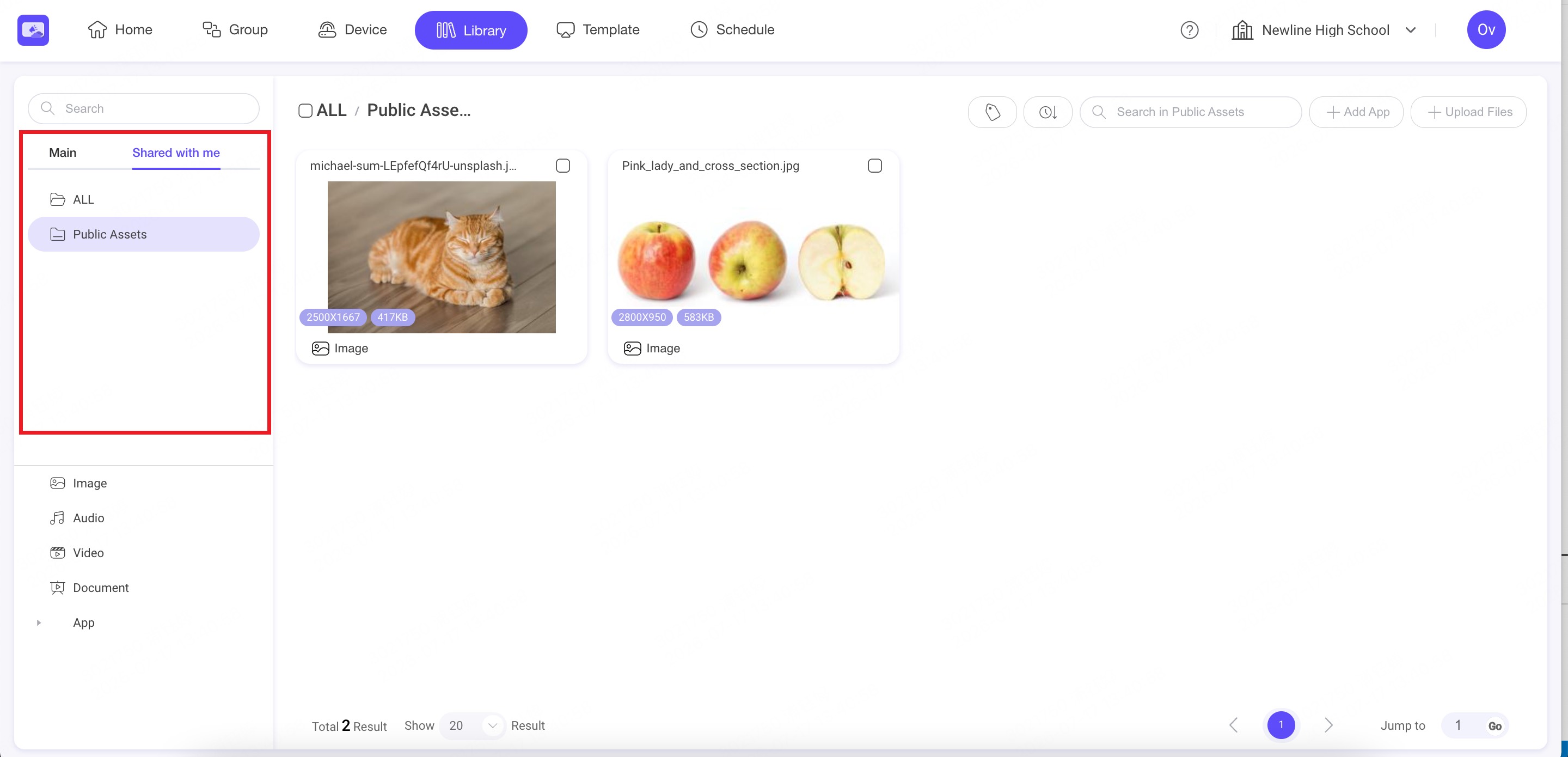
Step4. Users in the selected workspaces can find the folder and its resources under Shared with me.
💡 Note:
- Only top-level folders under Main can be shared.
- Subfolders automatically inherit the sharing settings of their parent folder.
- Users in receiving workspaces can view and use shared resources, but cannot edit, move, or delete them.
- If sharing is cancelled, shared resources currently used by the receiving workspaces will no longer play.
6. Template
INFO
The Template module allows you to create and manage templates.
6.1. Create a template
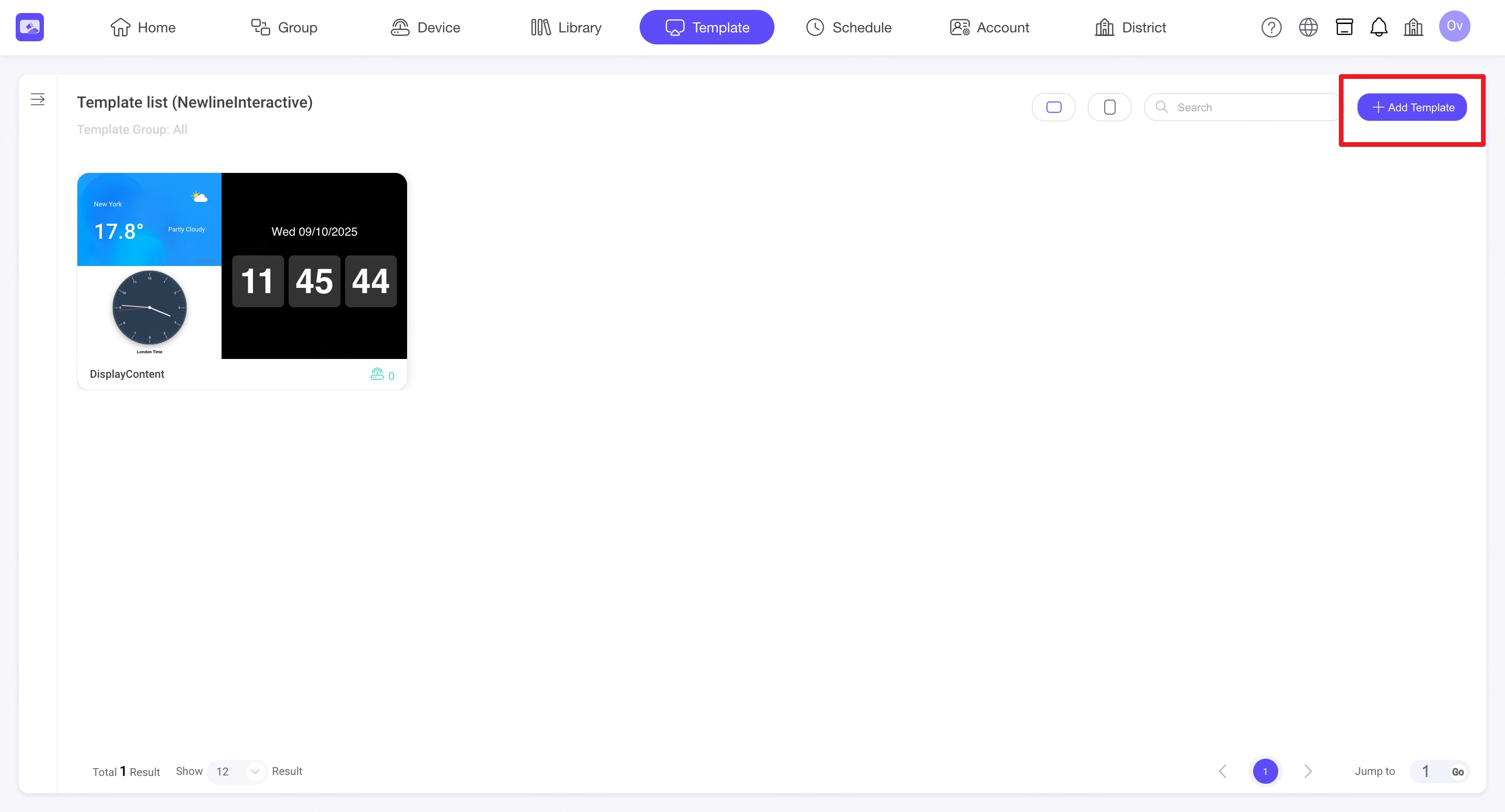
Step1. Click 'Add Template' button.
Step2. Enter Template Name.
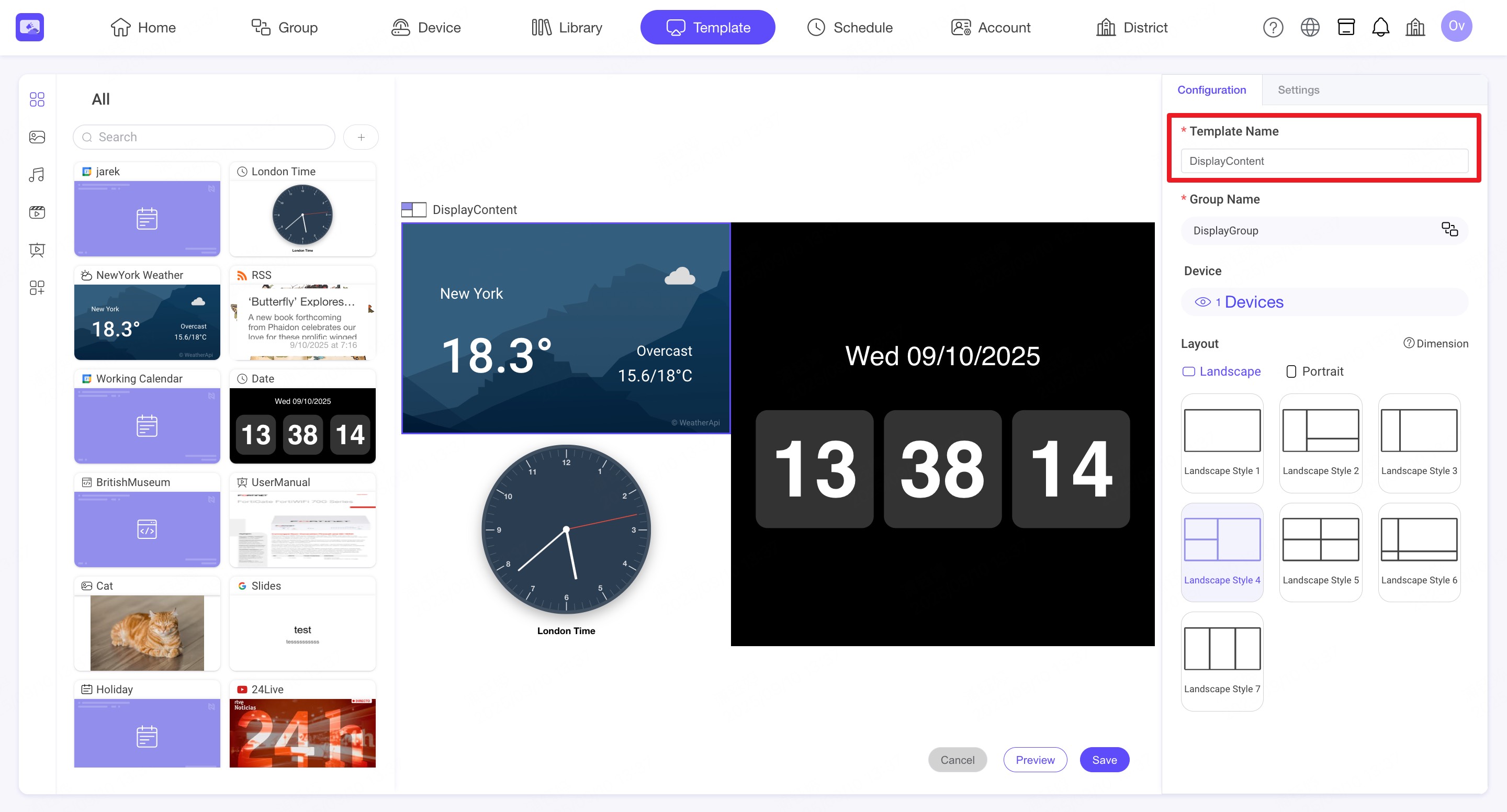
Step3. Select Template Group.
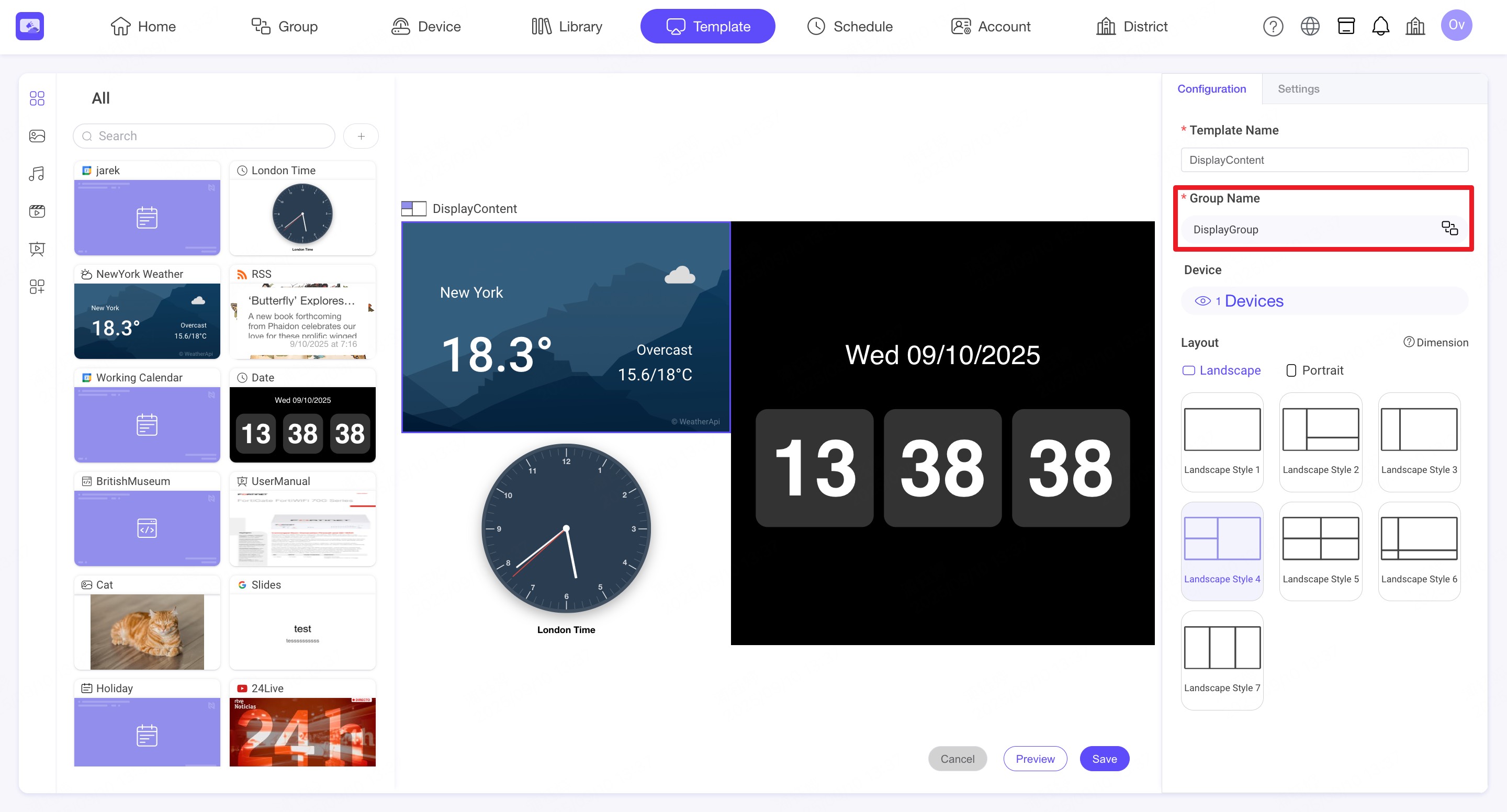
Step4. Select a layout. There are 9 landscape layouts and 5 portrait layouts available.
6.2. Edit Template Content
Content Categories: You can add various types of content by dragging resources from the Library on the left to the Template canvas. Each Template block can contain multiple resources.
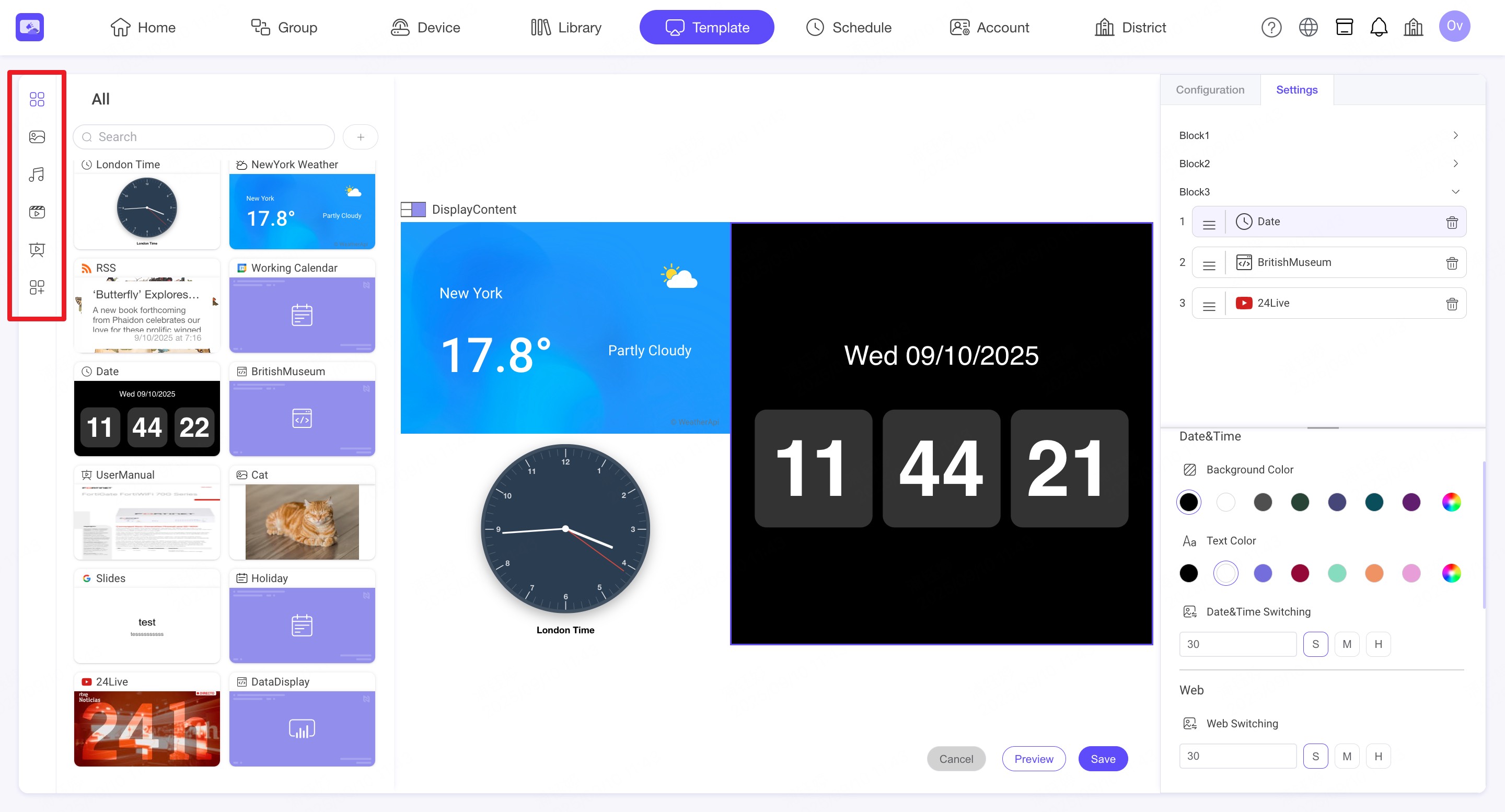
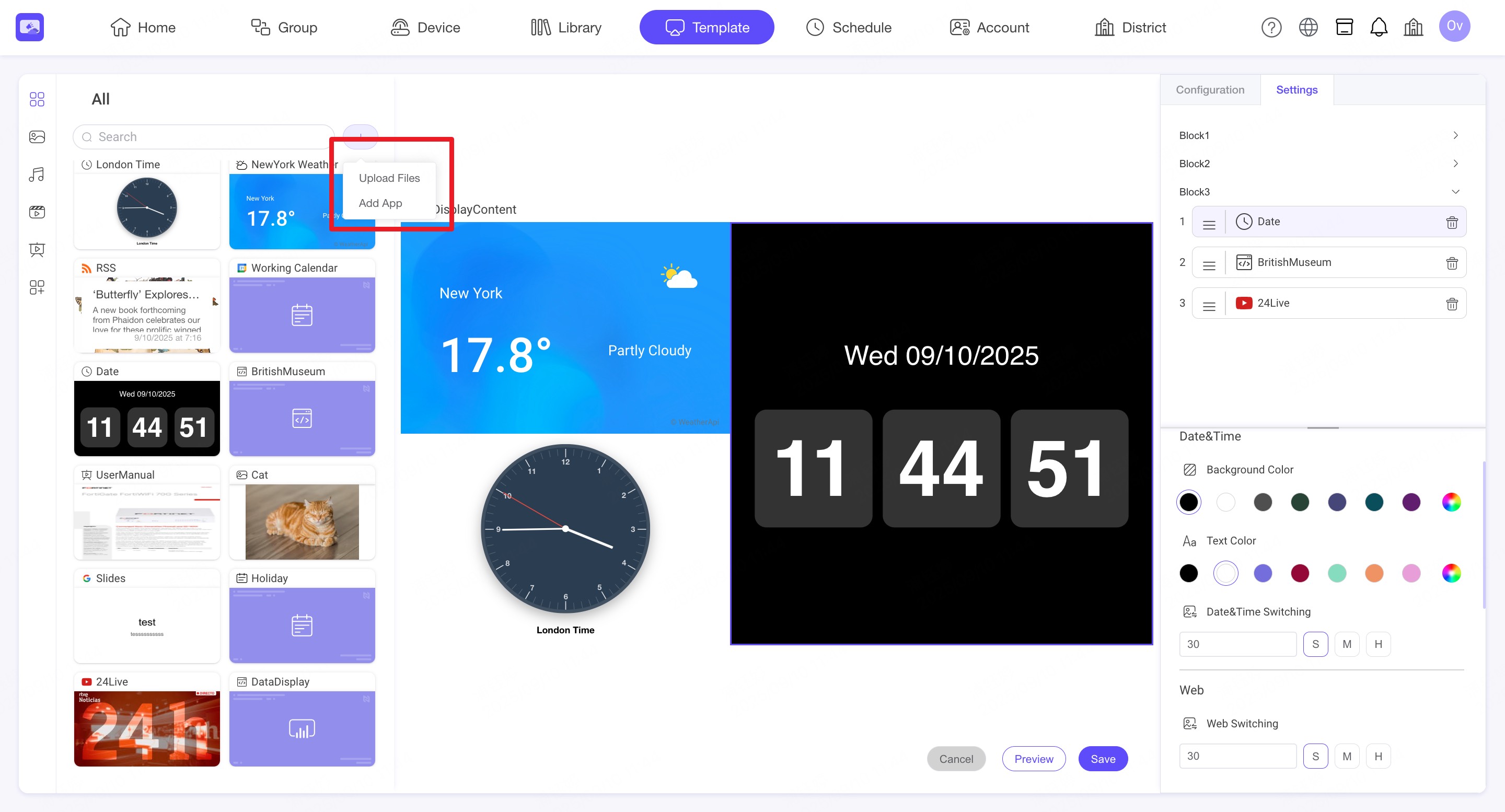
Add Content: When editing a template, you can add resources such as images, videos, or apps.
This allows you to build richer content directly within the template.
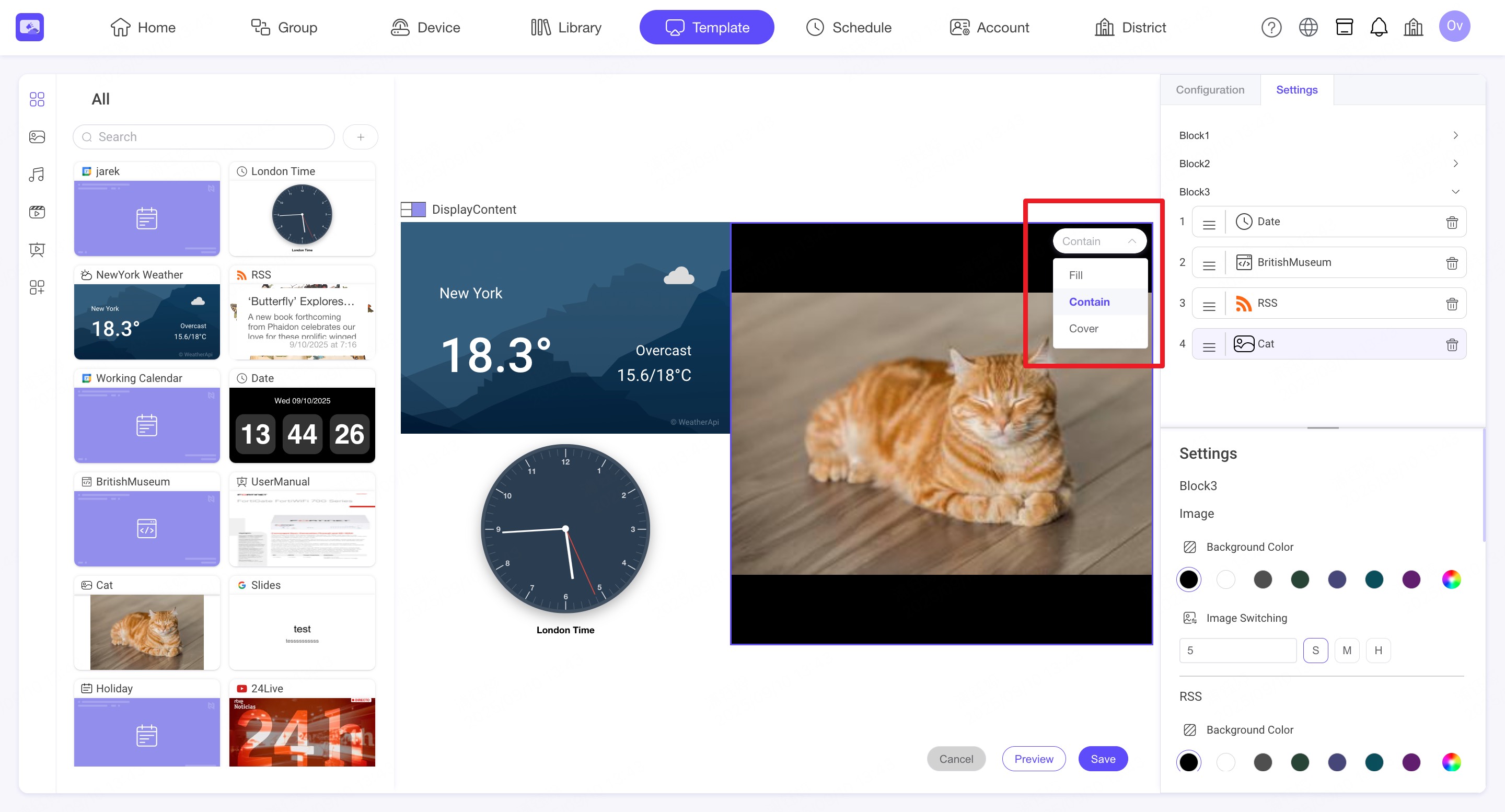
Content Layout Settings: Image and video content supports three layout modes: Fill, Contain, and Cover.
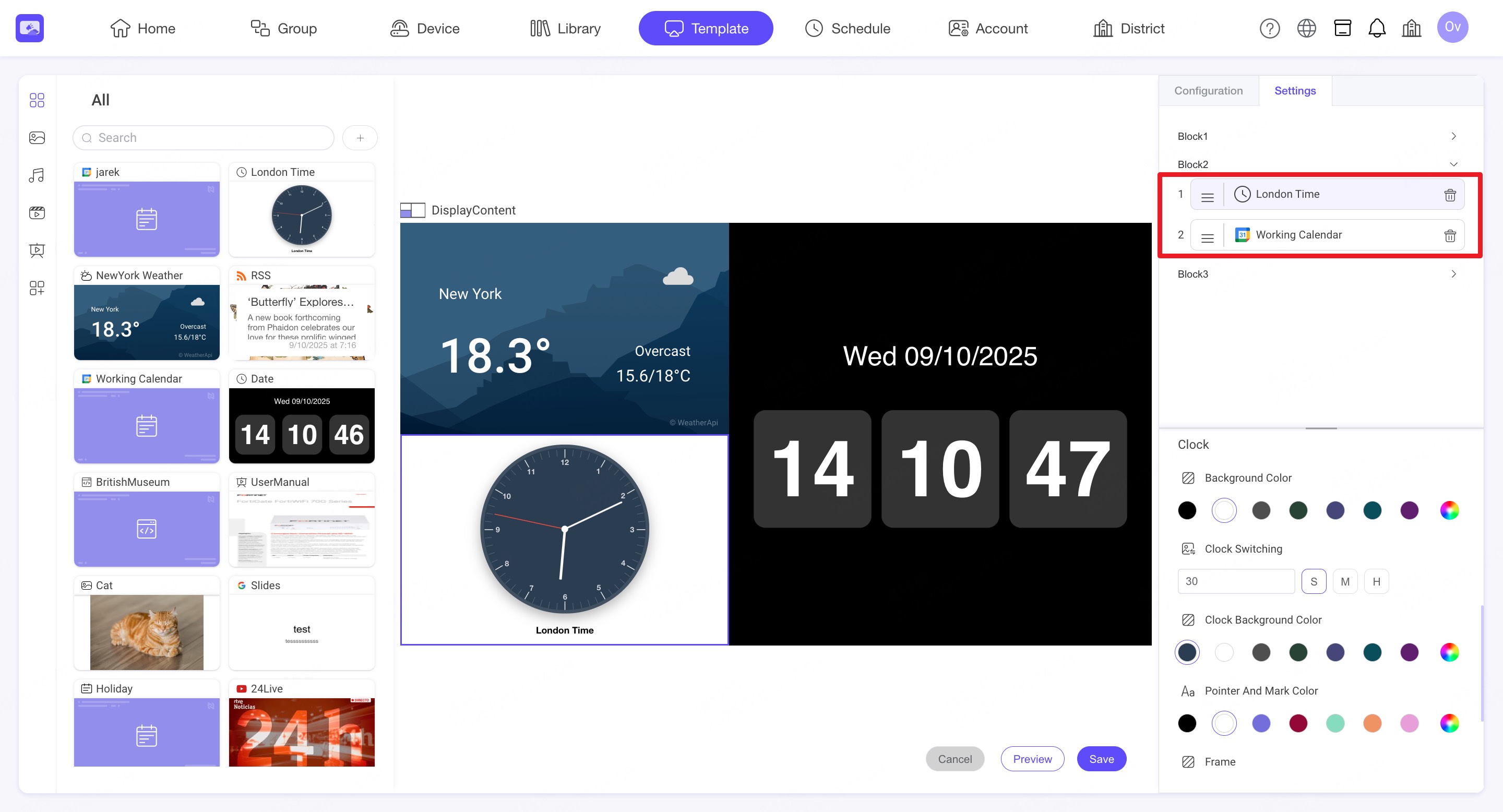
Content Sequence: On the right side, you can change the playback order of content in each block or remove content.
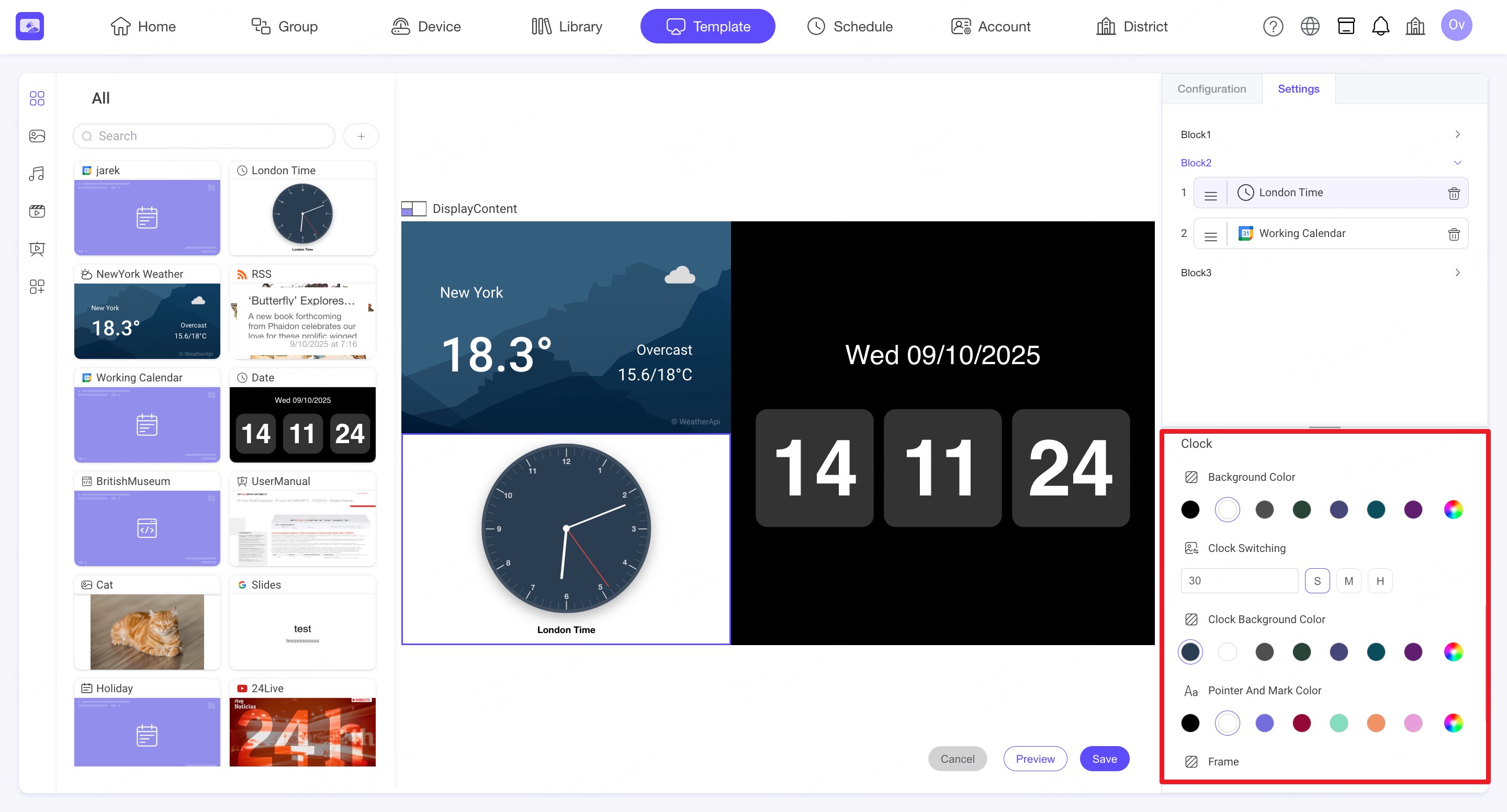
Settings: You can configure playback settings for each block, including the background color, text color, font, font size, playback speed, and transition time.
6.3. Edit or preview a template
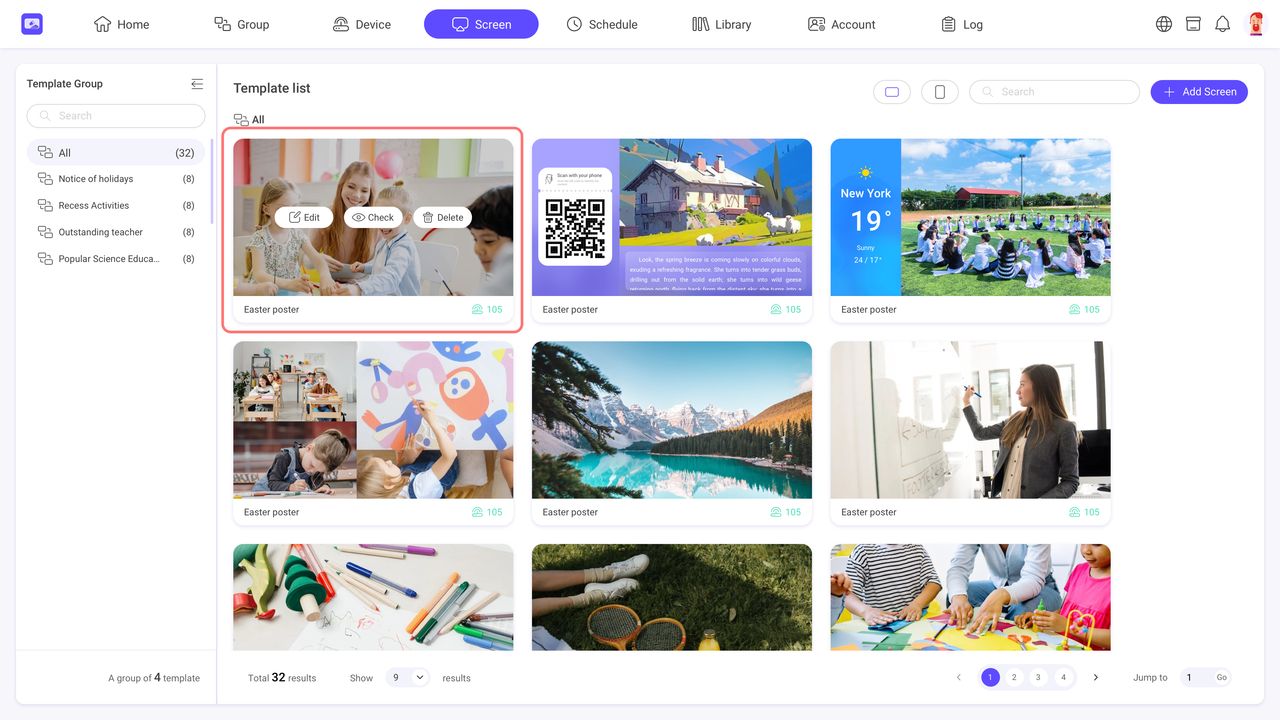
You can select a template in the template list to edit, preview or remove.
6.4. Create a Video Wall
INFO
The Video Wall feature allows content to be displayed across multiple screens. It currently supports image and video resources only.
Video Wall supports two playback types:
- Split content: Splits one piece of content across multiple screens to create a single combined display.
- Synchronize: Plays the same content on multiple screens simultaneously.
6.4.1. Create a Video Wall
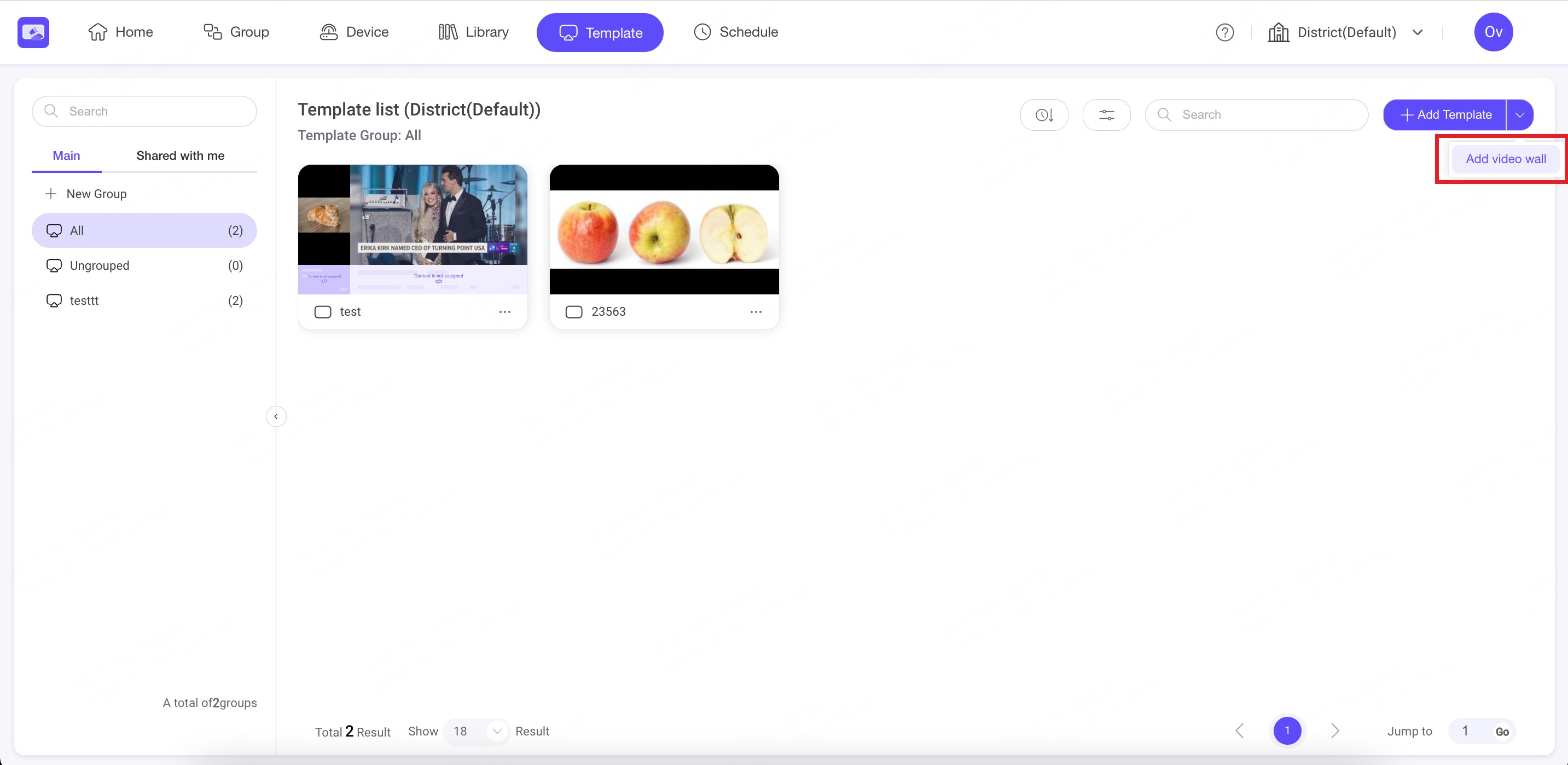
Step1. Go to Template, click the dropdown arrow next to Add Template, and select Add video wall.
Step2. Enter the Template Name and select a Template Group if needed.
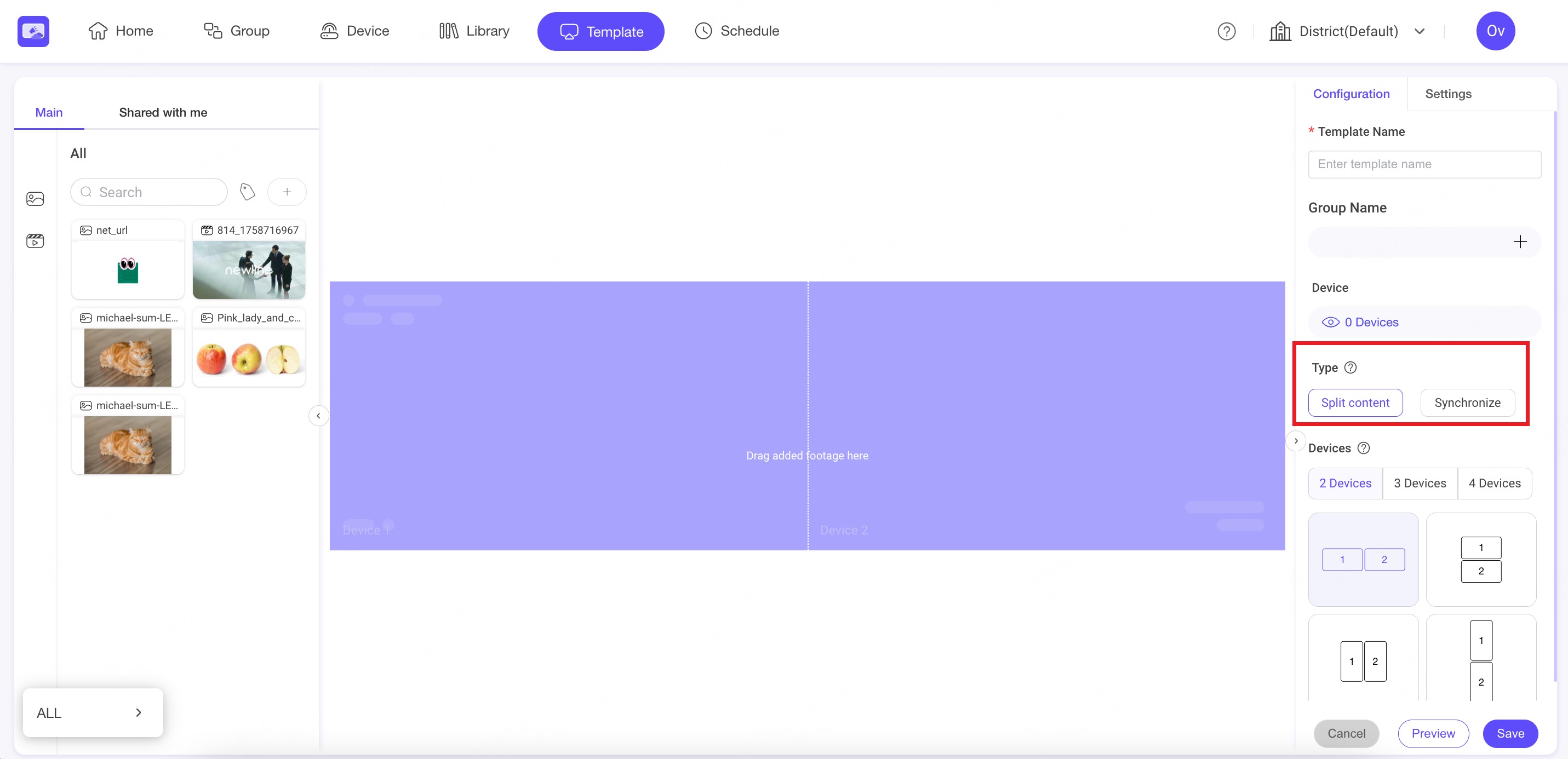
Step3. Select Split content or Synchronize under Type.
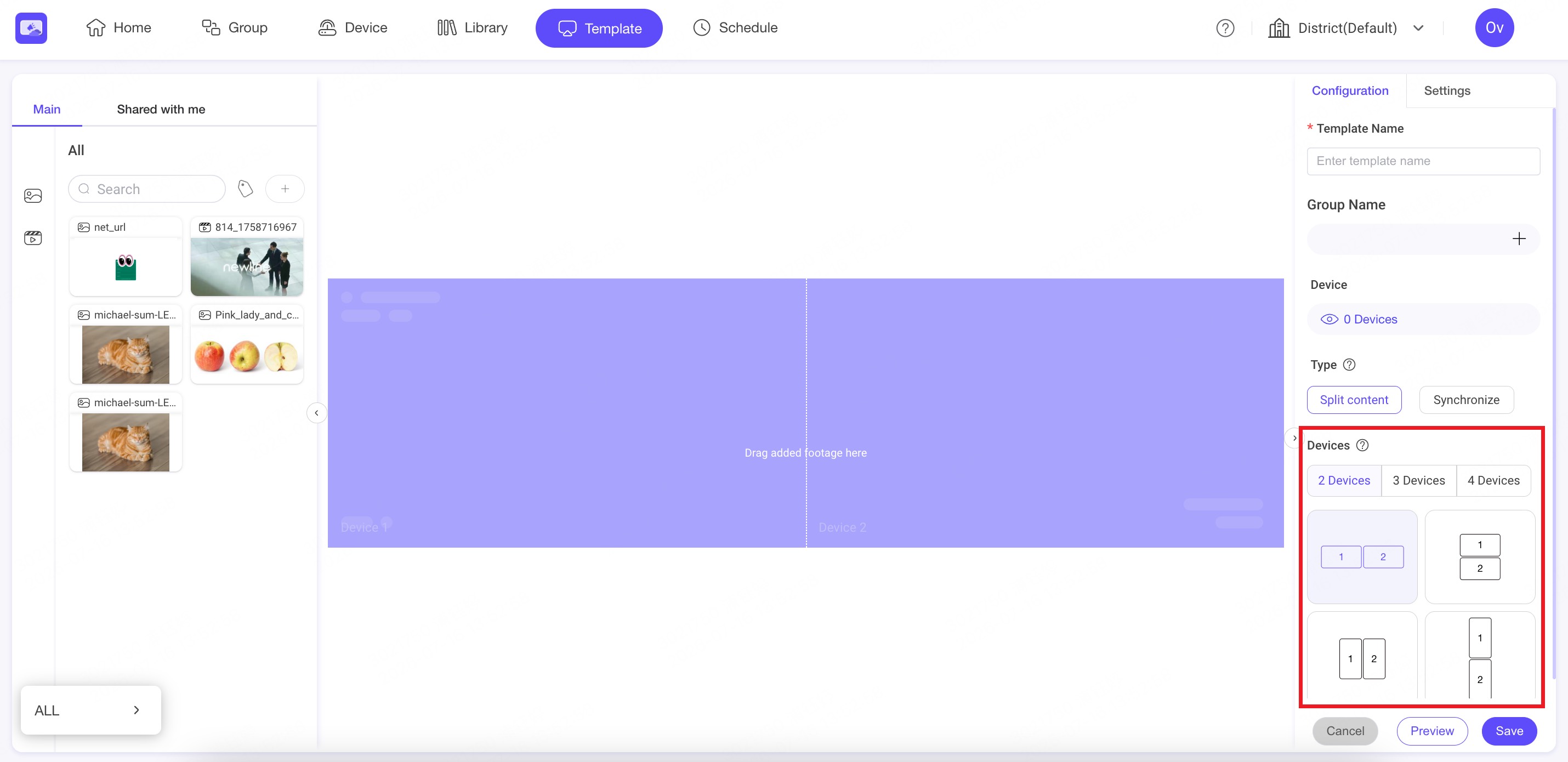
Step4. Select the number of devices and choose a layout that matches the physical arrangement of the screens.
Video Wall currently supports 2, 3, or 4 devices. For support with more devices, please contact Newline Support.
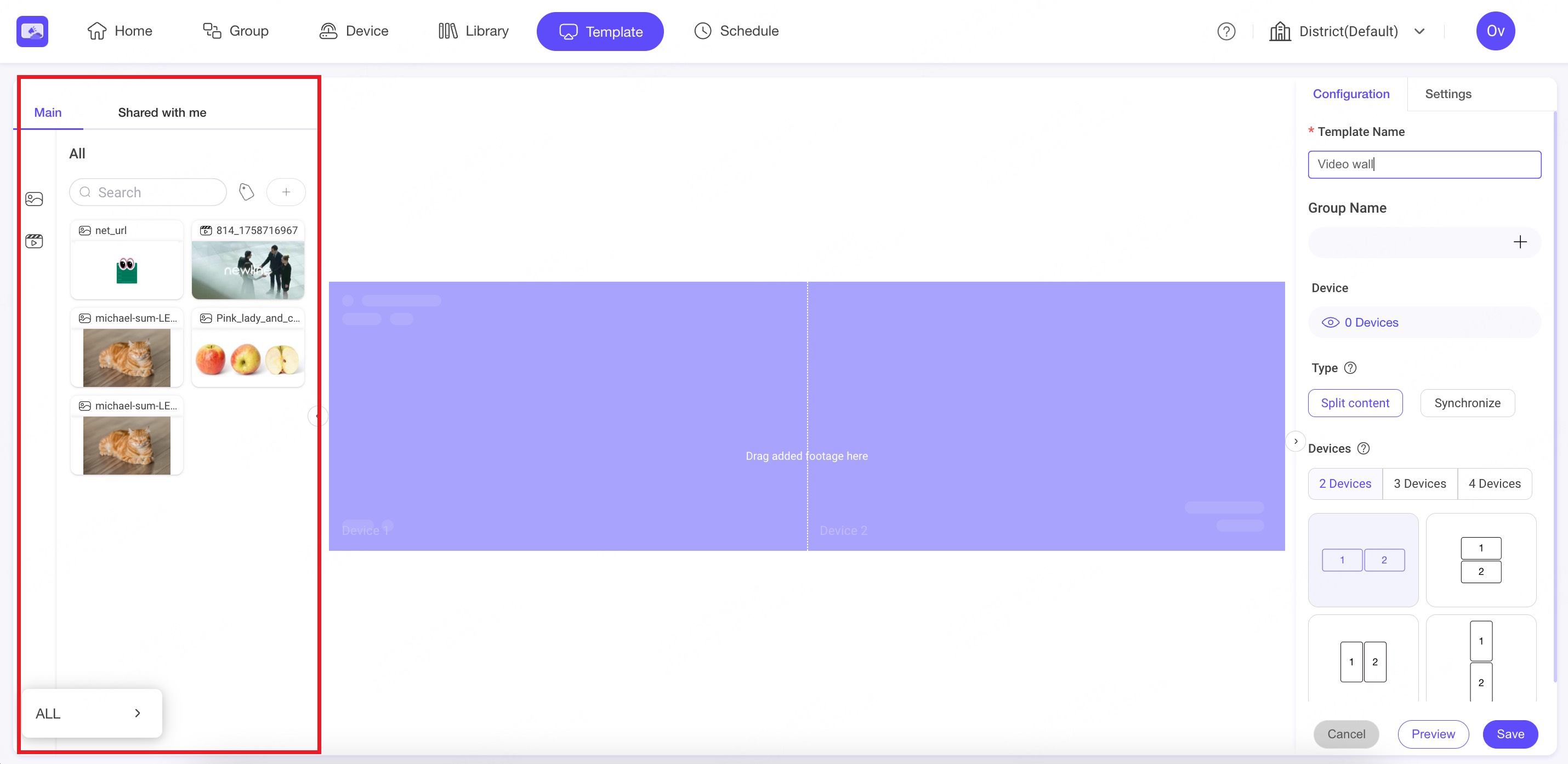
Step5. Drag an image or video from the Library to the editing area.
Step6. Click Preview to preview the Video Wall, or click Save to save it.
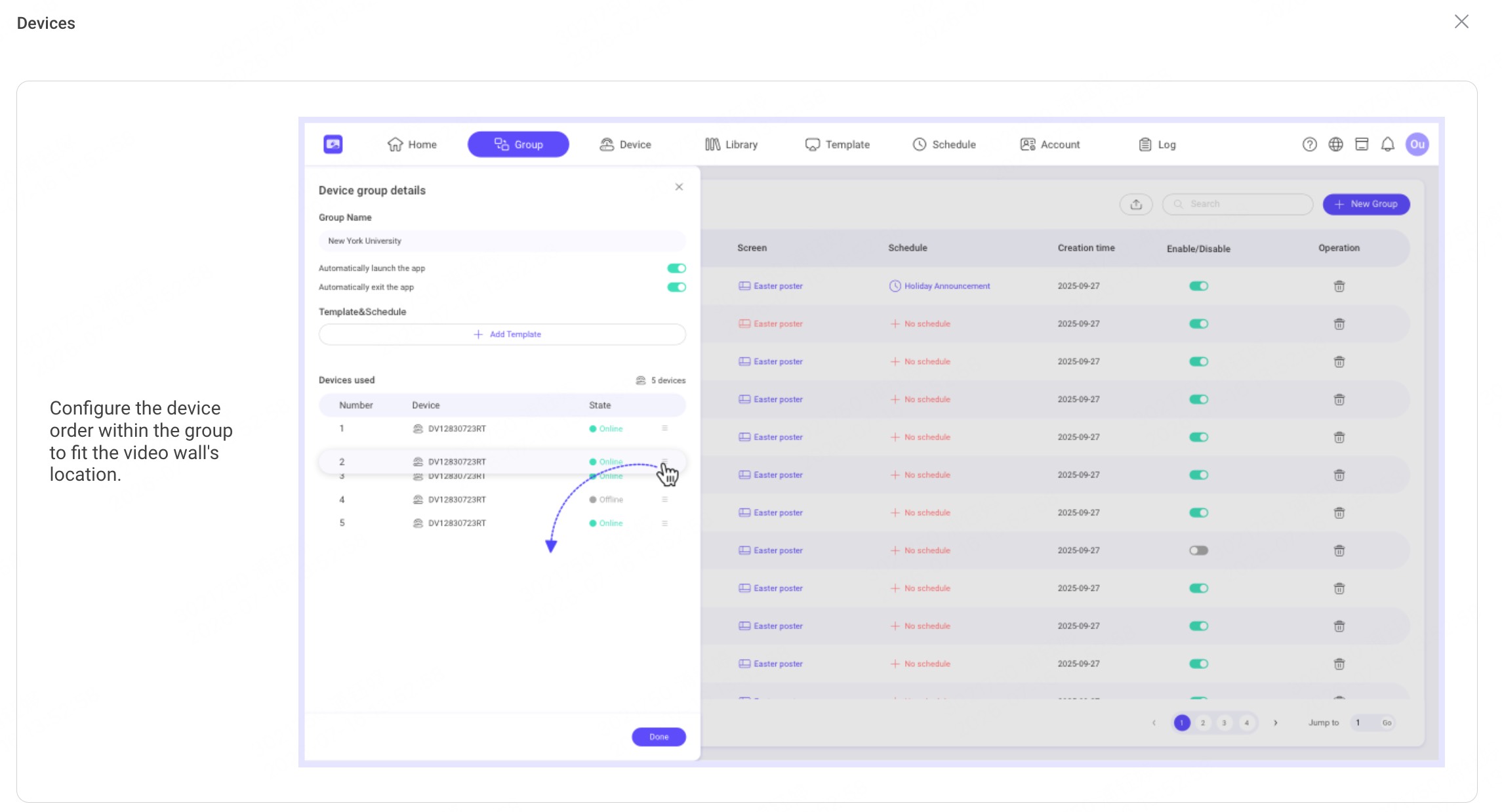
6.4.2. Configure the Device Order
The device numbers in the Device Group correspond to Device 1, Device 2, and so on in the Video Wall layout.
Open the Device Group details and drag the devices to adjust their order according to their physical positions in the Video Wall. The device order can be configured before or after creating the Video Wall.
6.5. Share a Template Group with Workspaces
INFO
The Share feature allows you to share a Template Group with other workspaces in the same organization. This feature is available only with the Enterprise (District) Plan.
Step1. Under Main, click the menu icon next to a Template Group and select Share.
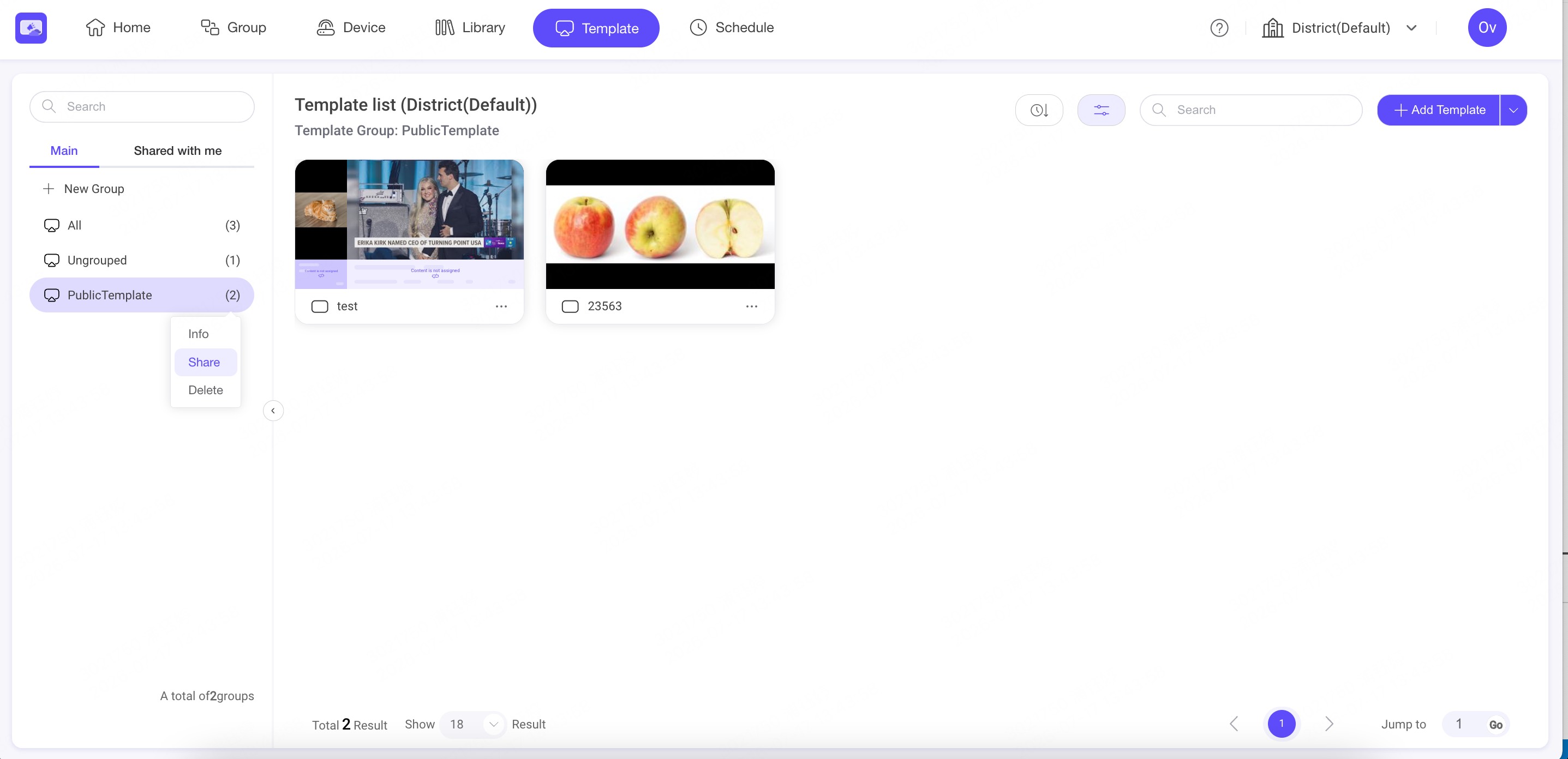
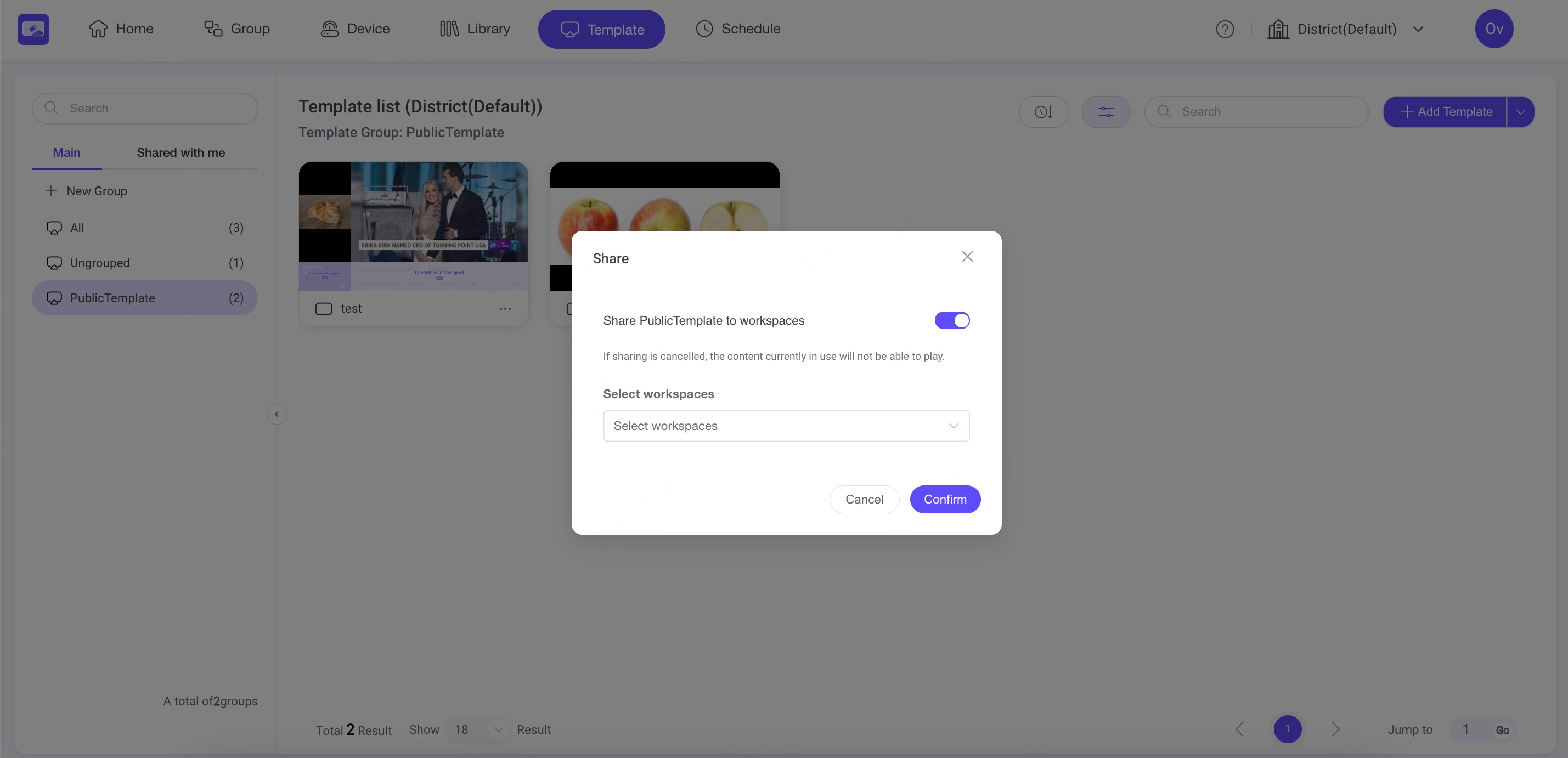
Step2. Enable sharing, select the target workspaces, and click Confirm.
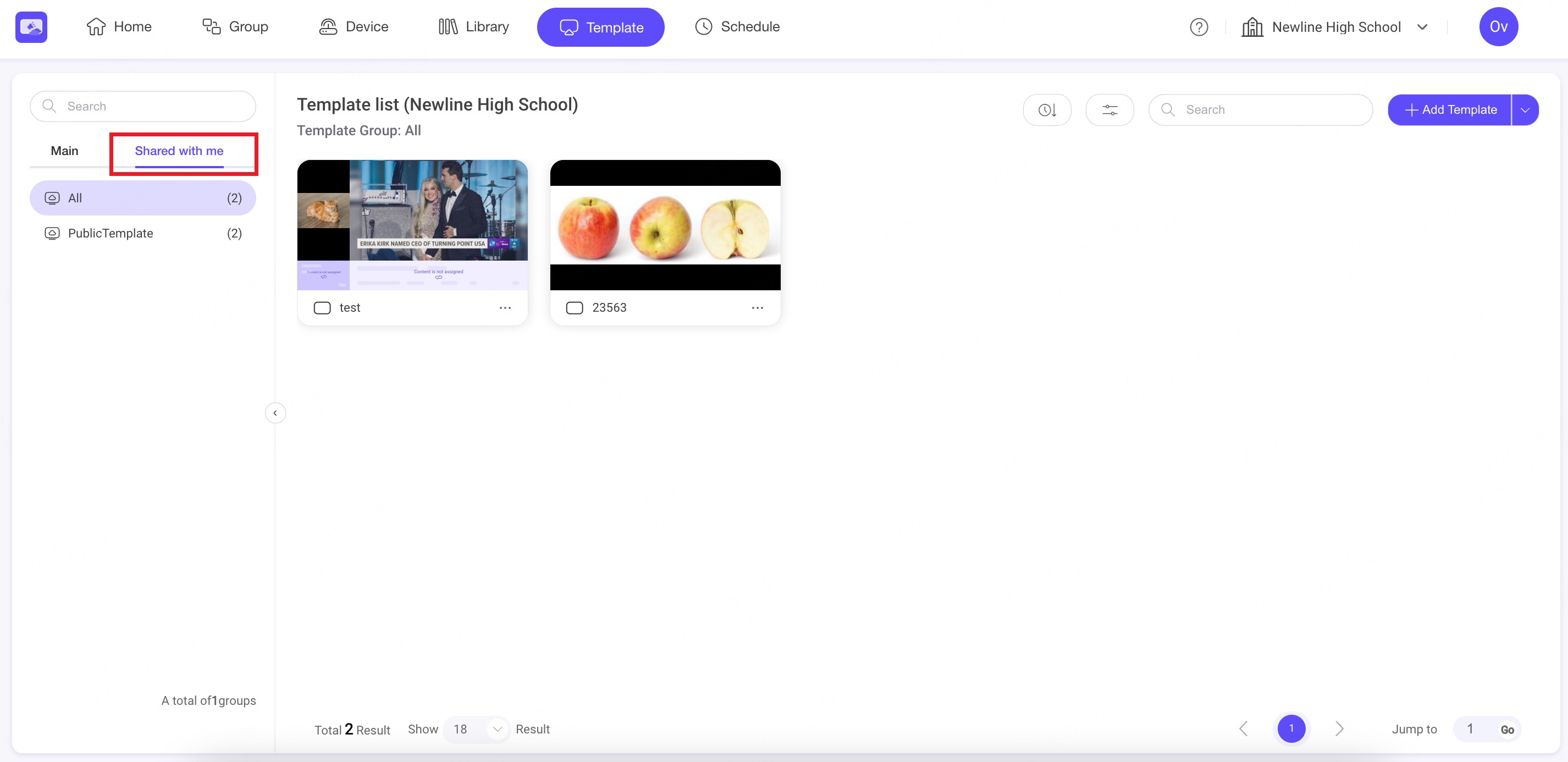
Step3. Users in the selected workspaces can find the shared Template Group under Shared with me.
💡 Note:
- Users in the receiving workspaces can view and use the shared Templates, but cannot edit them.
- If sharing is cancelled, shared Templates currently in use in the receiving workspaces will no longer play.
7. Schedule
INFO
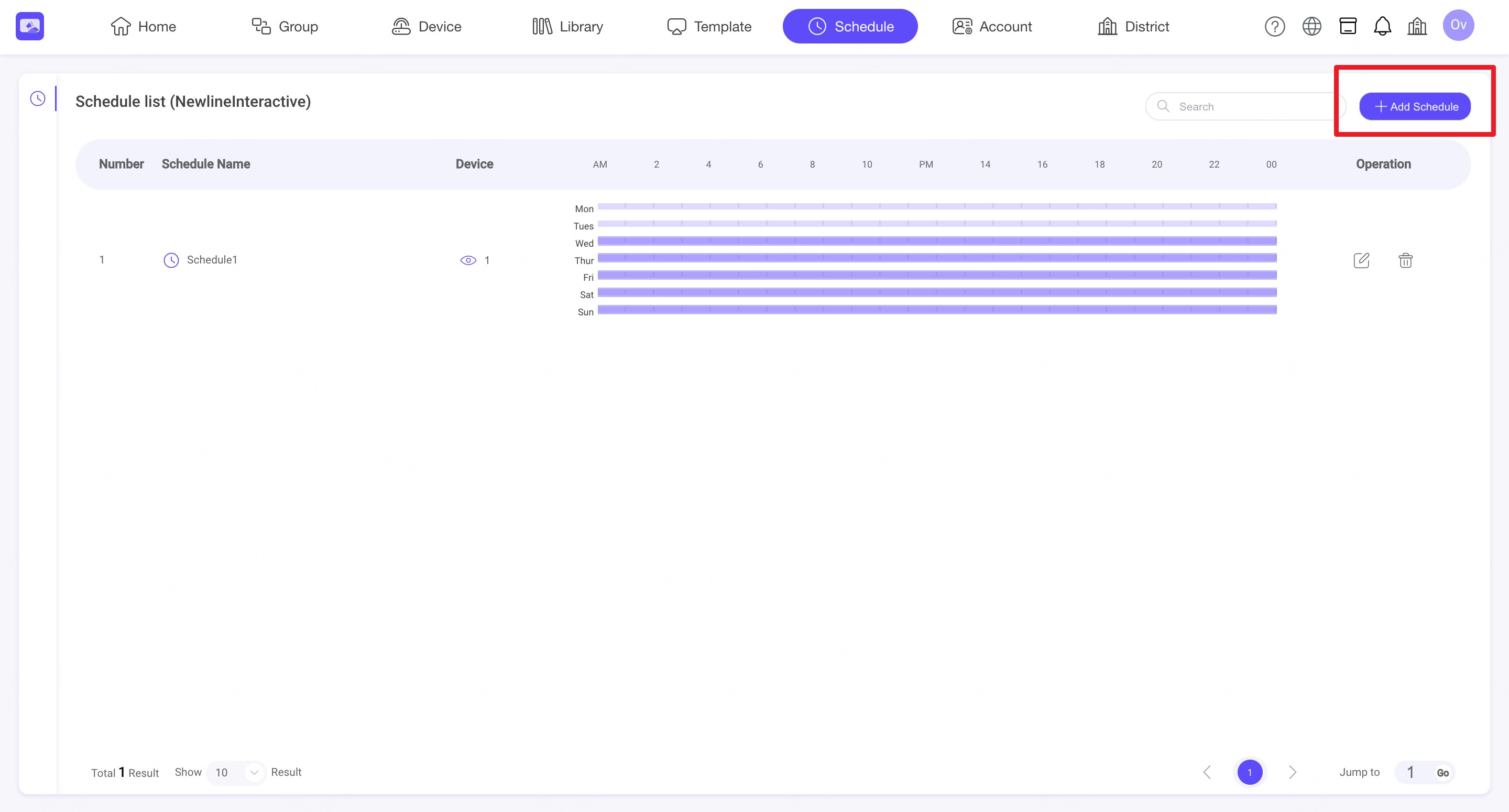
Schedule module is available for setting the play time for your devices. You can set multiple time schedules for your device. The app will automatically launch and play the template you configured when the preset schedule time is reached.
7.1. Create a schedule
Step1. Click 'Add Schedule' button.
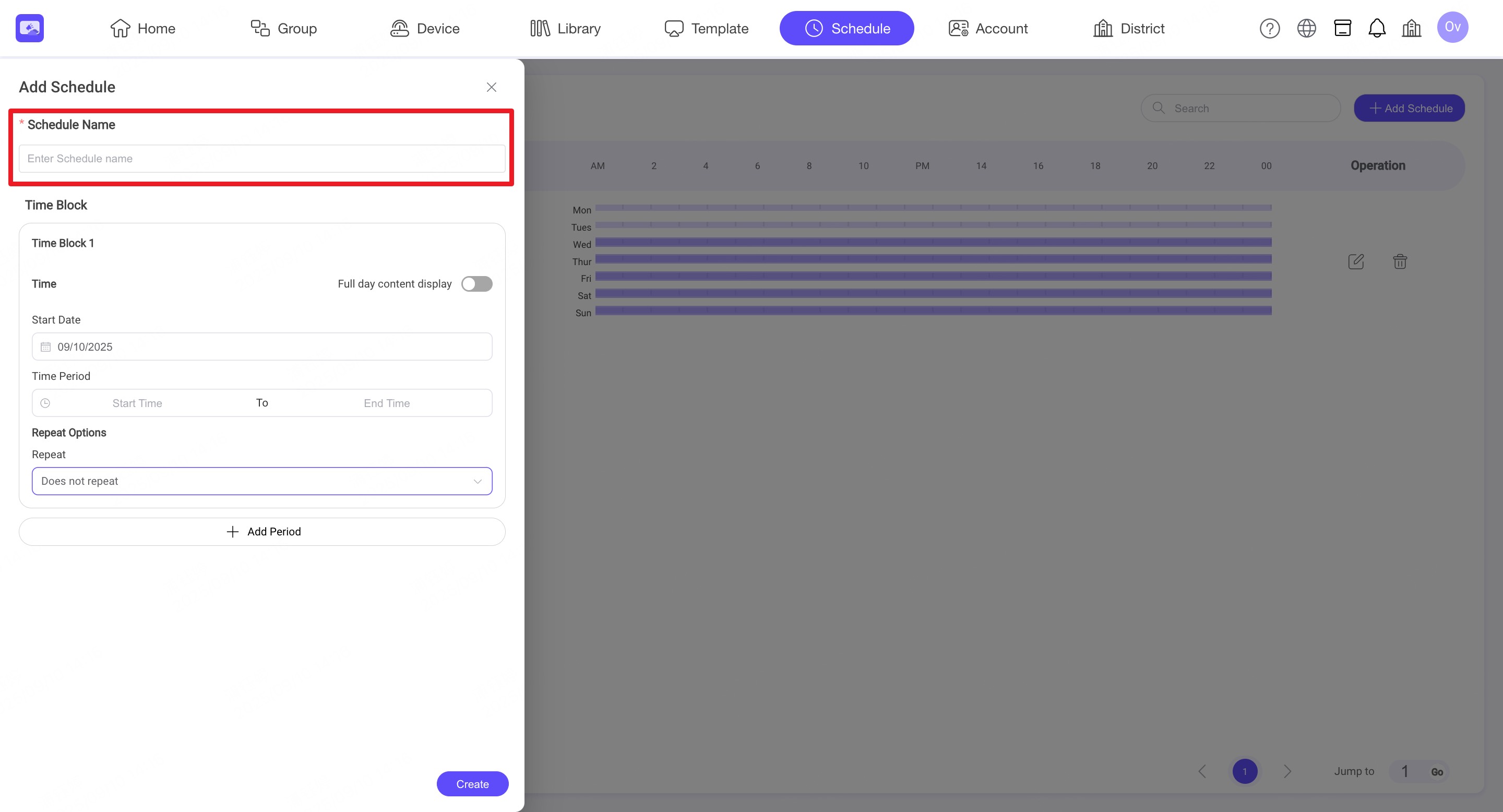
Step2. Enter Schedule Name.
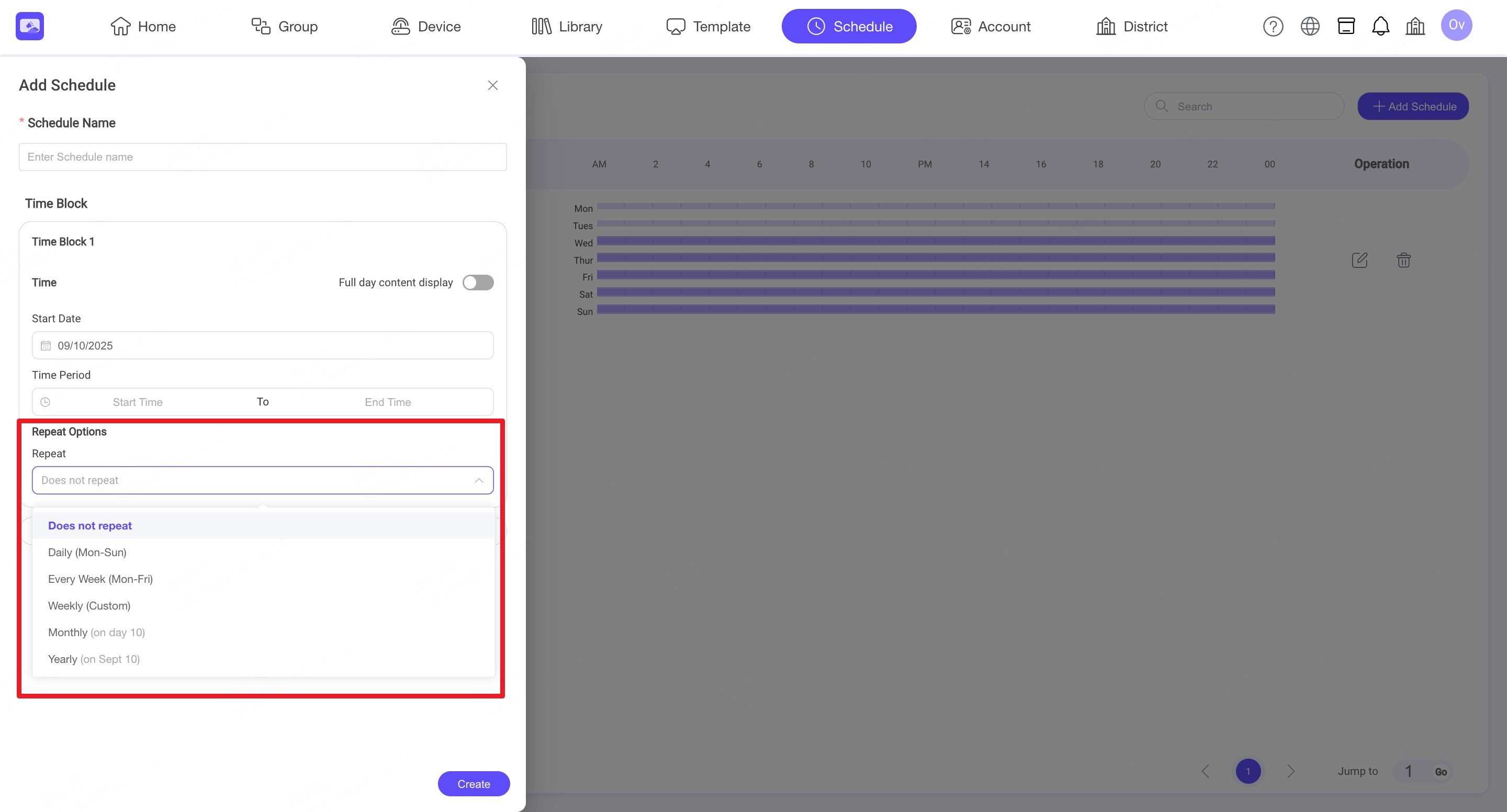
Step3. Add one or more periods and set the repeat option.
8. Users
INFO
The Users module allows administrators to invite or create sub-accounts to assist in managing devices, schedules, and content. Each user account can be assigned a specific role, ensuring proper access control within the organization.
8.1. Preset Roles
INFO
Six preset roles are provided to help administrators quickly assign permissions to users.
Each role has different levels of access to devices, groups, library, template, and account management.
Click the Role tab on the left. You can view the preset roles.
Chief Admin Has full system-wide control across all organizations and workspaces.
Organization Admin Manages all workspaces and role management.
Workspace Admin Manages specific workspaces and accounts.
Content Scheduler Focuses on scheduling and publishing content to assigned devices or groups.
Content Creator Creates and manages media content and templates within assigned workspaces.
Device Manager Responsible for managing devices and related configurations within assigned workspaces.
8.2. Create a role
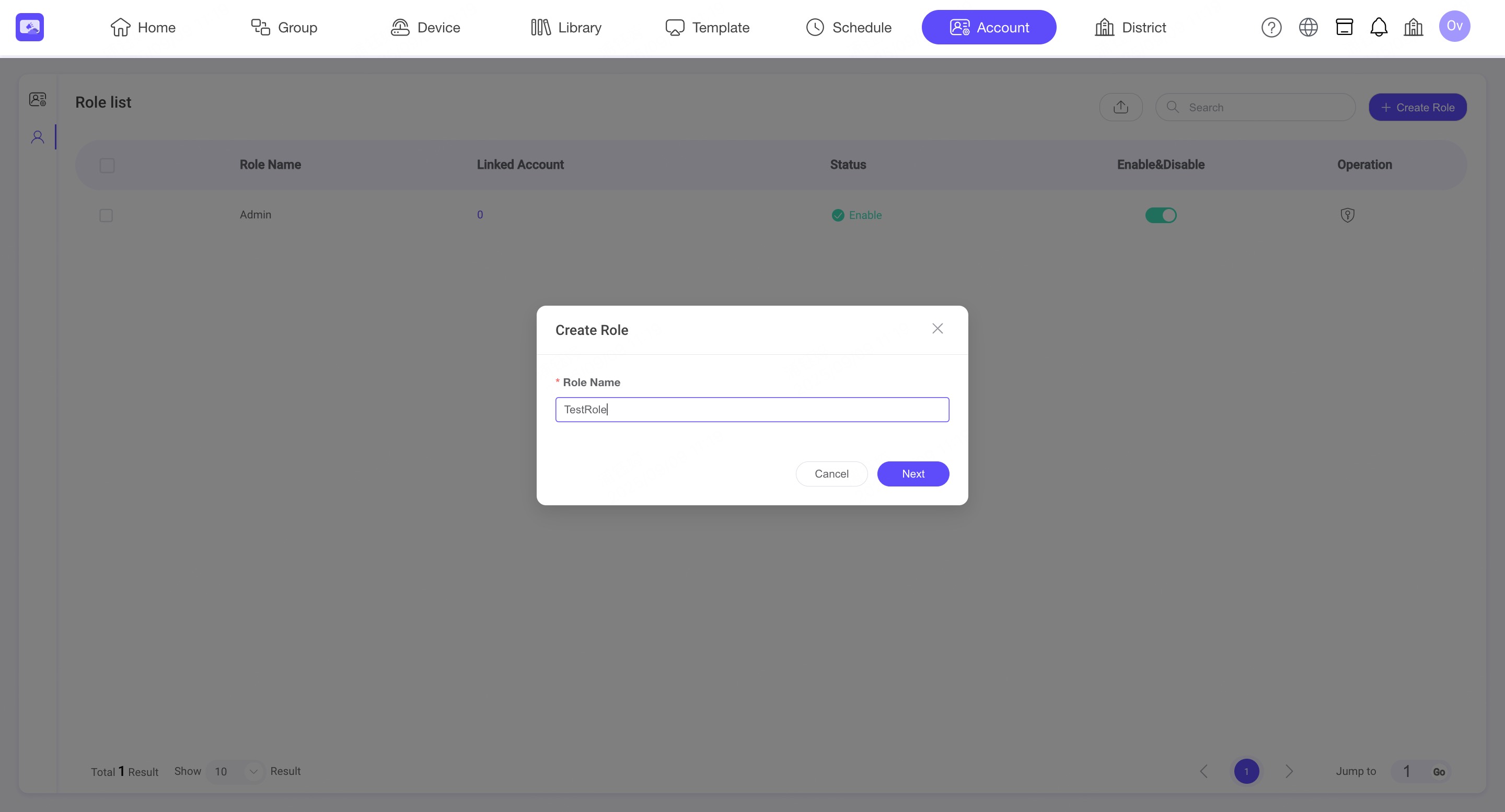
Step1. Click the Role tab on the left and select Create Role.
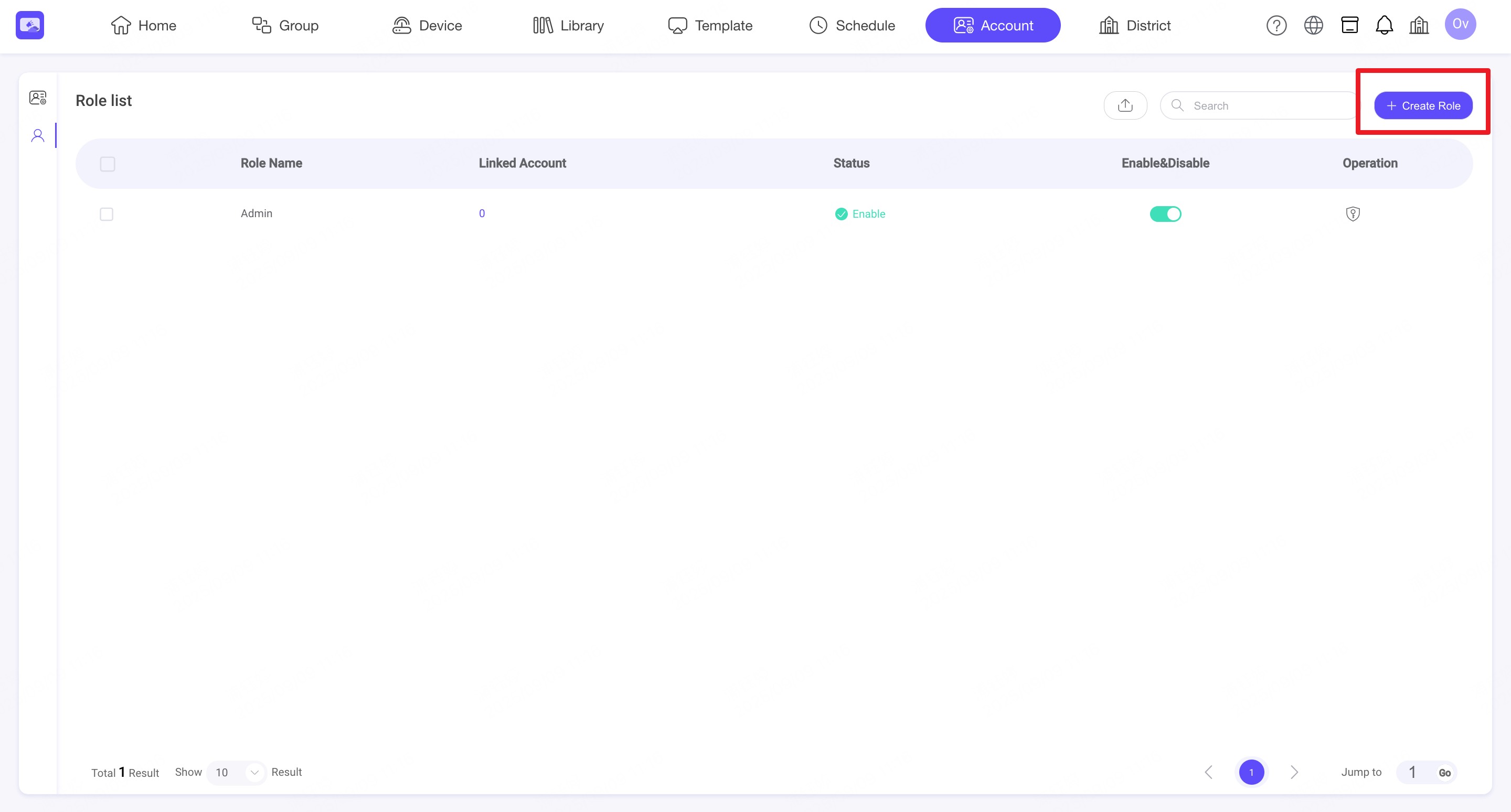
Step2. Enter a Role Name, and click Next to configure permissions for devices, templates, schedules, the Library, and other modules.
8.3. Invite a user
Step1. Click the 'Create' and 'Invite' button.
Step2. Enter the Email (must not already have an NSP account) and select the Role you just created.
Step3. Click Send. The invited user will receive a verification email to activate the account.
8.4. Create a user
INFO
The Create User feature allows administrators to manually add new team members to the NSP platform. This streamlined process ensures that new users can access the system immediately without the need for external verification.
Security Best Practice Since accounts are created with custom passwords and do not require email verification, we recommend:
- Providing the user with their credentials via a secure internal channel.
- Encouraging users to change their password upon their first successful login to ensure personal account security.
8.5. Bulk add sub-accounts
Step1. Click the 'Create Subaccount' and 'Bulk add' button.
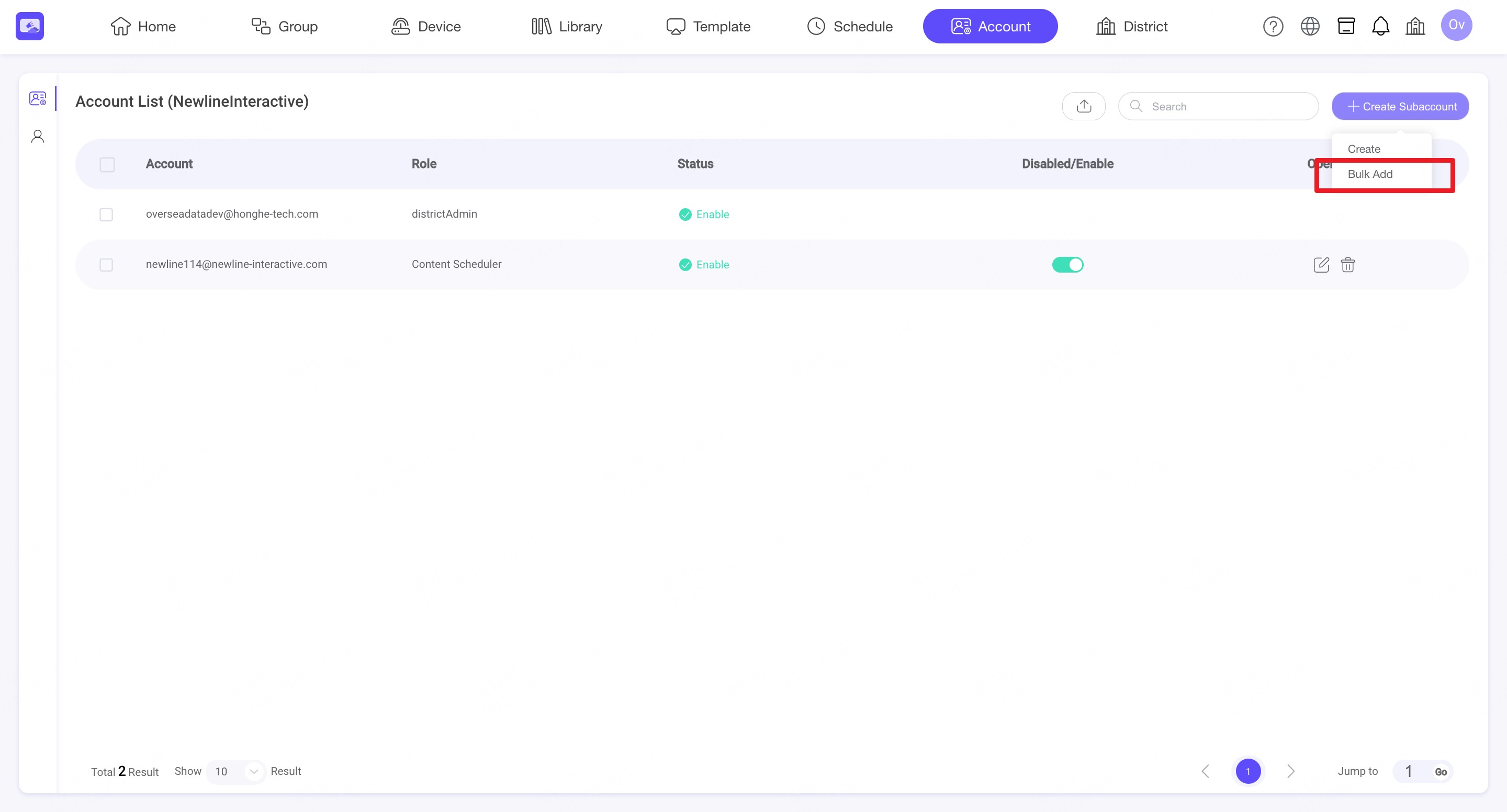
Step2. Download the import template file.
Step3. Fill in the "Subaccount" sheet.
- Sub-account Email – must be unique and not already registered with NSP
- Role – select from roles already created in the system(Device Manager, Content Creator, Content Scheduler)
Step4. Upload the completed file and confirm the import.
Step5. You can view the import result.
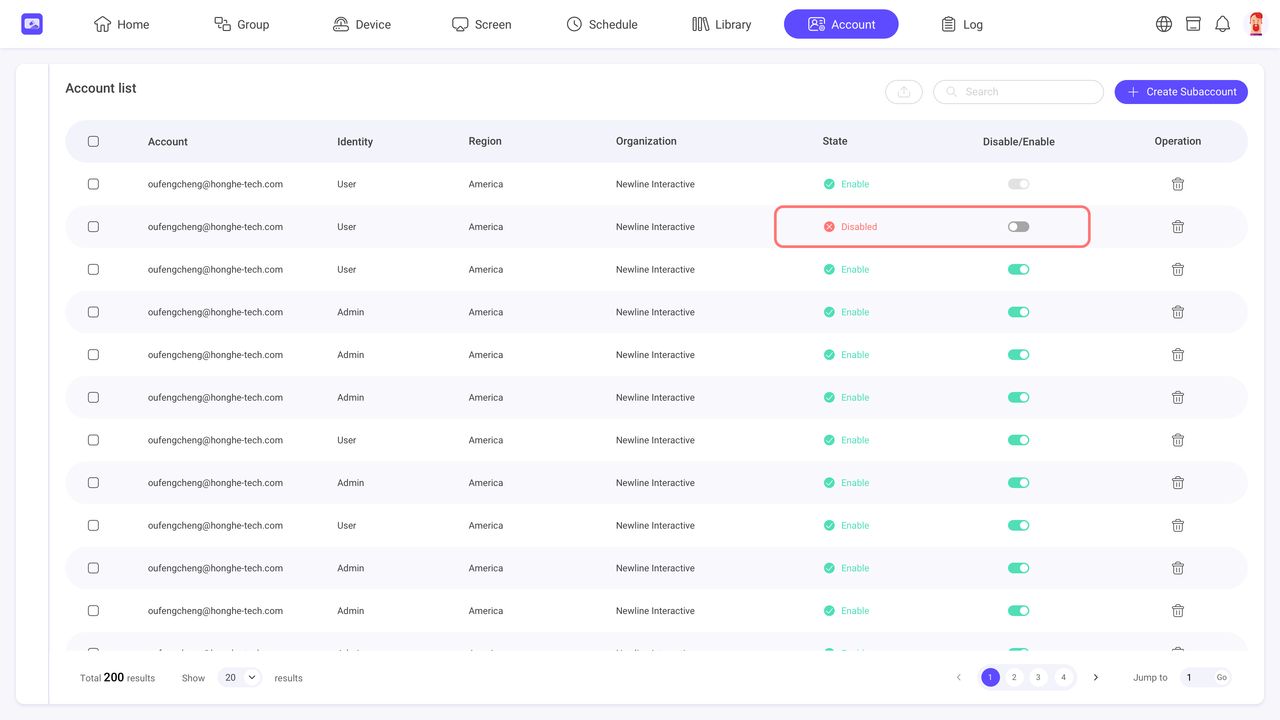
8.6. Disable or enable an account
Admin can disable the user account. They will not be able to log in when the account is disabled.
9. Workspace
INFO
The Workspace module is available only with the Enterprise (District) Plan. It allows administrators to create workspaces, assign Workspace Admins, and add devices for centralized management.
9.1. Create Workspace
Step1. Log in with a District Administrator account, click the Avatar, and select Workspace.
Step2. Click Create, and then select Create.
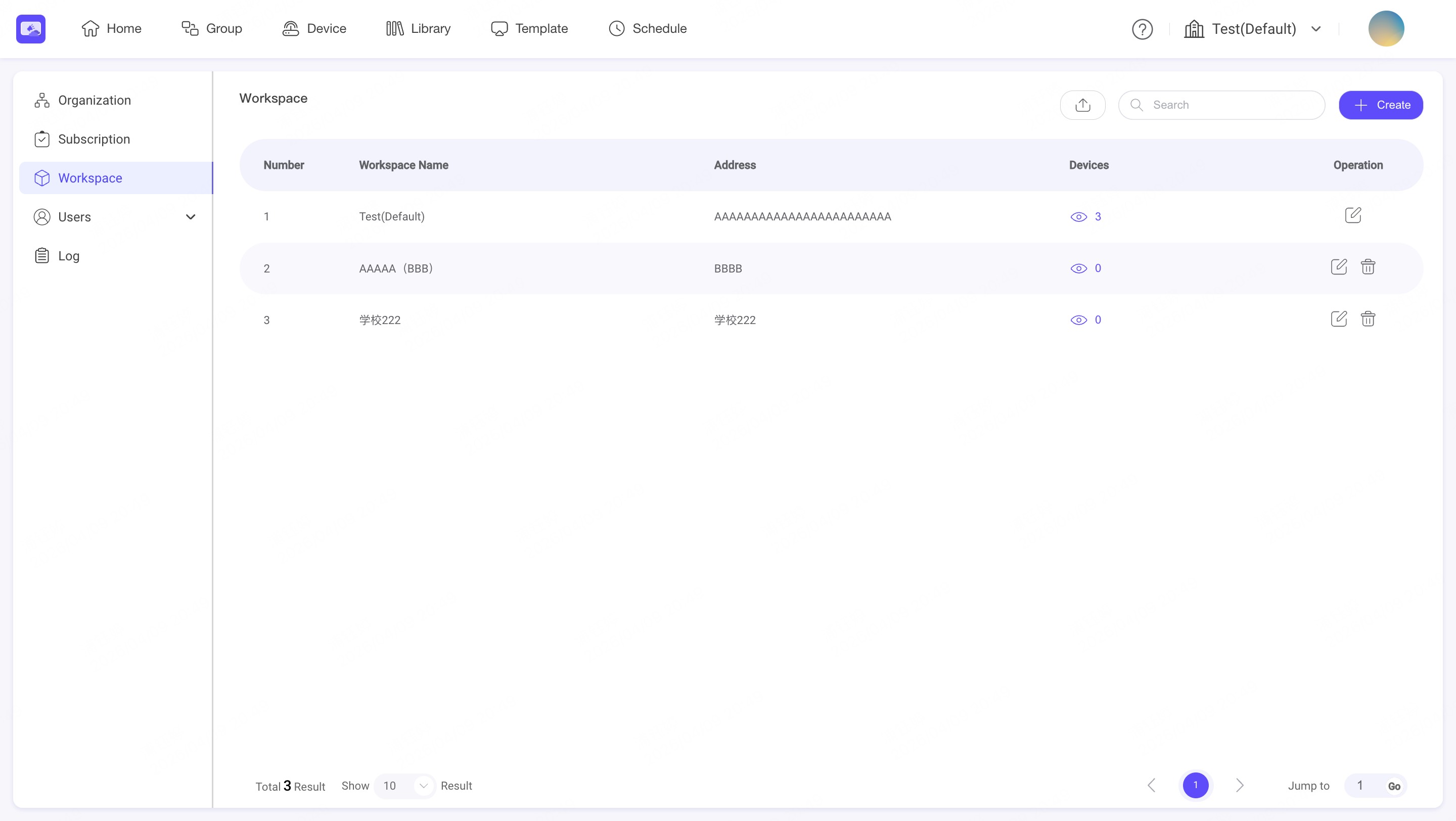
Step3. Enter the following information:
- Workspace Name
- Address
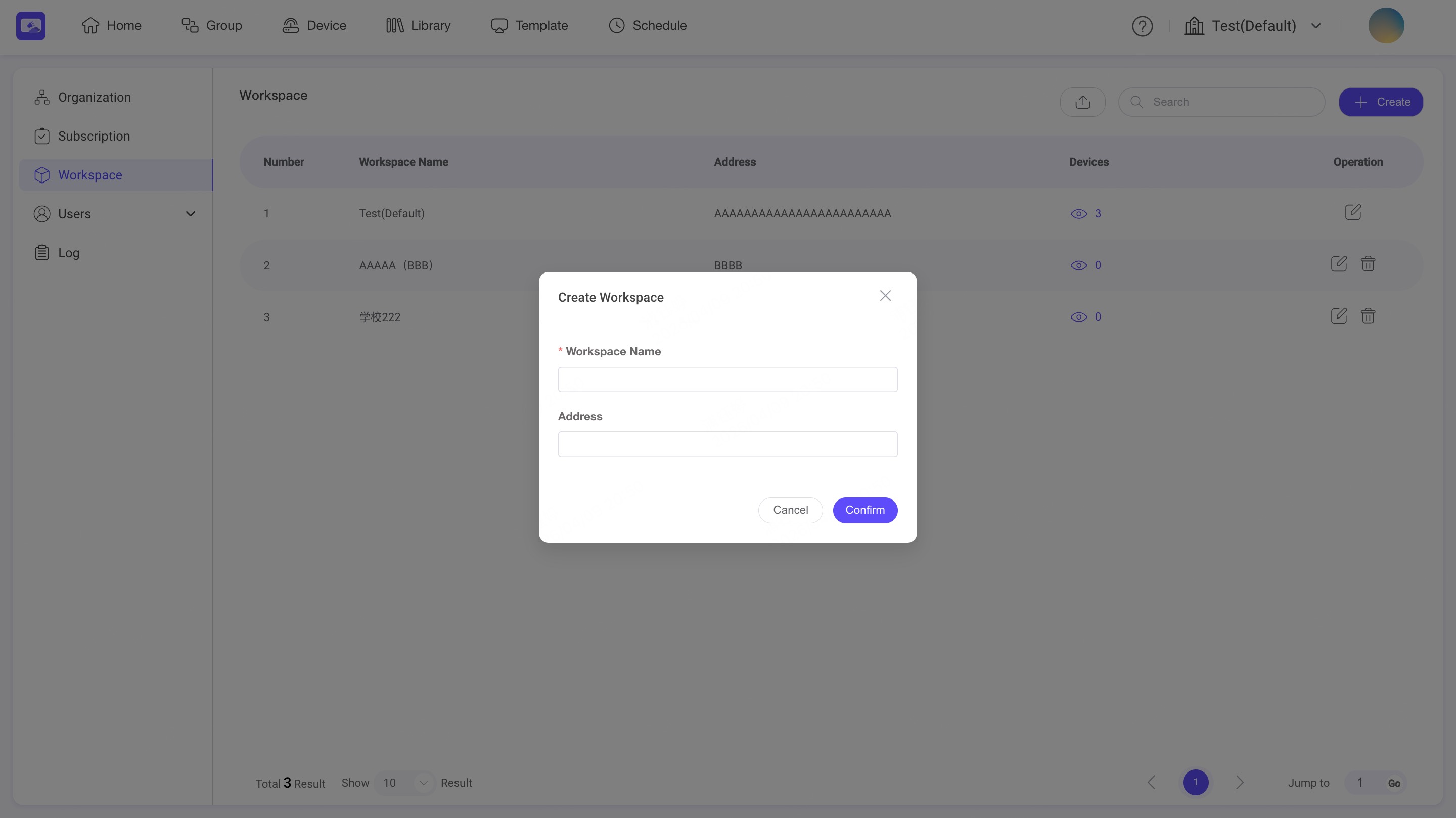
Step4. Click Confirm. A new workspace is created.
9.2. Bulk import
INFO
The Bulk Import feature allows District Administrators to add multiple workspaces, Workspace Admins, devices, and sub-accounts at once using the provided Excel template.
Step1. Click Create and Bulk Add
Step2. Download the import template file.
Step3. Fill in the "Workspace" sheet.
- Workspace Name – Workspace name is required, each name should be independent
- Address – the workspace’s address
Step4. Fill in the "Devices" sheet.
- Device SN – required, unique identifier of each device
- Device Name – for easier identification in the platform
- Workspace Name – Workspace name is optional. If left blank, the device will belong to the organization workspace. If filled in, the device will belong to that workspace, and the workspace admin can manage its devices after login
Step5. Fill in the "Users" sheet.
- User Email – must be unique and not already registered with NSP. The account will be created automatically.
- Role – select from roles already created in the system(Device Manager, Content Creator, Content Scheduler)
- Workspace Name – Specify the user’s accessible workspace. If left blank, the user will be assigned to the organization workspace by default.
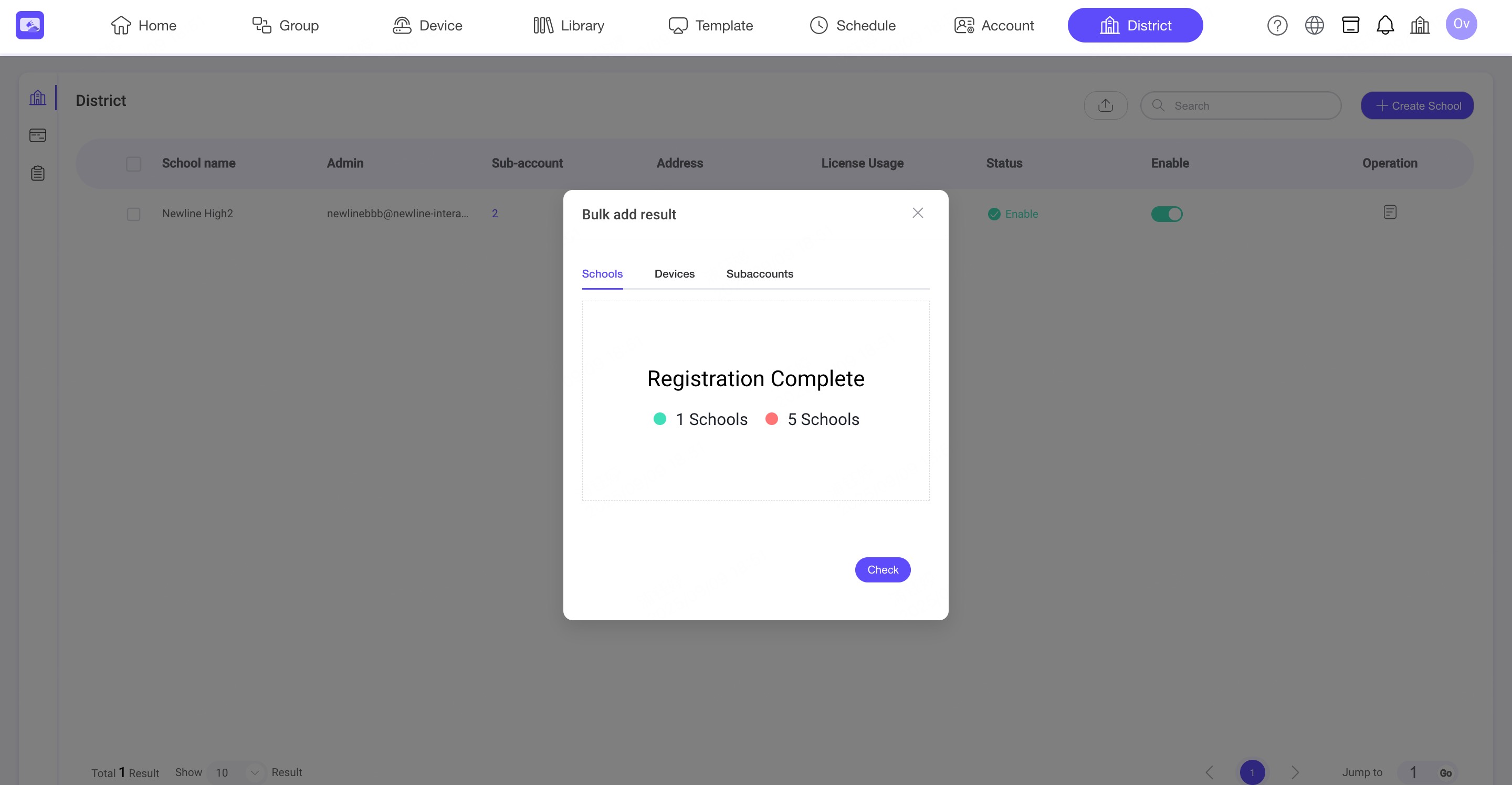
Step6. Upload the completed file and confirm the import.
Step7. You can view the import result.
9.3. Switch to Workspace
Step1. After activation, the Organization Admin can view all workspaces and switch between them using the top-right drop-down menu. A Workspace Admin can use the same menu to view and switch between their assigned workspaces.
10. Organization
INFO
The Organization module displays your organization information and allows you to configure default App settings and device playback settings for the organization.
10.1. Basic Info
The Basic Info section displays the organization name and region associated with the current organization. This information is read-only and cannot be modified from this page.
10.2. Default Setting
The Default Setting section defines the default options used by all accounts when creating new Apps.
You can configure the following options:
- Temperature Scale
- Date Format
- Time Format
- App Language
Step1. Click Edit.
Step2. Select the preferred default options.
Step3. Click Update to save the changes.
The updated settings will be used as the default options when users create new Apps. Existing Apps will not be changed.
10.3. Device Display Settings
The settings in this section apply to all devices bound to the organization.
Black Segment Line: When enabled, black separation lines are displayed between Template blocks during content playback.
Enable Playback in Lockdown & Sub-user profile: When enabled, NSP content automatically starts playing on the Lockdown or User Selection screen after 30 seconds of inactivity.
11. Subscription
INFO
You can view the current organization's license information under Subscription, including the number of available licenses and their expiration dates.
12. My Profile
INFO
You can edit your personal information, including your avatar, email address, password, SSO settings, and license information under My Profile > Account Center.
12.1. Reset your password
Step1. Enter your current password.
Step2. Enter a new password and confirm it twice.
12.2. Edit single sign-on account
You can bind or unbind your Google or Microsoft email account here.